One of the common questions I get is how to maximize and activate BizSpark’s MSDN Benefits for Windows Azure. These free Azure credits allow you to save tonnes of upfront capital costs and focus on building your product on top of our services. Multiple accounts also allow you to do testing on multiple machines.
Here’s is a quick guide on how you can maximize your benefits!
What is Windows Azure? Windows Azure is an open and flexible cloud platform that enables you to quickly build, deploy and manage applications across a global network of Microsoft-managed datacenters. You can build applications using any language, tool or framework. And you can integrate your public cloud applications with your existing IT environment.
[caption id=“attachment_15328” align=“alignnone” width=“610”]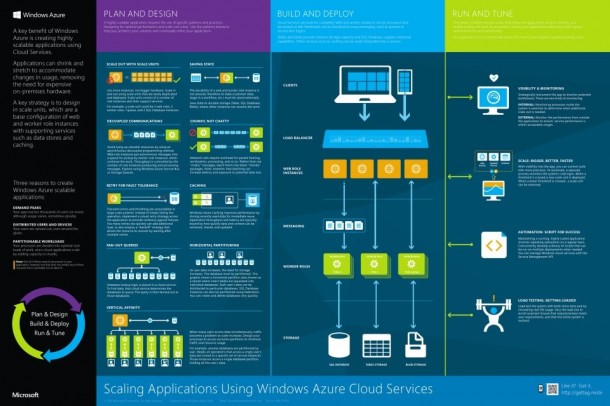 Windows Azure Offerings[/caption]
Windows Azure Offerings for BizSpark Members
[caption id=“attachment_15339” align=“alignnone” width=“610”] Azure Benefits for BizSpark Members[/caption]
Windows Azure provides great benefits for BizSpark members. BizSpark members automatically receive the Windows Azure benefit through their Visual Studio Ultimate with MSDN subscriptions. These benefits include $150USD monthly credits of Windows Azure, lower rates and no additional charge for using MSDN software on Windows Azure. In addition, BizSpark members retain production use rights under this Windows Azure benefits offer.
[caption id=“attachment_15340” align=“alignnone” width=“610”]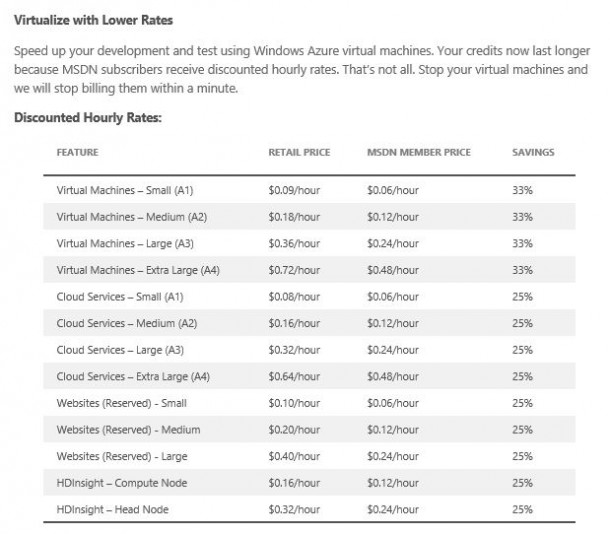 Azure Rates for BizSpark[/caption]
Activate and Maximise Your Benefits for Windows Azure.
- Add more members to your BizSpark account. Just click on ‘Manage’ on the left bar after logging into BizSpark.com.
*Remember that you can add up to 8 developers under your account so that they can have access to the benefits of BizSpark.
[caption id=“attachment_15335” align=“alignnone” width=“610”]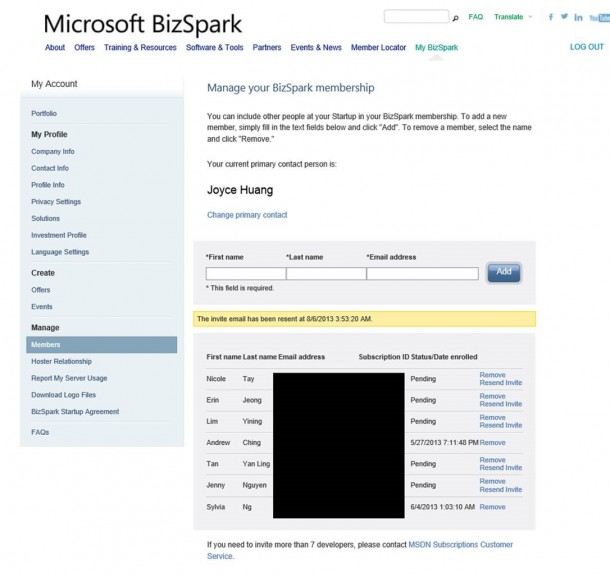 Add more members to your BizSpark account.[/caption]
- Next, go to this link to view all Azure benefits and click on ‘activate’.
http://www.windowsazure.com/en-us/pricing/member-offers/bizspark-benefits/
[caption id=“attachment_15343” align=“alignnone” width=“610”]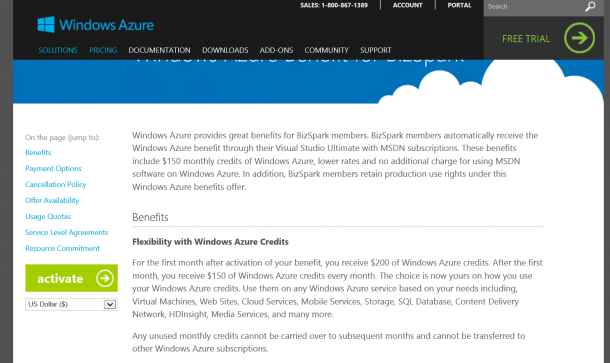 Azure activation[/caption]
- Log on with your Microsoft Account (the ID that you provided when applying for BizSpark).
[caption id=“attachment_15344” align=“alignnone” width=“610”]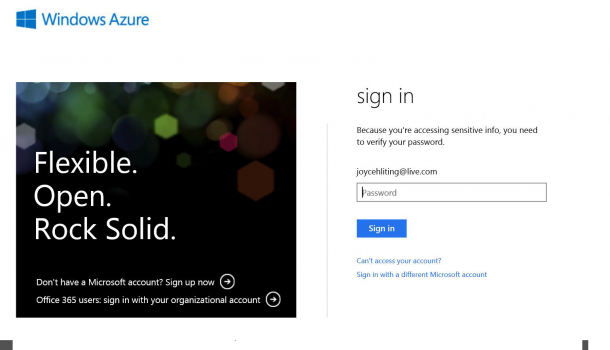 Windows Azure Login[/caption]
- Check the box for terms and services and select ‘Purchase’.
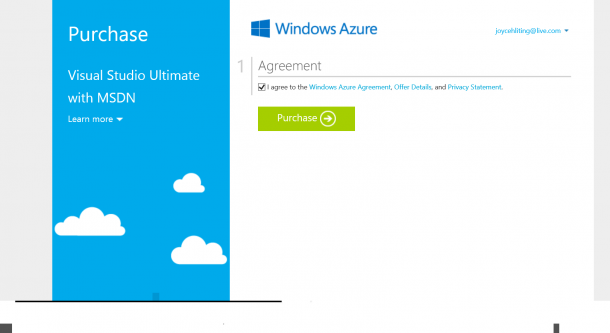
- You’ll be brought to your Azure account management page, where you can access your subscriptions. BizSpark Members get Visual Studio Ultimate with MSDN.
[caption id=“attachment_15346” align=“alignnone” width=“610”]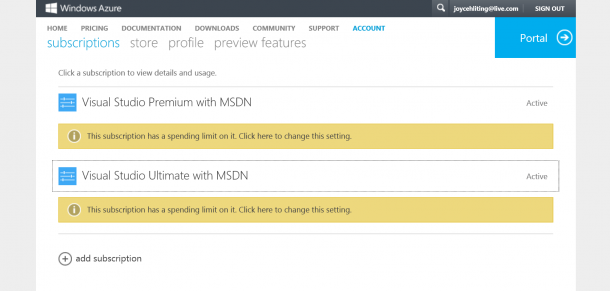 You can check the amount of credits in your account simply by clicking the subscription.[/caption]
[caption id=“attachment_15349” align=“alignnone” width=“610”]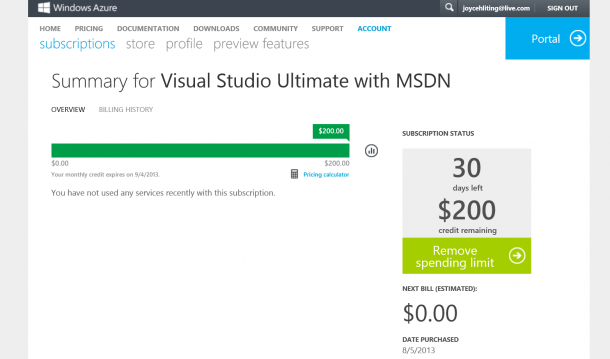 Each BizSpark member given US$200 credits at the start, and subsequently, $150.[/caption]
Each BizSpark startup gets to add up to 8 accounts to their BizSpark membership and each gets US$150 worth of credits per month. That’s $1,200 credits per month. Feel free to utilize all the accounts and try the great services we have on Azure!
Have fun! helpful hints