As Microsoft Technical Evangelist covering Private Cloud, System Center, Hyper-V, Azure and Datacenter, Richard is a recognized industry expert in server infrastructure, datacenter management, cloud and virtualization

As Microsoft Technical Evangelist covering Private Cloud, System Center, Hyper-V, Azure and Datacenter, Richard is a recognized industry expert in server infrastructure, datacenter management, cloud and virtualization
This is the product launch year for Microsoft. You have new products from the server all the way to the client. To help understand these technologies better, you can find Tech Showcase from all Microsoft Learning Partners. It comes with Hands-on experience on new technologies like Windows Server 2012, Windows 8 Development, SQL Server 2012, SharePoint Server 2013, Lync Server 2013 and many more. To find out more and have a first-hand look at the latest product features and enhancements, you can visit the following CPLS for more detail Tech Showcase details ...
The wait is over, Windows 8 is finally here. There were a lot of excitement across media, online and our launch events at different locations across Singapore. Many people already got their hands on Windows8. Now comes the next step. How can IT Pro be prepared and get ready for Windows 8? Here are some very good materials to get you up to speed on Windows 8 Management and Deployment. Watch the Windows 8 Jump Start for IT Pro: http://technet.microsoft.com/en-us/windows/jj687764.aspx there are total 6 modules including ...
Well, we all know how important DHCP server is. It used to be difficult to create failover for DHCP server. In Windows Server 2012, this is super easy. You can pick any server (with DHCP role installed and Authorized) in your datacenter and create a DHCP failover partnership. You can configure this in two model Load Balance or Hot Standby. Do you need a cluster? No For a Single site deployment, it is pretty straight forward. ...
Welcome to a blog series about Windows Server 2012. Recently many people asked me about what are the exciting things about Windows Server 2012 apart from Virtualization. Well, there are many of them. One thing probably left in the shadow of the over 375 new features is IIS 8.0. Let’s look at what are the improvements. Why do i care abou these new features? Here is a table how IIS 8.0 in Windows Server 2012 can address some challenges today. Let’s dive into each one of them ...
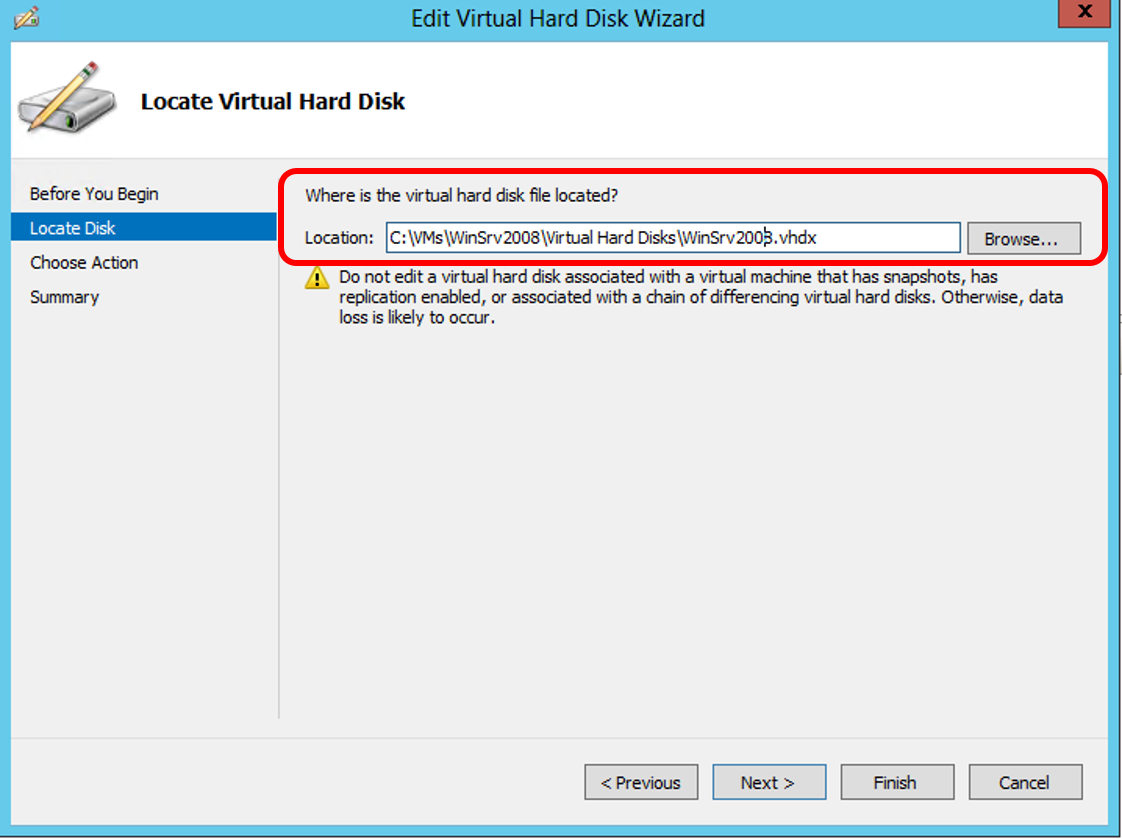
We had a lot of people at our Windows Server 2012 local launch event on 26 Sep. Many attendees also at our IT Camps on Windows Server 2012 Deep Dive. Many people told me they really like what Windows Server 2012 is offering. One question has came up few times is how can I convert VHD running on Windows Server 2012 to VHDx format for Windows Server 2012? First of all, you can still use VHD format with Windows Server 2012. It is NOT compulsory to convert the format. There are some advantages to convert the format, for example to leverage on the new disk size up to 64TB :) Here are the steps Step 1: Go to the Hyper-V Manager. Under the Actions pane, click on Edit Disk… Step 2: Specify the path of the disk you want to convert and click Next. Step 3: Choose the second option to Convert the virtual disk from one type to another and click Next. Step 4: Choose the VHDX format and click Next Step 5: In this step, you can choose to also convert disk type, Fixed or Dynamically expanding. Step 6: Choose the location for the converted disk and click Next. Step 7: Finally, you can confirm the disk format, disk type and location of the newly converted and click Finish to begin the conversion. Last but not Least This can be easily done through PowerShell and automated. PowerShell Syntax: Convert-VHD [-Path] [-DestinationPath] [-AsJob] [-BlockSizeBytes ] [-ComputerName<String[]> ] [-DeleteSource] [-ParentPath ] [-Passthru][-VHDType ] [-Confirm] [-WhatIf][ ] Example PS C:\> Convert-VHD –Path c:\VMs\winsrv2008.vhd –DestinationPath c:\VMs\winsrv2008.vhdx
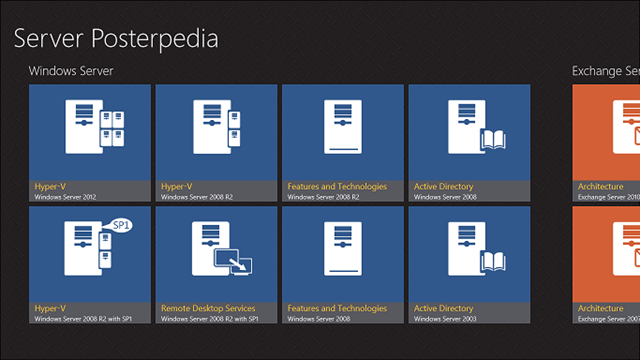
For IT Professionals, we all like components architecture. I certainly do. There is really not a very easy way to put all these server architecture posters together into a organized way to view and access whenever needed. Now there is a Windows 8 App for it! If you are running Windows 8 already you can get the app from the Windows Store here: http://aka.ms/sposterpedia One thing i love most about this app is it connects to TechNet resources. From each product architecture poster, I can view technical documents on TechNet like ...
Thank you everyone for your warm participation in our MEP2012 event. It was great to see the breakout sessions were filled with people. Due to keynote overrun, we went through things rather quickly. As promised, I am posting all PowerShell Scripts during my session here. Do change the scripts parameters that is specific to your environment To enable Resource Metering for all VMs within a host: Get-VM -ComputerName | Enable-VMResourceMetering To enable Resource Metering for a specific VM: Enable-VMResourceMetering –VMName To get resource utilization on all VMs within a Host Get-VM -ComputerName | Measure-VM To get resource utilization on specific VM Measure-VM –VMName To set bandwidth on each VM Set-VMNetworkAdapter -VMName -MaximumBandwidth 5000 During the Demo, I also showed a script to get VM cost. Here is the script # Get-VMCost Script Function function Calculate-VMCost($VMName) { $BaseCost = 50 $MemoryCostPerGB = 20 $ProcessorCostPerGHz = 30 $IncomingNetworkCostPerGB = 10 $OutgoingNetworkCostPerGB = 30 $ChargebackData = Measure-VM $VMName Get-VM $VMName | Reset-VMResourceMetering $VMCost = $BaseCost $VMCost += $ChargebackData.AverageMemoryUsage * $MemoryCostPerGB / 1024 $VMCost += $ChargebackData.AverageProcessorUsage * $ProcessorCostPerGHz / 1024 $IncomingExternalTraffic = $data.NetworkMeteredTrafficReport | ? { ($_.Direction -eq “Inbound” ) -and ($_.RemoteAddress -eq “*.*”)} $OutgoingExternalTraffic = $data.NetworkMeteredTrafficReport | ? { ($_.Direction -eq “Outbound” ) -and ($_.RemoteAddress -eq “*.*”)} $VMCost += $IncomingExternalTraffic.TotalTraffic * $IncomingNetworkCostPerGB / 1024 $VMCost += $OutgoingExternalTraffic.TotalTraffic * $OutgoingNetworkCostPerGB / 1024 $VMCost } # Calculate VM Cost Calculate-VMCost ...
Yea, I like Windows Server 2012, but how do I migrate migrate existing DHCP Server to Windows Server 2012 easily with PowerShell from Windows Server 2008 or 2008R2 and leverage the new DHCP failover feature? This can be done easily with the new Windows Server 2012 PowerShell cmdlets. Here is how: Preparation First, Install Windows Server 2012 as a VM or on physical host as you prefer in your environment. Install DHCP role and authorize the DHCP server. For example, I have a DHCP server sits on my Primary DC: WS2012VMDC01.sgmic.com. I install another VM as secondary DC:WS2012VMDC02.sgmic.com. After enable the DHCP server role, go to Windows Server 2012 and create two folders one for export and one for import. In my case, I created folder c:\export and c:\dhcp on the new DHCP server WS2012VMDC02.sgmic.com ...
Windows Server 2012 RTM is now available. You can download it and try it out at: http://aka.ms/winsrv2012 This is the best time for IT professionals who works on windows server to learn about the new Windows Server 2012 which is rebuilt from grand up. With the launch of Windows Server 2012, there are some great changes coming to http://microsoftvirtualacademy.com A new design to help you find the contents easier. More importantly, brand new in depth Windows Server 2012 Technical Sessions are now available! Courses: ...
With the Windows Server 2012 goes RTM on 4th Sep, we also had our first IT Camp on Windows Server 2012 in Singapore. IT Camp is a global event by Microsoft to help IT Pros to learn and experience new technologies from Microsoft. It was a great first IT Camp on Windows Server 2012. At the Camp, there is very few slides. All we do is hands-on with the VMs and Whiteboarding about how Windows Server 2012 works. There were many good discussions. If you have not signed up for IT Camp, You can still register through: http://weshipcode.com/it-camps-series-is-back/ Looking forward to see you there! If you want to try on your own, download Windows Server 2012 RTM at http://aka.ms/winsrv2012