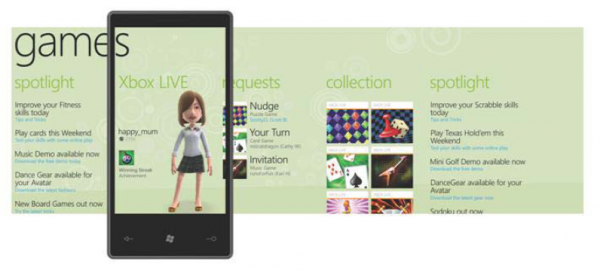
Panoramic Navigation on Windows Phone 7 with No Code!

I was reading through the UI Design and Interaction Guide for Windows Phone 7 Series and found out that there is currently no panoramic application template or control provided as part of the standard application platform. Nothing stops us from creating our own though. To make things easier, I’ve made a behavior library for everyone to use that will handle flick gestures. I’ve also included a “GoToNextState” behavior which I based on http://gallery.expression.microsoft.com/en-us/MIXBehaviorPack. If you want to follow along, you’ll need to download my behavior library. Also, if you don’t know where to get the Blend bits, check out this post: http://electricbeach.org/?p=460 So, let’s start by creating a new Windows Phone Application project in Blend 4. ...

Consuming Data from Nimbus Using LINQ to XML on iPhone + WP7!

I’ve been starting to explore iPhone development lately. At first I was taking my time at learning at Objective C which went fine for a while but one of the guys on the project was asking if I could help build some apps for Project Nimbus, translation: build stuff fast. We talked about MonoTouch.NET which is basically a framework that will allow you to code apps with .NET. JOY!! First a quick intro about Project Nimbus: as Chewy would put it, it’s basically a supermarket for data here in Singapore. The team is hard at work at securing data from all sorts of providers. They currently have Hungry Go Where, Land Transport Authority, National Environment Agency, and National Library Board onboard as data providers, and i know they have quite a few more coming. What this means for developers is that if they have a great idea, they don’t have to go out by themselves with these big agencies and possibly spend tons of money on acquiring the data. If you want to find out more, check out http://projectnimbus.org/about/ for more information. They also very keen on getting input from developers as to what types of data they think would be useful, as well as feedback on the project as well. If you’re interested, the about page has a link to contact them :) So back to my application. Right now, I’m figuring out how to actually get the data from the service. Looking at this entry, they actually provide a link to the data that’s returned when you make a call to the service. Check out the post, and towards the end, you’ll find a few links that shows how the data looks like. First we create a webrequest to the URL that gives me the dataset we want. In this case, we want to get access to the NowcastSet i.e. current weather. The service actually gets authentication from the headers so we add these two keys & values. We then make the request and read it into a string for parsing later on. ...

The Lazy Man's "PHP Hello Cloud"

Due to the popular demand on how to actually host a PHP application on Windows Azure, this post teaches you the easiest way to deploy your PHP applications on the Cloud with the least effort and there is no need to use Windows Azure. Resources Needed PHP Binaries for IIS (http://windows.php.net/) MySQL PHP Solution Accelerator (http://code.msdn.microsoft.com/winazuremysqlphp) VS2008 SP1/VS2010 Beta 2 w/ Windows Azure SDK Steps Install the MySQL PHP Solution Accelerator. Extract the PHP binaries for IIS to the “php” folder in the PhpMyAdminWebRole directory. E.g. “C:SamplesAzureMySQLPHP_x86PhpMyAdminWebRolephp” Create a new “Windows Azure Cloud Service” solution in Visual Studio. Add an existing project, “PhpMyAdminWebRole” (From the Solution Accelerator), to the solution you created. Right click on “Roles” and select “Add-> Web Role Project in solution” and select the project you added in your solution previously. Add a new text file in “PhpMyAdminWebRole” and name it “index.php”. The contents of the file is “ <?php echo ‘Hello Cloud’; ?> “ (Optional). Open Web.config and replace “ <add value=“Admin.aspx”/>” to “ <addvalue=“index.php”/> “ And you are all set! Hit F5 in your Visual Studio to see your work in action on the Development Fabric.