Windows Make8 competition winners

Hello everyone! Here are the 4 winners for Make8 Competition Walau Description Ever wonder what is that shadowy figure up in the bridge when you are driving below it and out of nowhere comes a ticket for breaking traffic laws? Now you can be that shadowy figure and issue tickets to traffic breaking motorists! Traffic Laws - Speeding! - Exhaust pollution to the environment! - Motorist who failed to pay the toll upon passing through gantry! - Motorist that drive in bus lane during bus lane hours! ...

Unity Contest for Windows and Windows Phone

If you are a developer with Unity, or have plans to make your own game title, don’t miss this challenge! Win up to USD50,000 if you port or submit your game to the Windows Store and/or Windows Phone Store. Benefits: Free publishing to the Windows Store and Windows Phone Stand a chance to win cash prizes or a Unity Pro license What will the games be judged on? Who should join? ...

Make8 Windows App : OneDrive to rule them all

 Hello! We are at the 8th Installation of our Challenge, and we will be merging these challenges for both Windows and Windows Phone moving forward. This challenge would be targeting Universal Apps. You would need to deliver both Windows and Windows Phone apps for this challenge. We will be running this challenge for 6 weeks to give you more time for the universal app. Deadline is 12th July 2014 2359hrs Here are the list of Challenge to date ...

//publish/Hackathon in London

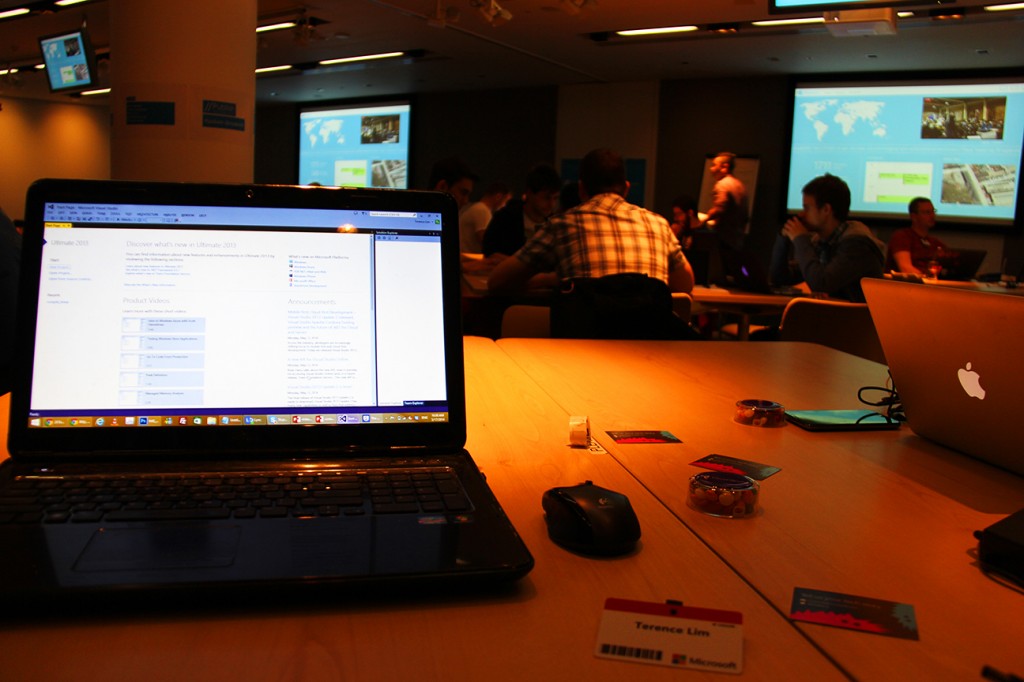
While many of you had the awesome opportunity to attend the exciting //publish/Hackathon event held in Singapore, I had the chance to attend the one held in London, United Kingdom. The event here was held at Cardinal Place, Microsoft London on 17th May 2014 from 9am - 9pm. Throughout the event, developers had the opportunity to gather for the day to develop and publish their apps. It was also a great opportunity to connect with other developers around the world via live video stream and chat room, view training sessions, and get 1-on-1 personalized consulting with Microsoft Engineers on-site at the dev clinics. The engineers provided valuable feedback to make great apps into masterpieces, where some of the support rendered included store certification preparation, migration guidance, advice for app performance, stability and design, and troubleshooting assistance. Also, there was the UK AppChallenge held concurrently, where attendees had the chance to win Microsoft hardware as we competed with one another to climb the leader board. Unlike the one held in Singapore which lasted for 2 days, we only had the event for a day, so we had to make every second count! At the end of the day, developers who published an app received a limited edition goodybag consisting thumbdrives, special edition t-shirts and cool Microsoft gifts. On top of that, developers also demoed their published apps, and the best ones won pretty awesome hardware devices. Well, enough said, I guess I’ll let the photos I took do the talking! :)

Remote Desktop into Ubuntu Server with GUI on Windows Azure

Someone was trying this out and could not get this to work so I mentioned I would write an article if I got it working and I did get it working so here is the article. Let’s not have much of the usual gibberish that I write at the start of the post and get straight to the point. What you would need: 1. 30-Day Trial Azure Subscription [link] (If you do not have one) 2. A little bit of knowledge of Linux shell commands 3. PuTTY [link] on Windows | Terminal on OS X 4. Remote Desktop Client (It’s on the Mac App Store for you OS X users. P.S. The OS X Version is also really pretty.) [link] Create your Virtual Machine through Windows Azure and let’s make one running the latest Ubuntu which is 14.04 LTS as seen below. Give it a little bit to create, eat a cookie, drink a cuppa joe or anything that can be done in 5 minutes. Once that’s done, go to the Endpoints section of the Virtual Machine and click Add to add an Endpoint. Once you see this click next and select Remote Desktop as the name of the Endpoint, all the relevant details will be filled out for you (yipee) and just hit the tick at the bottom right. Wait a little again and your Endpoint will be successfully added. Moving on to commandline stuff! Fire Up PuTTY and fill in your login details as such or if you are on OS X follow the image below PuTTY one. Now, let’s proceed onto this by just typing commands into the box above. Each line means a new command. ...

Introduction to Linux Computing

So I’m sure most of our readers have heard of Linux before? No? Maybe you have seen this linux penguin before? [caption id="" align=“alignnone” width=“307”] Tux the Linux Penguin[/caption] Nonetheless this is for those of you who have heard of Linux or the many distributions of Linux but perhaps think it’s too complicated or a long list of other reasons why you never used Linux. So now you may ask me, so what in the world is Linux? The straight answer to this question is It’s an Operating System like Windows or Macintosh. Some of you may have never had the chance to utilise Linux but Linux is more prevalent in systems than you think. Have a router, smartphone, network access storage or media streaming player? They all basically have Linux at their core. Let me introduce you to a flavour(distribution) of Linux. It’s called Ubuntu. The image below is how Ubuntu 14.04 looks like. Looks sleek and neat right? You were thinking Linux looked more like white text on a black box right? Like the image below perhaps? Well this is true in both senses but let’s not delve too deep into that area as that will just complicate things for now. If you want to try out Linux, there are tons of ways to do it but I’m going to propose the simplest way for all of us to do this and that is to use a virtual machine! So let’s move on to what we need. 1. VirtualBox [link] 2. VirtualBox Extension Pack [link] 3. Ubuntu 32-bit [link] 4. A Working Computer running Windows, OS X 5. Yourself Now that we have download all of the above, Install VirtualBox as well as the Extension Pack. Get Ready with the Ubuntu ISO you just downloaded and let’s proceed to install Linux! Create a new Virtual Machine below by pressing on the obviously blue new button. Fill up some details about your machine, go crazy here. Suggestion for names: “Superman’s Fortress of Solitude”, “The Bat Cave”, “Winterfell”, “King’s Landing” and many more great ideas you may have. I went with a boring name. Just hit next all the way and proceed with the default options. Let’s turn on our Virtual Machine. Press on the bright and beautiful green arrow “Start”. You will see the below and will have to select the Ubuntu ISO that you previously downloaded. I have selected the ISO and we are roaring to go! Hit Start. The Boot Screen for your Virtual Machine. Yay we have booted into the Ubuntu Menu. Let’s proceed straight to Installing Ubuntu. Select the second option with your keyboard and hit enter. You’ll see both options if you let your virtual machine autoboot without seeing the screen above. If that’s the case, just hit on the “Install Ubuntu” button. Select the options like in the image below and continue. Erase the whole disk and install Ubuntu. Select your country. Select your keyboard layout. Usually it would be English (US) unless perhaps maybe you are special? Fill in your name below! We can get creative here again. Some examples could beeeee “Clark Kent, “Bruce Wayne”, “Ned Stark”, “Robert Baratheon” and maaany more you can think of. Now Ubuntu is beginning to install. It will be done in quite a jiffy. Yay! It’s done. Let’s reboot. You might see this when it’s rebooting. Oh look! We have just installed Ubuntu on your computer. Time to login with the password that you typed above. We will need to set-up Guest Additions for Ubuntu to enable some features for VirtualBox. Select the menu below and select Insert Guest Additions CD image…. The Guest Additions Image will appear as below and all you have to do is click Run Software. It will give you a warning prompt, just hit Run. Your password is required again for this. Compiling… Installation done! Press Enter and it will close the window. We should reboot our Virtual Machine again so at the top right just select reboot. Whew. Wow, that was such a long post with so many images. Hopefully the images helped you along the way to put one leg into the Linux Computing world. Ubuntu is a very popular Linux OS that can be installed on almost every Laptop. Now is the time to play around with Ubuntu, try using the Operating System by itself and see if you can figure out some stuff. I’ll write another follow-up post to this one and explore even more of Ubuntu and perhaps we will start that post off with Installing some packages. Have fun with your new Linux System. If you have any issues, feel free to comment below and I’ll address them there.

Free Telerik Controls for Windows 8 and Windows Phone

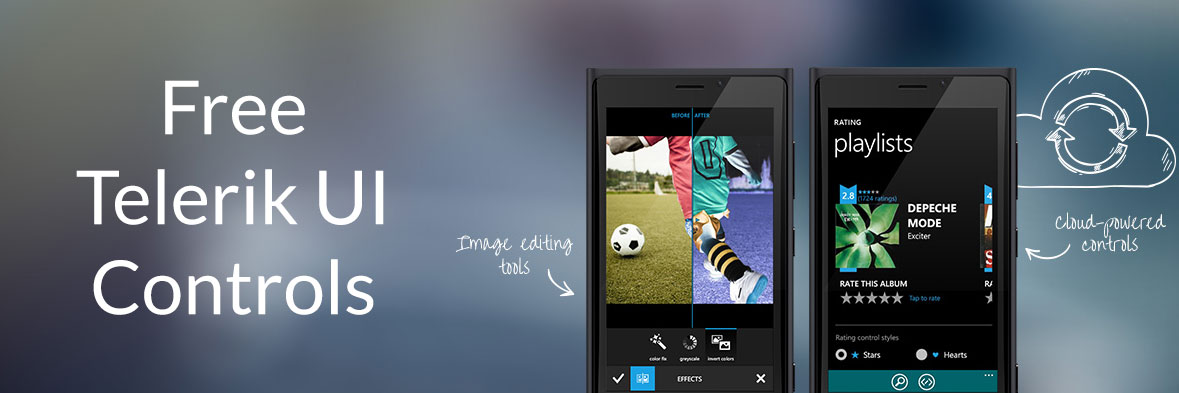
In light of TechEd2014, Telerik is giving away a year’s subscription to their UI Controls for Windows 8 and Windows Phone until the 16th of May, 2014. Telerik’s famous and highly-valued UI controls make designing beautiful Windows applications an easy feat, with multiple design templates and building blocks waiting help you jump start your application. An update that adds controls for Universal Apps will also be coming later in the year and is included in the subscription. If you’re a developer you won’t want to miss this. Grab this while it lasts, here.

Developing for Windows – A Comprehensive Link Dump

Wanted to code an app for Windows but didn’t know how? Didn’t know what language to use, what tools to use - or where to begin? Here’s a list of links to training materials and resources that will get you started on your journey into coding. You can also download the PDF version here. Training Materials General Information Windows 8 Dev Center Home http://msdn.microsoft.com/windows Windows 8 Dev Center Dashboard https://appdev.microsoft.com/StorePortals/ Technical References API reference for Windows Runtime apps http://msdn.microsoft.com/en-us/library/windows/apps/br211369.aspx How to… (Create Windows 8 apps in JavaScript and HTML, C#/C++/VB and XAML, or C++ and DirectX) -> START TO FINISH http://msdn.microsoft.com/library/windows/apps/bg124284 Migrate your app from iOS, Android, Windows Phone, Web, and more! http://msdn.microsoft.com/en-sg/library/windows/apps/dn436165 Designing Apps for PPI Displays http://go.microsoft.com/fwlink/p/?LinkID=391346 Universal Windows apps http://msdn.microsoft.com/en-sg/windows/dn642498 Universal Windows app samples http://code.msdn.microsoft.com/windowsapps/Universal-Windows-app-cb3248c3 Windows Store App Design http://msdn.microsoft.com/en-sg/windows/apps/hh779072 Online Trainings Windows Store App Samples http://code.msdn.microsoft.com/windowsapps Windows Store apps for Absolute Beginners with C# http://channel9.msdn.com/Series/Windows-Store-apps-for-Absolute-Beginners-with-C- Windows Store apps for Absolute Beginners with JavaScript http://channel9.msdn.com/Series/Windows-Store-apps-for-Absolute-Beginners-with-JavaScript Windows 8.1 UX Design http://channel9.msdn.com/Series/Windows-8-1-UX-Design Windows 8.1 Developer Training, Geek Edition http://channel9.msdn.com/Series/Windows-8-1-Developer-Training-Geek-Edition Build your first Windows Store app http://channel9.msdn.com/Series/Build-your-first-Windows-Store-app Introducing Windows 8 http://channel9.msdn.com/Series/Introducing-Windows-8 Windows Store Apps Development http://www.microsoftvirtualacademy.com/product-training/product-windows-store-apps ...

Windows and Windows Phone 8 Better Together Winners

Hello everyone! Here are the winners for Windows and Windows Phone 8 Better Together Winners Task Me Description Do you ever forget to… - Remind your husband to pick up your kid after work? - Remind your child to take medicine after lunch? - Remind your friend to bring some documents tomorrow?Let Task Me set reminder for your friend.You just need to CREATE a task, SET reminder and SEND to your friend. Then Task Me will remind your friend when the time comes.Not only sending tasks to your friend, Task Me can also manage your own tasks. Your tasks are synchronized to our cloud server and will be shared to all of your devices.In addition, more advanced features will be available in the near future, including adding tags, multiple occurrences, location awareness, voice, also send task to a group of friends. Stay tuned!Task Me is created to ease your burden of remembering not only what you need to do, but also what your friends need to do. We hope that Task Me will be very useful for you. ...

Make8 | Windows 8 App Challenge

Over the past few months, we’ve held several successful app challenges on our Windows Phone platform. Today, we’re excited to announce our next initiative, the Make8 App Challenge! Held monthly, Make8 offers local developers a chance to make a difference on our Windows platform, for both Windows 8 and Windows Phone. This month, we’re hosting 10 challenges targeted at Windows 8, but we’re definitely excited to see developers leveraging our latest Universal Apps platform to share their innovations to Windows Phone as well. Furthermore, to celebrate the inauguration of Make8, we’ve taken in several popular app ideas - heavily requested by our Singaporean Windows 8 users - which are ripe for development. Who knows, one of them might just become our next Top App! Last but not least, our top prize for Make8 is the hot, new Nokia Lumia 930 - when it’s available in Singapore. The Make8 App Challenge will be happening from the 1st to 31st of May, 2014! So what are you waiting for? Take up the challenge here, today!