Windows 8 - Not to be Missed

Just how big is the Windows community? There are 1.2 billion Windows users globally, with 690 million currently on Windows 7. Microsoft has announced upgrade pricing for its upcoming Windows 8 operating system. Anyone running a copy of Windows from the last decade (Windows XP, Windows Vista, and Windows 7) can upgrade for USD40 - WOOTTT? SO CHEAP AND AFFORDABLE! With the plethora of new devices coming up with Windows 8 - from Notebooks, Slates, Convertibles, Ultrabooks, Tablets, etc - you can imagine how that number will grow. Want to be the next big app developer? You’ve got a golden opportunity to catch here. We’re just less than a week away (6 more days to go!) from the launch of Windows 8. I’m sure the resources that we’ve provided so far are more than enough for you to get started and submit your first Windows 8 app/game to the store. In my previous post -Lessons from Fruit Ninja Developer Dojo, Halfbrick mentioned that they’re excited about the launch of the new platforms, Windows 8 and Windows Phone 8 and the opportunities that the platforms would open up for developers. And here, I’ve gathered more compelling reasons to get you started: ...

Five lessons on Failure from FailCon

Behind every successful entrepreneur, is a couple of failed attempts. Bill Gates will forever be remembered for starting Microsoft, but this was actually not his first business venture. Before Microsoft, Bill Gates and Paul Allen built a company called Traf-O-Data. They wanted to build a “computerized machine for processing paper tapes from traffic counters.” They planned to sell this computerized data to state and local governments, but failed because the product was unacceptably buggy. The experience gained in this venture would later be used to write Altair BASIC for the MITS Altair 8800 computer and start Microsoft. Paul Allen now refers to it as his favourite mistake. ...

Why I Love Windows Server 2012 Part 1 - IIS 8.0

Welcome to a blog series about Windows Server 2012. Recently many people asked me about what are the exciting things about Windows Server 2012 apart from Virtualization. Well, there are many of them. One thing probably left in the shadow of the over 375 new features is IIS 8.0. Let’s look at what are the improvements. Why do i care abou these new features? Here is a table how IIS 8.0 in Windows Server 2012 can address some challenges today. Let’s dive into each one of them ...

How to convert VHD to VHDx

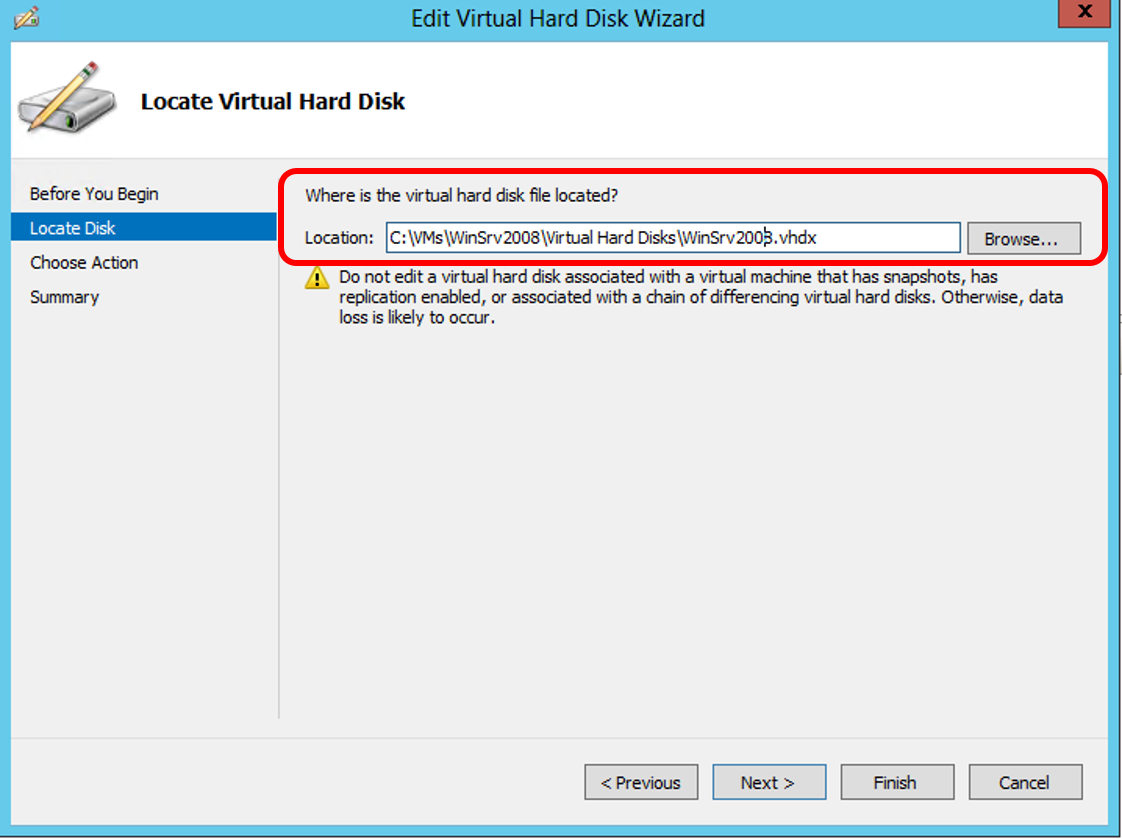
We had a lot of people at our Windows Server 2012 local launch event on 26 Sep. Many attendees also at our IT Camps on Windows Server 2012 Deep Dive. Many people told me they really like what Windows Server 2012 is offering. One question has came up few times is how can I convert VHD running on Windows Server 2012 to VHDx format for Windows Server 2012? First of all, you can still use VHD format with Windows Server 2012. It is NOT compulsory to convert the format. There are some advantages to convert the format, for example to leverage on the new disk size up to 64TB :) Here are the steps Step 1: Go to the Hyper-V Manager. Under the Actions pane, click on Edit Disk… Step 2: Specify the path of the disk you want to convert and click Next. Step 3: Choose the second option to Convert the virtual disk from one type to another and click Next. Step 4: Choose the VHDX format and click Next Step 5: In this step, you can choose to also convert disk type, Fixed or Dynamically expanding. Step 6: Choose the location for the converted disk and click Next. Step 7: Finally, you can confirm the disk format, disk type and location of the newly converted and click Finish to begin the conversion. Last but not Least This can be easily done through PowerShell and automated. PowerShell Syntax: Convert-VHD [-Path] [-DestinationPath] [-AsJob] [-BlockSizeBytes ] [-ComputerName<String[]> ] [-DeleteSource] [-ParentPath ] [-Passthru][-VHDType ] [-Confirm] [-WhatIf][ ] Example PS C:\> Convert-VHD –Path c:\VMs\winsrv2008.vhd –DestinationPath c:\VMs\winsrv2008.vhdx

TouchDevelop lets you develop apps on Mobile Devices

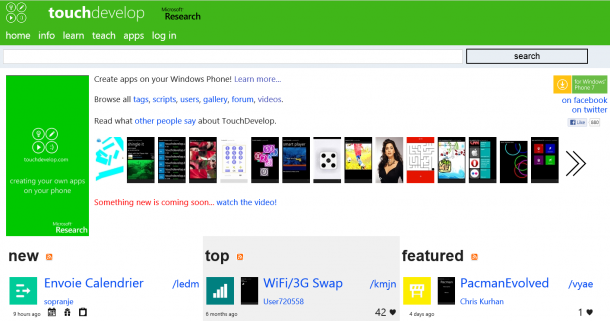
Mobile devices are becoming the prevalent computing platform for most people. Not every has access to a PC, which is why it’s important for us to come up with new ways for them to develop apps for themselves and the problems that they are facing in their countries. A cool new research project that the researchers here at Microsoft have been working on is called Touch Develop. TouchDevelop is a new mobile development environment that enables anyone with a Windows Phone to create new apps directly on the smartphone, without a PC or a traditional keyboard. At the core is a new mobile programming language and editor that was designed with the touchscreen as the only input device in mind. Programs written in TouchDevelop can leverage all phone sensors such as GPS, cameras, accelerometer, gyroscope, and stored personal data such as contacts, songs, pictures. Thousands of programs have already been written and published with TouchDevelop. It’s been amazing looking at the apps that some of the students from all over the world. [caption id="" align=“alignnone” width=“320” caption=“Pacman Evolved by Chris Kurhan”][/caption] Check out more of the apps created by Touch Develop on the Windows Phone 7: https://www.touchdevelop.com/apps Visit the Touch Develop website to find out more!

Spiffy Giveaway - Win exclusive Fruit Ninja plushies when you submit your app ideas to us!

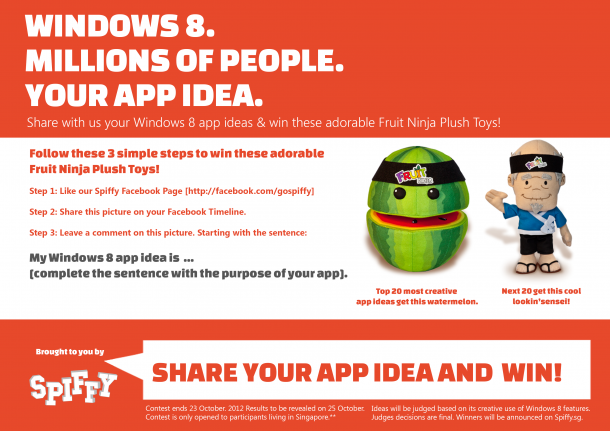
Only 16 more days before Windows 8 is officially launched! We know you’ve got some amazing app ideas and dreams for Windows 8. To celebrate, we’d like to know what they are and reward you with some adorable prizes for sharing them with us! Here’s what you gotta do to win these adorable Fruit Ninja Plush Toys (worth $15 USD each.) Follow these 3 simple steps to win these adorable Fruit Ninja Plush Toys! Step 1: Like our Spiffy Facebook Page [http://facebook.com/gospiffy] Step 2: Share this picture on your Facebook Timeline. Step 3: Leave a comment on this picture. Starting with the sentence: My idea for a Windows 8 app is to … [complete the sentence with the purpose of your app]. ...

Server Posterpedia - Windows 8 App for IT Pro

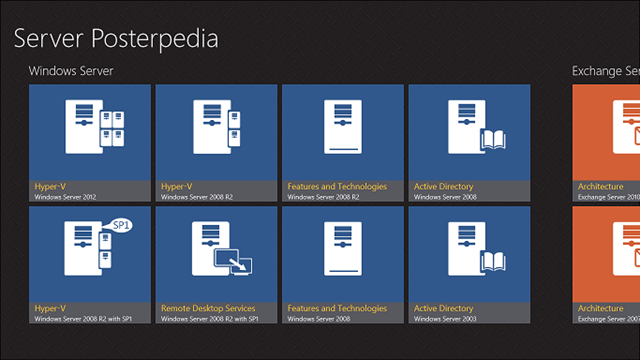
For IT Professionals, we all like components architecture. I certainly do. There is really not a very easy way to put all these server architecture posters together into a organized way to view and access whenever needed. Now there is a Windows 8 App for it! If you are running Windows 8 already you can get the app from the Windows Store here: http://aka.ms/sposterpedia One thing i love most about this app is it connects to TechNet resources. From each product architecture poster, I can view technical documents on TechNet like ...

PowerShell Scripts for MEP2012 Session on Windows Server 2012

Thank you everyone for your warm participation in our MEP2012 event. It was great to see the breakout sessions were filled with people. Due to keynote overrun, we went through things rather quickly. As promised, I am posting all PowerShell Scripts during my session here. Do change the scripts parameters that is specific to your environment To enable Resource Metering for all VMs within a host: Get-VM -ComputerName | Enable-VMResourceMetering To enable Resource Metering for a specific VM: Enable-VMResourceMetering –VMName To get resource utilization on all VMs within a Host Get-VM -ComputerName | Measure-VM To get resource utilization on specific VM Measure-VM –VMName To set bandwidth on each VM Set-VMNetworkAdapter -VMName -MaximumBandwidth 5000 During the Demo, I also showed a script to get VM cost. Here is the script # Get-VMCost Script Function function Calculate-VMCost($VMName) { $BaseCost = 50 $MemoryCostPerGB = 20 $ProcessorCostPerGHz = 30 $IncomingNetworkCostPerGB = 10 $OutgoingNetworkCostPerGB = 30 $ChargebackData = Measure-VM $VMName Get-VM $VMName | Reset-VMResourceMetering $VMCost = $BaseCost $VMCost += $ChargebackData.AverageMemoryUsage * $MemoryCostPerGB / 1024 $VMCost += $ChargebackData.AverageProcessorUsage * $ProcessorCostPerGHz / 1024 $IncomingExternalTraffic = $data.NetworkMeteredTrafficReport | ? { ($_.Direction -eq “Inbound” ) -and ($_.RemoteAddress -eq “*.*”)} $OutgoingExternalTraffic = $data.NetworkMeteredTrafficReport | ? { ($_.Direction -eq “Outbound” ) -and ($_.RemoteAddress -eq “*.*”)} $VMCost += $IncomingExternalTraffic.TotalTraffic * $IncomingNetworkCostPerGB / 1024 $VMCost += $OutgoingExternalTraffic.TotalTraffic * $OutgoingNetworkCostPerGB / 1024 $VMCost } # Calculate VM Cost Calculate-VMCost ...

Discover new music and enjoy old favorites with App of the Week SG Radio

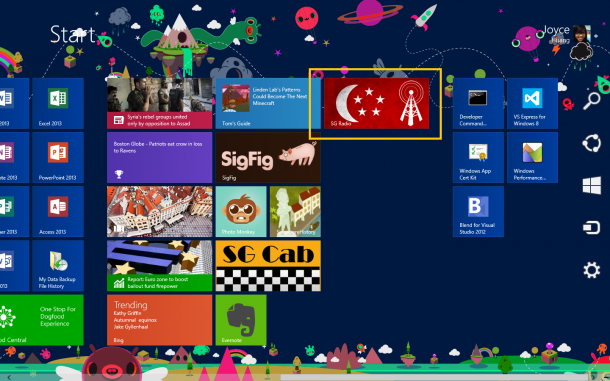
Radio is a big part of life here in Singapore. Growing up with Jean Danker and Glenn Ong previously on 98.7fm, I can’t imagine what my school nights mugging would have been like without them dishing our my favourite tunes and reading all our adolescent dedications. Now that they’ve shifted to Class 95fm, it only feels right that I make the move with them as well! If you’re not in Singapore, or in your car or have a radio near you, there are still a few ways to tune in to your favourite stations, such as through XinMSN, but it just got a whole lot easier with our App of the Week! [caption id=“attachment_11500” align=“alignnone” width=“610” caption=“SG Radio is one of the newest apps to hit the Windows Store!”][/caption] SG Radio provides the Internet-based streaming for all 17 of Singapore’s Radio Stations. Streaming will continue in the background allowing you to work on other apps or your desktop while continuing to listen to the Radio! [caption id=“attachment_11505” align=“alignnone” width=“610” caption=“Tune in to your favourite music channels on SG Radio”][/caption] You can download SG Radio by quickly searching for “SG Radio” on the Windows Store. [caption id=“attachment_11512” align=“alignnone” width=“610” caption=“Just search for SG Radio on the Windows Store to download it.”][/caption] You can view more Windows Phone and Windows 8 applications from Jason, who happens to also be one of our Spiffy.sg writers!

How to install Microsoft Office 2013 in a few simple steps

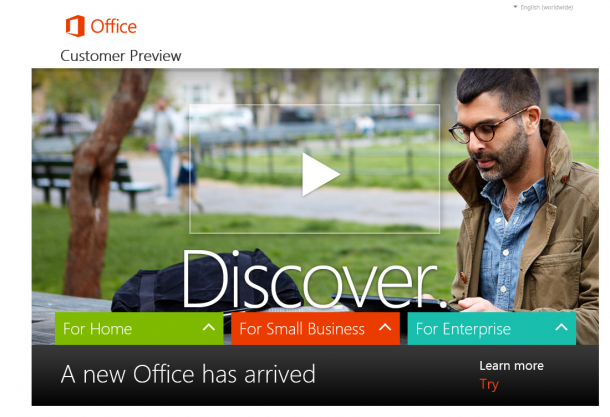
I was looking for a preview link to download MSI for Office 2013 Preview bits. To much of my surprise when I go to official Microsoft Preview site, it only gives me links to explore Office 365 version. There is also no mention of MSI. Finally when I searched few websites, I found the link to download the bits and successfully download Office 2013. The link is https://www.microsoft.com/betaexperience/pd/Office2013Preview/enus/ —- THIS IS BROKEN. NO MORE WORKING. You will need to login with your Live/Hotmail or Outlook.com ID to obtain the download. Happy Experimenting! Update: 9/12/2012 It seems Microsoft has changed the way Office 2013 is going to be distributed to users. Here are the steps to get Office 2013 installed on your machine: 1. Go to http://www.microsoft.com/office/preview/en 2. Click on Try 3. Select appropriate category from “For Home”, “For Small Business” or “For Enterprise”. I selected for small business for myself. I wanted to try out the enterprise features as well so I created one more account later (:) 4. Once you complete the account registration process and log in to your account at (https://portal.microsoftonline.com/), you will see the dashboard similar to the image below: 5. Click on the Download Software Link 6. On the next screen you will see the language and version selection as displayed below: 7. You are almost there. You will need internet connection throughout the installation. Once you get the one click installer, it will download the required software and install it on your machine. 8. I have installed Office 2013, it looks like below on Windows Server 2012

September 20, 2012 · 2 min ·  Sandeep