Windows 10 for the Enterprise and Business Users

Windows 10 has been launched for more than 5 months now, and it is already active on over 200 million devices since earlier this year! If you are a business or enterprise owner, there are many great reasons to use Windows 10 in your corporate environment. In this post, I’ll be sharing with you some of these reasons, which can be summarized as follows: 1. Protection against modern security threats It’s a common problem for IT administrators that passwords alone aren’t sufficient, as they can be easily phished, guessed, or stolen. Although multi-factor solutions are much more secure, they are usually very costly to implement and cumbersome to use. In order to increase security, IT administrators then implement policies for their users to change passwords (with a certain level of complexity) ever so frequently, making life so difficult for their users. So what do users do? The write it down somewhere, or stick it on their screens! With Windows 10, authentication becomes effortless as it is easier to deploy and use with Microsoft Passport and Windows Hello. Microsoft Passport is a new approach to certificate-based authentication that supports many multi-factor credential options. Windows Hello offers the biometric portion of multi-factor authentication so users can use their face, iris or fingerprint to unlock their Windows devices, effectively making the users themselves the password. Even twins can’t fool Windows Hello! Additionally, protection of corporate credentials is enabled on Windows 10 using Credential Guard, which isolates critical processes from attackers and mitigate Pass-the-hash attacks. Windows 10 now includes a solution for protecting critical business information from leaks or theft, while separating corporate and personal files on every device – critical in bring your own devices (BYOD) scenarios. With deep integration into the platform – Enterprise Data Protection (EDP) provides seamless encryption of business data for end users and works for both mobile and desktop scenarios. ...

Changing from Dynamic Virtual IP to Reserved IP - Azure

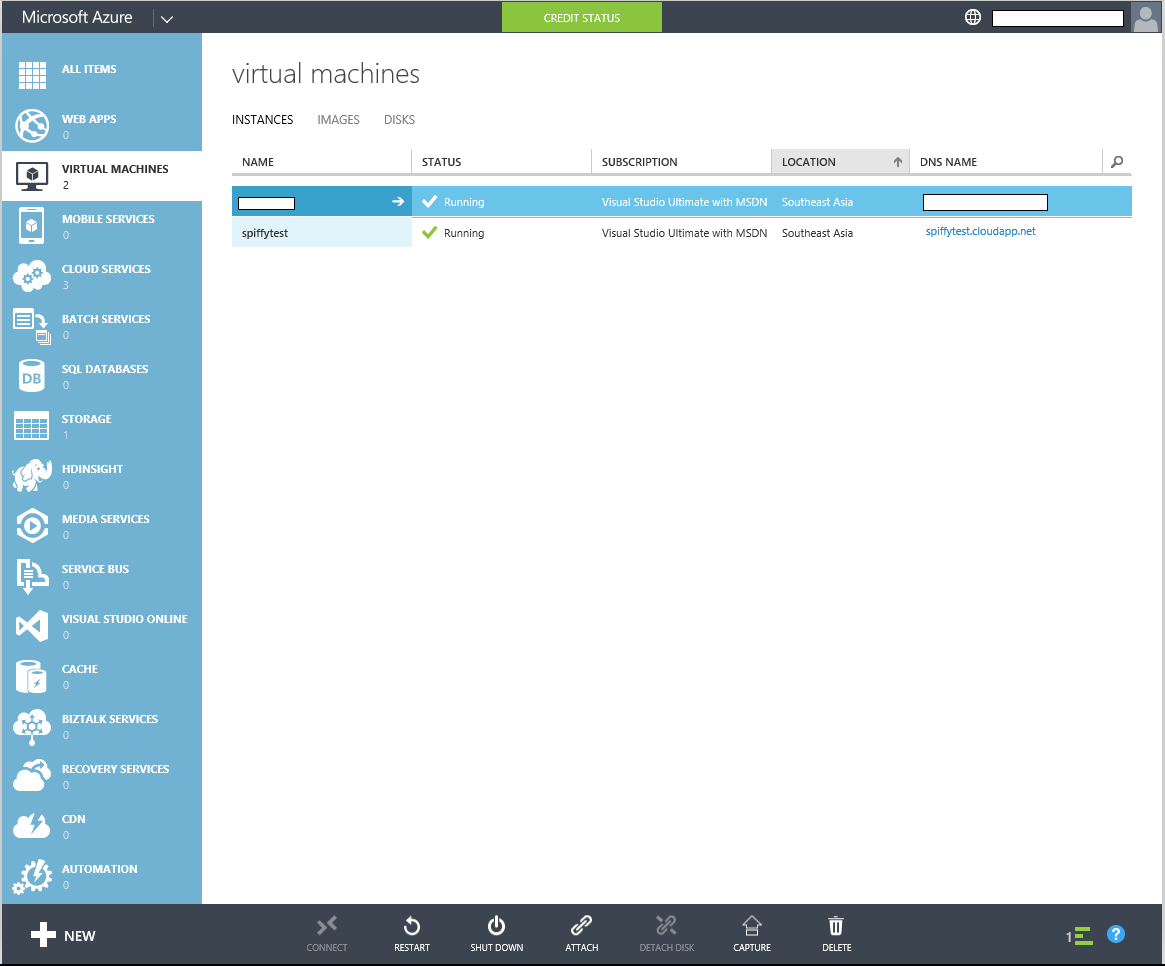
UPDATE: I have since automated the process of doing this using a PowerShell Script which is available HERE Having used Azure for IaaS for almost 2 years, one headache I keep encountering is the fact that although Azure provisions your VM in the specified region, the Virtual IP (VIP) that it assigns to the VM is typically an US VIP. As such, many web services think that I’m are from the US when I’m actually not. Through much Goo.. Binging, I managed to find out how can I reserve a local VIP so that I don’t have to keep re-provisioning the same VM to make sure I get a local VIP. Before we start this article, do ensure you have PowerShell and have installed the Azure PowerShell Cmdlets. You can install the Azure PowerShell Cmdlets by downloading and running the Web Platform Installer that Microsoft kindly provides from the below link. http://go.microsoft.com/fwlink/p/?LinkID=320376 After you have downloaded the Installer, execute it by double clicking on it and following through with the steps. With all pre requisites satisfied, lets start from the Azure portal. Here, you can see that I have already provisioned a VM for this article. UPDATE: I have since automated the process of doing this using a PowerShell Script which is available HERE You can see from this picture that the assigned VIP is in the USA which is not what we want. UPDATE: I have since automated the process of doing this using a PowerShell Script which is available HERE So in the past I would generally keep re-provisioning the VM till I get the wanted VIP which is very tedious and time consuming. Plus the assigned VIP will be lost if the VM is de-provisioned. So we can solve this by Reserving an IP for our VM. We start by starting up PowerShell and typing in Get-AzurePublishSettingsFile This is used to get a settings file that we can use in PowerShell Sign in with your Microsoft Account that has the Azure You will then download a settings file that you will have to import into PowerShell Switch back to PowerShell and type in the following code followed by the location of the file which in this case is my downloads folder. Import-AzurePublishSettingsFile "C:\Users\YourUser\Downloads\NameOfYourSettingsFile" Now for the rather tedious part which I assure you is only for this time. Go ahead and type in the PowerShell console 1)New-AzureReservedIP -ReservedIPName "spiffytestVIP" -Location "Southeast Asia" -ServiceName "spiffytest" What that does is to add a new Reserved IP in the Southeast Asia region with the name “spiffytestVIP” to your subscription. Ensure that the Instance is running before adding the Reserved IP Check that the VIP is the one you want by executing 2)Get-AzureReservedIP `` This will give you a list of reserved VIPs that you currently have. If you don't have the VIP that you want, go ahead and remove the current reserved IP 3)`Remove-AzureReservedIPAssociation -ReservedIPName "spiffytestVIP" -ServiceName "spiffytest"` `` Repeat steps 1-3 to get the VIP that you want. Once you have gotten the VIP that you want, rest assured that the VIP will not disappear even if you de-provision your VM. Assigning Reserved IP to VM Type into the PowerShell Console Set-AzureReservedIPAssociation -ReservedIPName "spiffytest" -ServiceName "spiffytest" And that’s it! Go ahead and enjoy your new Reserved IP!

IT Influencer Hero 2015

Become an IT Influencer Hero Time to bring your influence over to the World Wide Web and win prizes from Microsoft. Join Influencer Hero competition to take this opportunity to showcase and shine on Channel 9, a popular technical video channel with millions of viewers globally or stand up as a technical guru who saves the day by helping others in technical forums. Simply engage with audience through submission of online learning video or help on the forum support. Points will be awarded during the competition period for your hero activities. Results will be published on the leaderboard regularly. Competition starts today till December 31, 2015. Winner will be announced on January 8, 2016. Participate now by completing the registration form by November 15, 2015.

SharePoint Online 2013 vs. SharePoint 2013 On-Premise

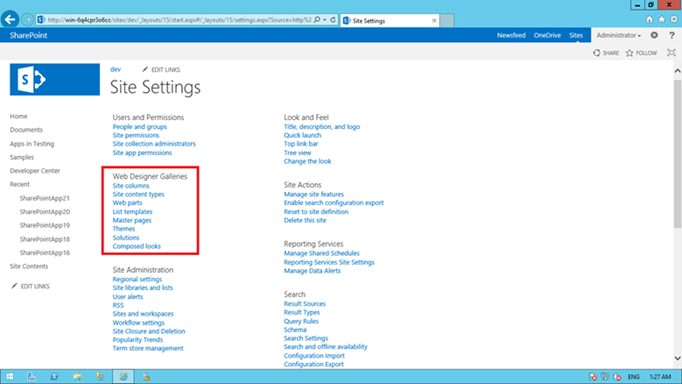
This short articles show you all the features that is meant for SharePoint On-Premise. When you reach this page https://technet.microsoft.com/en-us/library/jj819267.aspx then you will find the article comparing SharePoint Online Edition and SharePoint On-Premise Edition separately. Somehow the features it compares are the same. I extracted out what is in On-Premise but not in SharePoint Online as the table below. Development Features SharePoint Online SharePoint On-Premise BCS: Profile Pages No Yes BCS: Rich Client Integration ...

Windows 10 Group Policy Settings

Windows 10 is great! As a typical Windows administrator, you might ask so what is new in the Group Policy? Well all the group policy is well documented at the link below: https://www.microsoft.com/en-us/download/details.aspx?id=25250 Download the file by selecting Window 10 ADMX spreadsheet. Open up the file, you can filter all the new to Windows 10 group policy through the last column Here are three questions that came up quite a lot DISABLE Cortana in Windows 10, via GPO or Regedit This is possible by editing below registry key HKLM\SOFTWARE\Policies\Microsoft\Windows\Windows Search!AllowCortana This policy setting specifies whether Cortana is allowed on the device. If you enable or don’t configure this setting Cortana will be allowed on the device. If you disable this setting Cortana will be turned off. When Cortana is off users will still be able to use search to find things on the device and on the Internet. DISABLE Windows Update Delivery Optimization (WUDO) in Windows 10 This is possible by editing below registry key HKLM\SOFTWARE\Policies\Microsoft\Windows\DeliveryOptimization!DODownloadMode Set this policy to configure the use of Windows Update Delivery Optimization in downloads of Windows Apps and Updates. Available mode are: 0=disable 1=peers on same NAT only 2=Local Network / Private Peering (PCs in the same domain by default) 3= Internet Peering DISABLE WiFi-Sense in Windows 10 There is no GPO for this. Some organizations want to turn this option off as they may see this as a risk to corporate Wi-Fi. An enterprise can disable in the following ways: ...

Running Speed Test on Ubuntu Server

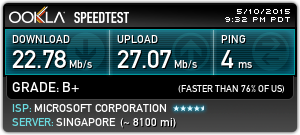
Having a slow connection to your Ubuntu Server? “Speedtest-cli” is a tool that can help you perform a speed test from your Linux Terminal / Command Line. 1. Download and run Putty (http://the.earth.li/~sgtatham/putty/latest/x86/putty.exe) 2. Enter your server host name or IP address. 3. Log into your server 4. Enter the following command sudo -i apt-get install speedtest-cli 5. After the download has completed, you may now perform speedtest-cli command You can run a speed test with the nearby lowest ping server by running the following command ...

Join the Azure Ignite Workshop

Azure Community Singapore is organizing a two-day, two-hour-each hands-on workshop about Microsoft Azure Virtual Machines! At the Azure Ignite Workshop, you’ll learn everything you need to know to set up flexible and scalable servers in the cloud for real-world use for a variety of applications on different OSes. Did they mention it was free? Do join in on 21st and 22nd April (Wed/Thu), 7PM to 9PM for the Azure Ignite Workshop at Microsoft Singapore, especially if you’re a beginner or intermediate developer/IT Pro on cloud technologies! If you think an Active Directory is a phonebook for keeping fit, then this meetup is for you! http://www.meetup.com/AzureSG/events/221785584/

Draw Visio from Mobile Using Azure Remote App

This blog article describes how to access Azure Remote App from Windows Phone 8.1. Using the remote app feature now you can able to draw Visio diagram from the mobile. First configure the Azure RemoteApp with your Azure Account. Follow the steps in the URL http://azure.microsoft.com/en-us/documentation/articles/remoteapp-create-cloud-deployment/ After provisioning the Remote App you can see the publishing applications as below The new Azure Remote App will have the Url https://www.remoteapp.windowsazure.com/ to login from the desktop client. Now go to your Windows Phone. Open the Store app and search for the Remote Desktop app. Download the Remote Desktop App to your mobile. ...

System Center Universe 2015 APAC

Over the past 3 years, System Center Universe APAC has attracted attendees throughout the APAC region. Being the only event that is centred on System Center, the team running the event has made a decision to host several viewing parties throughout APAC in the second year. These parties made registration for the second year double. SCU 2014 was even better and bigger although it did not have the viewing parties. It played host to more than 200 registered participants with international renown speakers. These speakers are well-known in the industry and are regulars at Tech Ed. SCU 2015 APAC will be hosted in Singapore and promises to bring more excitement to the audience as not only will it have amazing demos and updates on System Center, globally recognized speakers will host sessions on Cloud technologies as well. We believe that the SCU brand has grown over the years and having your presence at the event will make it even more exciting as we work together to drive awareness to the region. For more information, visit http://www.systemcenteruniverse.asia/.

Join Azure Community Singapore (ACS)

Hi All, I would like to invite you to join this Azure Community in Singapore. We will be having the first meetup on February 10. If you want to meet the Microsoft Azure experts, masters, developers, Microsoft MVPs and wants to be friends with them and can learn/share knowledge, than this is the place to be. Come and join this first meetup and bring your friends as well so you be able to know the Azure community member in Singapore. Here is the Agenda for the meetup: ...