Free ebook: Introducing Windows 8.1 for IT Professionals

Windows 8.1 is ready for widespread adoption. This book focuses on things that are new, with a special emphasis on topics of interest to IT pros. Instead of tips and tricks on 8.1, You will find more about management, deployment, and security, which is at the heart of every IT Pro. Download the eBook Here This is just an introduction, an overview. For more detailed information about the features and capabilities described in this book, I encourage you to become a regular visitor at the Springboard Series on TechNet: http://www.microsoft.com/springboard

Top 5 free IT courses

Whether you’re an absolute coding noob or an experienced developer, everyone benefits from free online resources. We’ve compiled what seems to be the most popular courses hosted on Microsoft Virtual Academy (MVA) in Singapore. #5. Windows Phone 8 development for absolute beginners Mobile app developers make their presence felt, as a Windows Phone 8 course comes in at number 5. What you’ll learn: Basics of installing and working with Visual Studio Express 2012 for Windows Phone and the Emulator XAML layout and events How to utilize many of the Phone’s built in features and additional open-source libraries Complete app walk-thoughs: The first app you’ll build is the SoundBoard app that allows you play pre-recorded sounds and record your own custom sounds. The second app you’ll build is the AroundMe app which integrates the Phone’s Map, GPS and Lock Screen capabilities with Flickr’s API. #4. Windows Server 2012 Training: Technical Overview What you’ll learn: ...

Windows Server 2012 R2 Gen 2 VMs

In Windows Server 2012 R2, you can create a new type of VMs called Generation 2 VMs. Gen 2 VMs will give you several benefits including: Emulated devices have been removed Allows for boots from virtual SCSI You can boot from synthetic network adapters Boot from UEFI instead of BIOS UEFI secure boot is enable You can run Gen1 and Gen2 VMs side by side Enable Enhanced Session Mode Why Gen 2 VMs? Historically OSs didn’t natively understand virtualization, and in the case of Hyper-V, could not just use the VMbus. This is why there are emulated IDE controllers, legacy network adapters, emulated BIOS, COM & LPT ports, keyboard or mouse PS/2 connections, floppy drives, and other system devices such as PCI to ISA bridge. All of these emulated type devices include the requirement to boot from an IDE controller, because the assumption was that OSs weren’t natively virtual aware. Today, even Linux now are natively virtualization aware. Therefore in Windows Server 2012 R2 Hyper-V, a new Gen 2 VM is available that removes all the legacy, emulated hardware and provides a UEFI environment that supports 64-bit OSs that are Windows 8 and Windows 2012 or later. Generation 2 VMs can boot from the SCSI bus and from the synthetic network device. ...

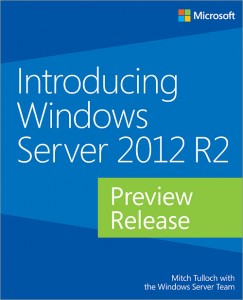
FREE eBook – Introducing Windows Server 2012 R2 Preview Release

In case you hadn’t heard, the Introducing Windows Server 2012 R2 Preview Release book from Microsoft Press is now available. You can download it for FREE or order your own hard copy version. This is a great way for you and our valued customers and partners to see what’s new in Windows Server 2012 R2. A System Center 2012 R2 version is underway and there will be a much lengthier version after Windows Server 2012 R2 is generally available. ...

Using SQL Data Sync to Synchronize On-Premises Database to Windows Azure

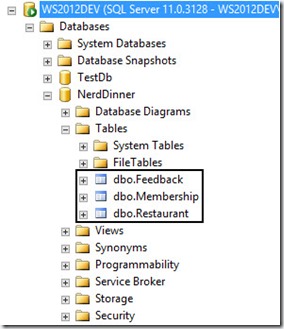
Have you ever thought of scaling your Web Application so that it can extend the usage to external parties or have you ever hit in any situation where you have some subset of your data in your on-premises SQL Server that you require it for other system that are external facing? Let’s take for example, if you have an intranet that is hosted within your own corporate network which store membership details that you all are keeping it for internal usage all along. Then on one fine day you all decide to explore the Cloud by putting your custom developed newsletter blasting system to the Cloud as you would prefer not to choked up the bandwidth in your corporate network. Therefore, how in this world could we have the best of the both world? How can we maintain a set of information but can be used in multiple systems in multiple locations but still maintain the integrity and consistency without any duplication within the dataset itself? SQL Data Sync Agent is here to save the woes of people who are facing such issue. Currently, the SQL Data Sync Agent is in the Preview stage and has not reached the General Availability stage therefore things may change but I anticipate that things wouldn’t be that far off as the current tool is really designed and developed to be simple and user friendly. More information on TechNet. Let’s take the following as an example. I have this 3 tables in one of my Web Application that is hosted in my corporate data centre which is hosted within the network and no external interface to the internet. Right now, I need to surface the membership table to one of the newly created database in Windows Azure so that the other application that is hosted on Windows Azure will be able to access these information. Creation of Windows Azure SQL Database Let’s navigate to Windows Azure Management Portal then select SQL Databases via the left hand corner navigation bar. If this Azure account is newly created, then you probably wouldn’t have any database created. Click on Create a SQL Database to continue. Key in the necessary information to continue the setup of the SQL Database on Windows Azure. If you do not have any SQL Database instance setup before, you will likely not have any SQL Server setup. Therefore, go ahead and select “New SQL Database Server”. Continue to define the SQL database server settings by entering your preferred username and password. Please note that this username and password is very important because it is the username you will be using to log on to the SQL Server Management Portal on Windows Azure Management Portal. Do note that you will need to ensure that you check that checkbox if you want other of your Windows Azure Services to access this database. An example will be, if you decided to host your Web Application to host onto one of the Virtual Machine while utilizing the Database hosted on Windows Azure SQL Database rather than loading and managing your own SQL Server instance on Virtual Machine. Go ahead and click on the “Tick” to proceed to create your SQL Database. The creation process should take less than one minute and you will know it is done when the database status is flag as “Online”. Installation of SQL Data Sync Agent (Preview) and Configuration of Sync Agent Go ahead and download the SQL Data Sync Agent if you have not done so and install on any of the computer within your corporate network which have access to the internal SQL Server. In my example, I will just install the SQL Data Sync Agent onto the SQL Server itself but it should be the same even if the two program seats on separate client. After installation, launch Microsoft SQL Data Sync Agent Preview found in the start menu as shown. You will be welcome by the simple and neat interface. You will notice that most of the controls are being gray out. What you are left with is to enter the Agent Key so that Windows Azure can communicate with your client that host the SQL Data Sync program. Upon clicking on the Submit Agent Key Configuration, a popup will appear as shown below. However, on first try, I have no idea what to key in. There after, I caught this message that I have highlighted. The key that is require can be retrieved from the SQL Data Sync web portal. Navigate back to the Windows Azure Management Portal, navigate to the SQL Databases and look at the bottom. You will notice there are other navigational items available. Click on Add Sync which will show two more options available. Select New Sync Agent. Give a name to the Sync Agent. Notice at the top, it actually prompt you that you will need your local client agent to be installed. Click on the “Tick” to proceed and this Sync Agent will be created. Notice the “Status” is currently flag as Offline because we have not configure the local agent to communicate with the one at Windows Azure. Our ultimate purpose is to get the key so that we can input into the configuration popup window at the local agent. So we click on the arrow at the Sync Agent to go into the detail page. Notice that at the bottom, there is this option “Manage Key” that is available. Click on it. Instructions is available at the top. Just click on the “Generate” button to generate the access key and click on the “Copy to Clipboard” button just beside the Generate button. When you are done, navigate back to the client that you install the local sync agent. Input the access key into the popup window. Once the key is validated to be valid, the other controls will be enabled. Click on “Register” to register the SQL Database in your organization. Enter the SQL Server details along with the targeted database that you want the Sync to take upon. Click on “Test Connection” to ensure that the connection can be established. Once verified, click “Save”. Now, you will notice that the SQL Database is being added to the list. In order to do a verification, click on “Ping Sync Service” to determine if the connection back to the Sync Agent at Windows Azure is reachable. Next navigate to the Windows Azure Management Portal. Right now, you should see the Sync Agent status will switch to “Online”. Click the arrow beside the Sync Agent to view the details inside. You should see the database and the SQL Server hostname. Creation of Sync Group and Objects Go back to the SQL Databases main menu and as usual click on “Add Sync” and select “New Sync Group” this time. Enter the details and select your desire region. Click the arrow to proceed and select the Hub Database and key in your desire credentials. Notice that there is this “Conflict Resolution”. What it actually does is in times of conflict, whose data should take the precedent. So it depends on which is your master database. If new information is mainly populate through the database server located within your organization, then select “Client Wins” else select “Hub Wins”. Click on the arrow to proceed. Now you will be prompt to select the referencing database. This time round, Windows Azure will need to know which database its needs to communicate with. In this case, it will be the database in the organization. Then select the Sync Direction on which how you want data to flow. Do you want the Windows Azure SQL Database to always read from the SQL Database in the Corporate Network or you may have changes that is always made on both end and you want synchronization between the two location? After you click on the “Tick”, it will go on to proceed the creation of the Sync Group. Then you will notice that the status will be shown as “Not Ready”. Fret not, it just means that you have not decide what to sync between the two SQL Database. Click on the Sync Group to view the details. You will notice the following. Select Sync Rules. You will be welcome with this page, by right you shouldn’t have any Sync Rules being added yet. Click on “Define Sync Rules”. Select one of the database. In this case, I select my SQL Server database that is located within the organization. You should see all the tables that you have that resemble the database back in the organization. Select the columns that you want to be Synchronized. For my case, I want the whole “Membership” table to be synchronize between the two data sources. Therefore, I check all the columns as shown in the table. After making the selection, click “Save” to commit your selection. Next, click on “Configure” on the top navigation and we will proceed with configuring the Automatic Synchronization of the data between the sources. Click on “ON” and define the Sync Frequency. Make sure to click on “Save” to commit the changes. Proceed to click on “Sync” to do a force synchronization between the two data sources so that we can see some results. Head back to the SQL Database on Windows Azure and click into the Database as shown. Click on “Set up Windows Azure firewall rules for this IP address” so that you will be able to connect into the management portal to manage the database. One of the magic charm bar will appear at the bottom with your IP address as the detail, just click Yes to proceed. Click on “Design your SQL database” to launch the SQL Database Management Portal. You will be prompted with the login screen to provide your credentials. Upon successful login, you should see the tables in your Windows Azure SQL Database. See the “Membership” table that was synchronized over. Let’s do some test by running query against this database. There, I have all the data synchronized over! This tool is really very useful and in any case, I could easily synchronized data from my on-premises database and treat the Windows Azure SQL Database as a passive node.

Migrating to Windows Server 2012 Training

One of the key challenges for IT Pros is always upgrade systems. With release of Windows Server 2012, many IT Pros are thinking about upgrading or prepared to upgrade. To help you better prepared for upgrade, My Australia fellow Evangelist Andrew McMurray and I produced a Migrating to Windows Server 2012 Training on Microsoft Virtual Academy. To access this FREE online course go to link below. It covers migration of varies functions and roles. We hope this helps you in your path to Windows Server 2012. Do rate our course, we will be doing more of these useful courses for you! http://www.microsoftvirtualacademy.com/training-courses/migrating-to-windows-server-2012-training

PowerShell Saturday Singapore 01

Everyone, time to learn powershell together with your fellow IT Professionals. PowerShell Saturday is coming to Singapore! PowerShell Saturday is a full day event focusing on Windows PowerShell. The day consists of instructional sessions and a hackathon. Sessions Sessions include (but not yet finalised): PowerShell for complete beginners Problem Solving with PowerShell Managing Lync with PowerShell Managing Exchange with PowerShell Managing Azure with PowerShell Whats new in PowerShell version 4 Not all sessions may be of interest to you, but if you are between sessions we encourage you to spend time in the Hackathon room to work on your own stuff or try out what you have learned. ...

Attend CTU 2013 and stand a chance to win a Surface Pro

Yes. Community Technology Update (CTU) 2013 is happening again on 27 July. It is organized by the Community Leads from various Singapore based User Groups and MVPs. It is a great technical events on technologies like BI, Lync, Exchange, Windows 8.1 and Windows Server 2012 R2. How do I sign up? Follow the instructions in the URL to register - http://www.sgdotnet.org/Pages/Registration.aspx Session Information 0830 - 0900 Registration 0900 - 0930 Key Note ...

Deploying Team Foundation Server 2012 [Part 2 - Configuring TFS Site on SharePoint 2013]

Hi, this is the part two of the series of articles on Team Foundation Server 2012 and for today article, I am going to walk through the configuration of SharePoint 2013 to allow communication between the Team Foundation Server 2012 with SharePoint. During which, new SharePoint site will be created with the Team Foundation Project Template. So to recap from where we are previously, we have the following SharePoint Server installed (in my case, it is MTP-SPF01) and see the image showing the Central Administration of SharePoint Server 2013. In order for SharePoint to be able to communicate with the Team Foundation Server, it is a requirements to install the Team Foundation Server extension on every Web-Front End SharePoint Server. So if your intranet environment have a huge SharePoint farm that span across multiple Web-Front Ends, please install the Team Foundation Server Extension on EACH and EVERY Web-Front End. Step 1 - Installation of Team Foundation Server Extensions 1) Insert the ISO image / CD / DVD that you have used to installed Team Foundation Server 2012 into any of the SharePoint Web-Front End that you wish to install the extension. 2) This installation guide is rather simple, just follow through… 3) Click on “Start Wizard” 4) Click “Next” on the following page, it works the same as “Review”. 5) Once review has completed, click “Next” to kick-start the Validation process 6) **ERROR** Occur –> Why? and How? Read, it just require a reboot after installation. Well, this should have been placed in the setup guide before configuration starts. 7) Restart the configuration of the extensions 8) At this point of time, “Verification” will go through smoothly and click “Configure” to proceed. Take note this process will load certain Web Part Solutions into SharePoint to extend the capability of the various Team Foundation Server Project Template. 9) Configuration on SharePoint Server 2013 succeeded. Step 2 - Configuring Extensions for SharePoint Products 1) Grant access to Team Foundation Server on the SharePoint Server 2) Enter details such as URL of Team Foundation Server & select the available SharePoint Web-Application 3) **ERROR** –> Why? How? I got stumbled on this error for awhile and I have read through some other documents on access rights and configurations and finally narrowed down to maybe it is a DNS resolving issues. 4) Finally resolved it by changing “MTPSP01” to “MTPSP01.mtp.local” Step 3 - Configuring SharePoint Web Applications on Team Foundation Server For this step, we will navigate to the server hosting the Team Foundation Server (in my case, it will be MTPTFS01). 1) Click on “Add” and enter the details accordingly. 2) However, before I can carry on, I will need to ensure that my newly created Web-Application (in my case, http://mtpsp01/) does not have any Site Collection associated to it, therefore I will go ahead and create one. 3) Select “Team Foundation Server Project Portal” as the template for the Site Collection. Side-track a little, I always like the message included in SharePoint Server 2013 onwards! 4) After configuration is done, your screen should look like this or similar. 5) Next, we will need to further configure to make sure that there will be a new site collection being added automatically when there is a new project being created. Therefore, we will configure the “Default Site Location”. Click “SharePoint Site” to proceed. 6) Click on “Edit Default Site Location” to proceed. 7) Enter the details 8) Successfully modified the Default Site Location. Last Step - Verification of SharePoint TFS Project Template Site In my next post, I will be driving deeper into using the various common methodology. So stay tuned! Cheers, Milton Goh

Deploying Team Foundation Server 2012 [Part 1 - Installation and Configuration]

Hi Folks, I am Milton Goh, this is my first post on Spiffy.SG and I am bringing to all of you a series of posts with regards to Team Foundation Server. The series will generally focus on how Team Foundation Server (TFS) can help your organization deliver software projects using the Agile methods and also cover on how you can maximize your investment in deploying TFS comparing with other tools available. So for the first post, I will be detailing out how to deploy Team Foundation Server 2012 with Update 2 (this was released recently with some minor refinements). However, that updates shouldn’t affect you if this is your first time deploying TFS. In most environment, we can just deploy Team Foundation Server as a stand-alone server that serves the Developers for them to perform the compiling of source code or to perform various testing against the code that are flagged as ready for review. However, I am going to stretch a little further this time round to include deploying of SharePoint Server 2013 in order to fully illustrate how the team members (regardless whether it is Project Manager/Developers) can make use of SharePoint Team Project Site to view the various updates such as Project Timeline, Current Build Status and Outstanding Issues. In my environment, I have built the following Virtual Machines running on Hyper-V. Based on the image attached above, I am setting up the environment based on the following,- ...