How to convert VHD to VHDx

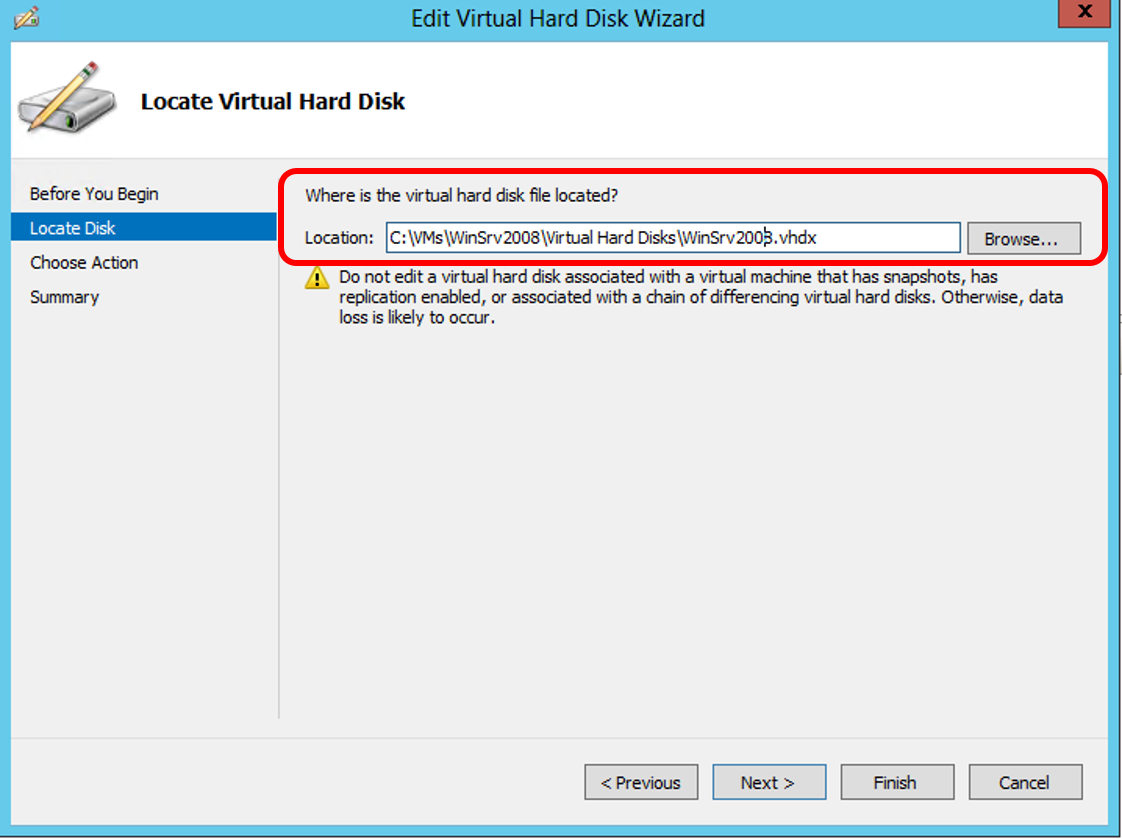
We had a lot of people at our Windows Server 2012 local launch event on 26 Sep. Many attendees also at our IT Camps on Windows Server 2012 Deep Dive. Many people told me they really like what Windows Server 2012 is offering. One question has came up few times is how can I convert VHD running on Windows Server 2012 to VHDx format for Windows Server 2012? First of all, you can still use VHD format with Windows Server 2012. It is NOT compulsory to convert the format. There are some advantages to convert the format, for example to leverage on the new disk size up to 64TB :) Here are the steps Step 1: Go to the Hyper-V Manager. Under the Actions pane, click on Edit Disk… Step 2: Specify the path of the disk you want to convert and click Next. Step 3: Choose the second option to Convert the virtual disk from one type to another and click Next. Step 4: Choose the VHDX format and click Next Step 5: In this step, you can choose to also convert disk type, Fixed or Dynamically expanding. Step 6: Choose the location for the converted disk and click Next. Step 7: Finally, you can confirm the disk format, disk type and location of the newly converted and click Finish to begin the conversion. Last but not Least This can be easily done through PowerShell and automated. PowerShell Syntax: Convert-VHD [-Path] [-DestinationPath] [-AsJob] [-BlockSizeBytes ] [-ComputerName<String[]> ] [-DeleteSource] [-ParentPath ] [-Passthru][-VHDType ] [-Confirm] [-WhatIf][ ] Example PS C:\> Convert-VHD –Path c:\VMs\winsrv2008.vhd –DestinationPath c:\VMs\winsrv2008.vhdx

Developing Apps for SharePoint 2013

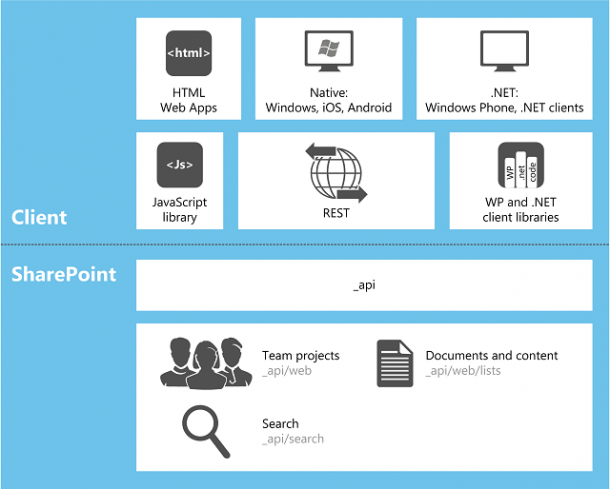
(From My SharePoint 2013 Ignite Notebook) Part 1 Think of SharePoint 2013 as a platform, which will help you understand this new paradigm shift. Lots of developers do programming using C#, Python, Ruby, Java, PHP, NodeJS. The SharePoint 2013 App model is based on web standards: HTML 5, CSS, JS, OAuth 2.0 and OData. Today SharePoint enables most of the SharePoint API functions to be accessible remotely, with the remote interface being much easier to maintain and more secure. This concept also opens doors for SharePoint Developers create Facebook kind of applications for SharePoint and Office. Today’s Application Development Challenges Till SharePoint 2010, solution deployment could only be done in either Sandbox or Farm Solutions, ...

October 11, 2012 · 2 min ·  admin

Whats New In AD DS For Windows Server 2008

Welcome to TechNet Spotlight ! This series features the audio version of Microsoft TechNet for Directory Services. This series focus on Product Evaluation, Planning and Architecture, Solutions and Design , Deployment, Operations and Real World scenarios for Best Practices. We start our series on Active Directory Domain Service Product Evaluation. Below are the videos which explain about the new Features and Functionalities got introduced for AD DS for Windows Server 2008. Introducing Active Directory Domain Services for Windows Server 2008 AD DS Auditing AD DS Fine Grained Password Policies AD DS Read Only Domain Controllers AD DS Restartable Active Directory Domain Services AD DS Database Mounting Tool **AD DS ...

October 8, 2012 · 1 min ·  admin

Server Posterpedia - Windows 8 App for IT Pro

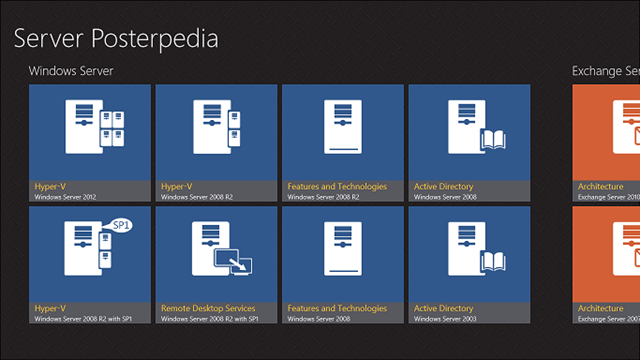
For IT Professionals, we all like components architecture. I certainly do. There is really not a very easy way to put all these server architecture posters together into a organized way to view and access whenever needed. Now there is a Windows 8 App for it! If you are running Windows 8 already you can get the app from the Windows Store here: http://aka.ms/sposterpedia One thing i love most about this app is it connects to TechNet resources. From each product architecture poster, I can view technical documents on TechNet like ...

PowerShell Scripts for MEP2012 Session on Windows Server 2012

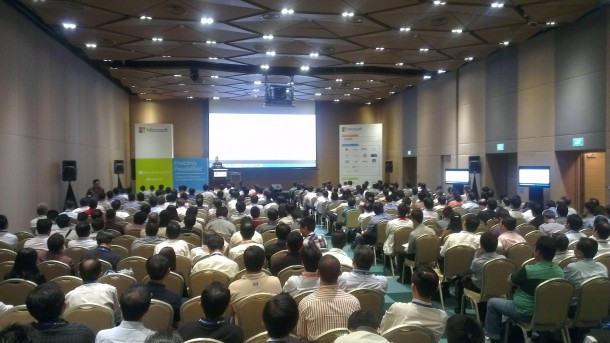
Thank you everyone for your warm participation in our MEP2012 event. It was great to see the breakout sessions were filled with people. Due to keynote overrun, we went through things rather quickly. As promised, I am posting all PowerShell Scripts during my session here. Do change the scripts parameters that is specific to your environment To enable Resource Metering for all VMs within a host: Get-VM -ComputerName | Enable-VMResourceMetering To enable Resource Metering for a specific VM: Enable-VMResourceMetering –VMName To get resource utilization on all VMs within a Host Get-VM -ComputerName | Measure-VM To get resource utilization on specific VM Measure-VM –VMName To set bandwidth on each VM Set-VMNetworkAdapter -VMName -MaximumBandwidth 5000 During the Demo, I also showed a script to get VM cost. Here is the script # Get-VMCost Script Function function Calculate-VMCost($VMName) { $BaseCost = 50 $MemoryCostPerGB = 20 $ProcessorCostPerGHz = 30 $IncomingNetworkCostPerGB = 10 $OutgoingNetworkCostPerGB = 30 $ChargebackData = Measure-VM $VMName Get-VM $VMName | Reset-VMResourceMetering $VMCost = $BaseCost $VMCost += $ChargebackData.AverageMemoryUsage * $MemoryCostPerGB / 1024 $VMCost += $ChargebackData.AverageProcessorUsage * $ProcessorCostPerGHz / 1024 $IncomingExternalTraffic = $data.NetworkMeteredTrafficReport | ? { ($_.Direction -eq “Inbound” ) -and ($_.RemoteAddress -eq “*.*”)} $OutgoingExternalTraffic = $data.NetworkMeteredTrafficReport | ? { ($_.Direction -eq “Outbound” ) -and ($_.RemoteAddress -eq “*.*”)} $VMCost += $IncomingExternalTraffic.TotalTraffic * $IncomingNetworkCostPerGB / 1024 $VMCost += $OutgoingExternalTraffic.TotalTraffic * $OutgoingNetworkCostPerGB / 1024 $VMCost } # Calculate VM Cost Calculate-VMCost ...

Migrate Existing DHCP Server to Windows Server 2012 easily with PowerShell

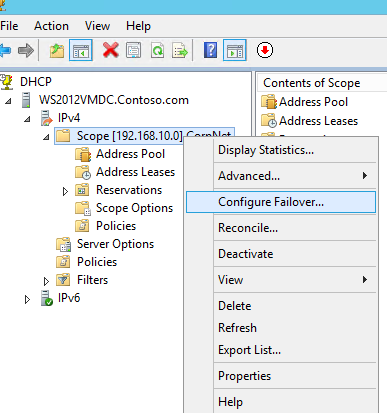
Yea, I like Windows Server 2012, but how do I migrate migrate existing DHCP Server to Windows Server 2012 easily with PowerShell from Windows Server 2008 or 2008R2 and leverage the new DHCP failover feature? This can be done easily with the new Windows Server 2012 PowerShell cmdlets. Here is how: Preparation First, Install Windows Server 2012 as a VM or on physical host as you prefer in your environment. Install DHCP role and authorize the DHCP server. For example, I have a DHCP server sits on my Primary DC: WS2012VMDC01.sgmic.com. I install another VM as secondary DC:WS2012VMDC02.sgmic.com. After enable the DHCP server role, go to Windows Server 2012 and create two folders one for export and one for import. In my case, I created folder c:\export and c:\dhcp on the new DHCP server WS2012VMDC02.sgmic.com ...

Prepare for Windows Server 2012 with new Technical Resources on MVA

Windows Server 2012 RTM is now available. You can download it and try it out at: http://aka.ms/winsrv2012 This is the best time for IT professionals who works on windows server to learn about the new Windows Server 2012 which is rebuilt from grand up. With the launch of Windows Server 2012, there are some great changes coming to http://microsoftvirtualacademy.com A new design to help you find the contents easier. More importantly, brand new in depth Windows Server 2012 Technical Sessions are now available! Courses: ...

First IT Camp on Windows Server 2012 Deep Dive

With the Windows Server 2012 goes RTM on 4th Sep, we also had our first IT Camp on Windows Server 2012 in Singapore. IT Camp is a global event by Microsoft to help IT Pros to learn and experience new technologies from Microsoft. It was a great first IT Camp on Windows Server 2012. At the Camp, there is very few slides. All we do is hands-on with the VMs and Whiteboarding about how Windows Server 2012 works. There were many good discussions. If you have not signed up for IT Camp, You can still register through: http://weshipcode.com/it-camps-series-is-back/ Looking forward to see you there! If you want to try on your own, download Windows Server 2012 RTM at http://aka.ms/winsrv2012

How to get involved in Windows Server 2012 Launch Week

1. Try and Learn about Windows Server 2012 Download and try out Windows Server 2012 Building your own lab environment is the best way to REALLY learn new technology! To prepare you with the ability to build your own lab, you can download the Windows Server 2012 installation bits here for FREE! Learn about Windows Server 2012 through FREE online learning portal Microsoft Virtual Academy - MVA is a learning experience focusing on Microsoft Technologies. You will learn how to cloud optimize your IT with Windows Server 2012 and how to take advantage of the skills and investment you have already made in building a familiar and consistent platform ...

September 2, 2012 · 2 min ·  Kinda Lau

WS 2012 vs WS 2008 vs WS 2003 vs Tea

Everyone loves the great features in Windows Server 2012, things like Network Virtualization, Share Nothing Live Migration, Hyper-V replica, AD Cloning, and many more. Many people overlooked the basics (including me): the installation experience of Windows Server 2012 is also improved. Here is a video by Matthew Hitchcock showing the installation of WS2012 comparing to WS2008 and WS2003. The installation of WS2012 completed before he could finish a cup of tea including boiling the water :) Sit back and enjoy