Office and Security

Here’s the final installment of #officethursday! This week, we will be talking about security in Office. So, wanna secure your documents? These tips are applicable to both Office 2010 and The New Office. Did you know that we often send/receive documents to our customers without ever thinking if the document that contains any personally identifiable information (PII.) This can cause damage to both the sender and receiver of the document. I’m sad to say that these kind of incidents has happened before, as can be seen in these real life examples: link and link How can we avoid this? ...

May 1, 2013 · 2 min ·  admin

Azure IaaS - Deploy Tier1 Workload and Create VPN Connectivity

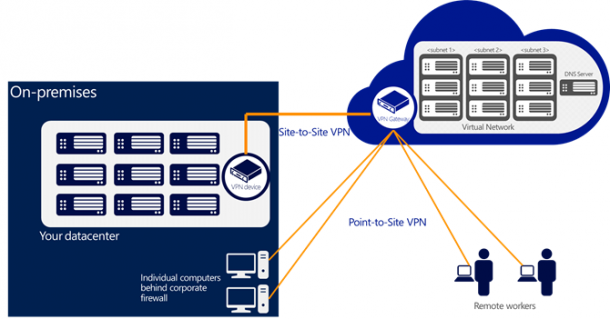
On April 16th 2013, the Windows Azure team has announced that Windows Azure Infrasructure Services ( Virtual Machines and Virtual Networks ) has been released for General Availability ( GA )! The local Azure User Group also held a Azure Global Boot Camp on 27th April. New VM Sizes There are two new VM size being released to support memory-hungry VMs on Windows Azure, such as SQL Server and SharePoint Server workloads, ...

Maintaining the Peak of Productivity

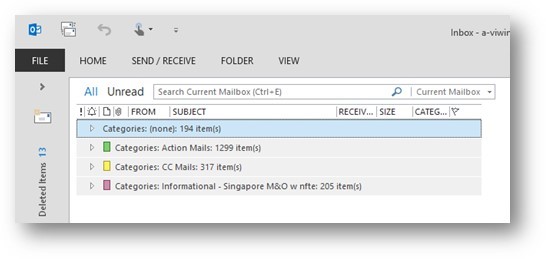
Office Thursday this week shares on tips on how you can Organize your e-mails.I will be sharing about 3 Things**: Categories, Searching Effectively, Mail to Task** CATEGORIES Why do it? Sort out e-mails that needs your immediate actions based on their categories. With Categories, I am able to sort out important e-mails that needs my immediate attention and I can easily filter out e-mails that I can read at a later time. Example: ...

April 25, 2013 · 3 min ·  admin

Windows 8 Design Handbook by Ratio

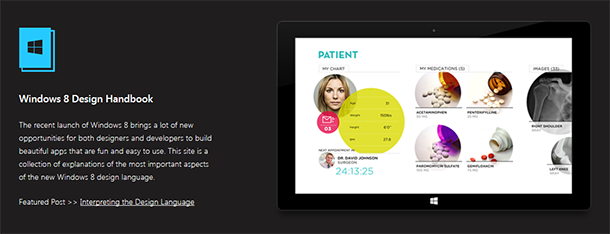
Ratio Interactive has published a new Windows 8 Design Handbook, a handy reference to those trying to design and style their app to match the design guidelines for Windows 8. The guide covers the following:- Understanding Live Tiles Choosing a Live Tile Designing a Splash Page Designing a Hub Page Key Windows 8 Terminologies Utilizing Semantic Zoom Mastering the App Bar Designing the Detail Page Interpreting the Design Language [vimeo width=“610” height=“345”]http://vimeo.com/52177075[/vimeo] Ratio Interactive goes in-depth in describing all the small details that make up the User Interface on Windows 8, from what Font to use to how to make your app engage your audience. They also have an “Inspiration Gallery” of well-designed apps that you can take a gander at and some pretty darn good Photoshop and Fireworks templates you can download to help with wireframing. It’s worth having as a bookmark and something to refer to when designing or updating your next Windows 8 app. Check it out here at the aptly named windows8designhandbook.com.

Windows Phone 8 Challenge : "AR Drone 2" 1st Release

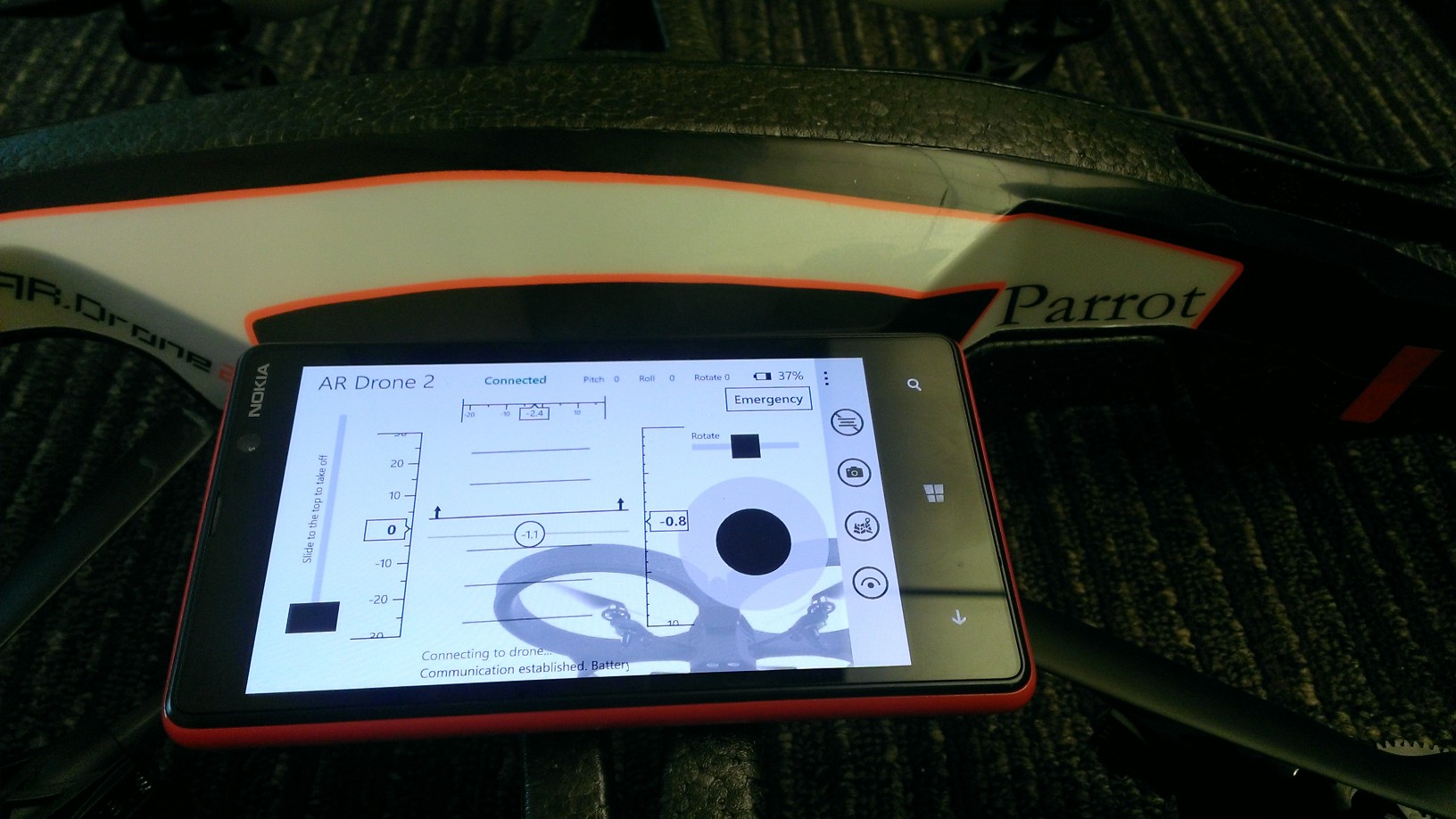
Remember our Windows Phone 8 Challenge Post 2 weeks ago? From the same developers who created Group Tiles and Speak Reminder, vSoft Studio have created an awesome application named “AR Drone 2” controller on the Windows Phone platform! Here are some of the amazing features this application has currently incorporated. Basic navigations of taking off, landing, moving around and rotating Compass, HUD, altitude, horizontal levels and battery level readout Text-to-speech capabilities when launching, landing and playing of animations Voice control for taking off and landing of AR Drone. Animations - These are pre-programmed stunt procedures which you can command your AR Drone to execute. The highlight includes a flip animation (refer to video below) of the AR Drone. Map and GPS Coordinates (Work in progress) Video Feed (Work in progress) Here are some screenshots of the application Here’s a video of it in action Download the app here! Alternative, scan the QR code on your Windows Phone http://www.windowsphone.com/s?appid=5a63f352-9022-4af4-b32c-a44c33bacaad

App of the Week - Fly iChangi

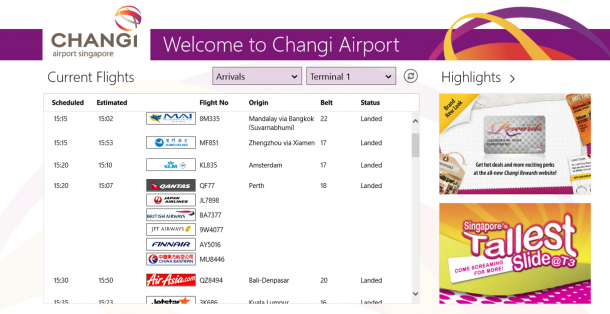
App of the week is a weekly showcase of an awesome app developed on Windows 8 or Windows Phone. Got an app you love that you want us to talk about? Leave us a comment and tell us which app and why you love it! Changi Airport is now Windows 8 and Windows Phone 8! Here’s some of the highlights of the app: Find details of your flight or check the status of your or your friend’s flights! Keep yourself updated with the highlights of Changi Airport to get the best deals! Furthermore, more information on shops, dining, and attractions at Changi Airport are also available! Don’t miss out on the convenience iChangi app brings you! :)

Do we still need collaboration tool (e.g. TFS) for our Agile team

If you have read the Agile Manifesto clearly, they state that “we value Individuals and interactions over processes and tools”. Does that mean that tools is not required for a Agile team? Think about it, given the complexity of the modern world, do you think it is possible to ignore things like Audit/compliance, distributed team? Hence, there is still need for tools to compliment a agile dev team to make them even more agile. My stand? Continue to focus on interaction, but use tools (like TFS) to assist and faciliate the interaction. My analogy: A productive team is like a champion RPG game character. agile is the reflection of your “skills” and VS-TFS is the “legendary weapon”. You can be fantastic in your skill only and hold a regular weapon, but you can never win someone who is fantastic in their skill and holding a legendary weapon that compliments their skills. Check out the following article that addresses this topic :) http://toolsforagile.com/blog/archives/795/do-you-really-need-an-agile-tool

Hidden Gems on Microsoft Word

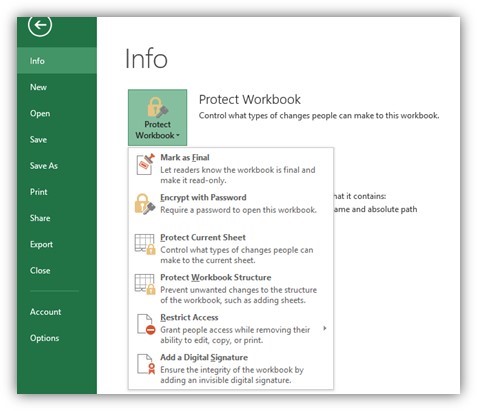
DID YOU KNOW most people only use less than 20% of all the features in Office?Wonderful world of WORD 2013When was the last time that you use Word? Yesterday, a few minutes ago? then… let me rephrase that question, when was the last time that you use Word to actually create a beautiful and impactful document? Hidden Gem #1: Styles Use Styles to quickly achieve the proper formatting that you want for your message. You can change an entire paragraph from a Header type format to Quote type format in an instant! If the readily available styles are not enough for your need, you can activate the hidden styles by expanding the styles list by clicking on the expand button (marked green) then clicking on the Manage Styles button After activating this button, the Manage Styles option will appear. In this option you can activate the styles that you need Hidden Gem # 2: Drop Caps Drop caps gives you a professional looking document by creating a capitalized letter at the beginning of the document. To use it. Go to Insert > Go to the Text section > Click on Drop Cap Hidden Gem #3: Translator If you are writing a document that will be sent to people overseas, you can use the built-in Translator function in Word to translate your entire document to a different language. Go to the Review > Translate I’ve converted a phrase from English to Chinese (PRC) ??????????????? ? I then converted the same phrase to French and this is what I got: Si vous lisez ceci, en Chine, alors comment allez-vous ! Not only can it translate text for you but if you activate the 3rd feature in the Translate Option (Mini Translator,) you can even have Word 2013 say those words out loud to you. Hidden Gem #4: Protect Document Since Word 2013 can now open PDFs, saving it to a PDF file can no longer be your “go to” solution for protecting documents from being “Pirated.” Use the built-in security within Office, Protect Document. Go to File > Protect Document. The options Encrypt with Password, Restrict Editing & Restrict Access will work for you and your recipient even if they do not have our Rights Management Service (RMS.) This is a quick and easy way to ensure that you documents stay protected from unscrupulous hands. Quick tip: You can also add a Custom watermark in your document before protecting it, to add an additional layer of protection for your work. Hidden Gem #5: Screenshot and Screen Clipping Add screenshot and screen clippings directly to you document without using the Windows Snipping tool or MS Paint. This works on all the Office applications (even Outlook.) Go to Insert > Screenshot. The tool will present to you the open running applications in your screen and then you can paste it to where you want it to go.

April 17, 2013 · 3 min ·  admin

Microsoft PFE TechNet Day :: Windows To Go – Mobility Redefined

Microsoft PFE TechNet Day :: Windows To Go – Mobility Redefined Date: 27th March 2013 Topic: Windows To Go – Mobility Redefined! Speaker: Amit Ghodke (Microsoft PFE) Session Synopsis: “With Windows 8 we are redefining workforce mobility by introducing a new feature called Windows To Go, that enables enterprises to provide users a managed corporate environment on a USB drive that they can operate from multiple managed or unmanaged PCs , it offer’s new possibilities in mobile productivity through hosting an entire corporate image on a USB device and booting from any Windows capable hardware Please join us to learn more and get in-depth information about the core enterprise scenarios of Windows To Go and core capabilities that makes it secure, easy to use and manageable.” Topics Covered:- • Flexible Work styles • Windows To Go Your Portable Work style • Cost Effective and Lightweight Solution • Secure: Protects Corporate Data • Secure: Prevents Data Leakage • Easy To Use: Enabling Boot from USB • Easy To Use: Full fidelity experience • Easy To Use: Redefine Mobility • Other differences • Windows To Go Certified Drives • Easy To Use: Resilient to unintended removal • Deployment :- Deployment Scenarios • Deployment : Centrally Managed and Deployed Manageable: Use your existing infrastructure • Evaluation: Self Provision with the Creator Tool • How Windows To Go Works in Summary • FAQ Please refer to the below links for further details on the topics. Windows To Go: Feature Overview http://technet.microsoft.com/en-us/library/hh831833.aspx Windows To Go: Frequently Asked Questions http://technet.microsoft.com/en-us/library/jj592680.aspx Prepare Your Organization for Windows To Go http://technet.microsoft.com/en-us/library/jj592678.aspx Deployment Considerations for Windows To Go http://technet.microsoft.com/en-us/library/jj592685.aspx Security and Data Protection Considerations for Windows To Go http://technet.microsoft.com/en-us/library/jj592679.aspx Best Practice Recommendations for Windows To Go http://technet.microsoft.com/en-us/library/jj592681.aspx

April 11, 2013 · 2 min ·  admin

For better online meeting experience with Lync

Spiffy now brings to you weekly posts on Microsoft Office. If you haven’t, it’s time to learn something new about our favorite and most used productivity tool, Microsoft Office! This week’s article will be on how to have better online meeting experience using Lync. A Better Lync conferencing experience.Use Meeting OptionsHow many times have we encountered a meeting where we had to manually turn off an attendees video because it was accidentally triggered or someone clicked on the “take presenter” option and caused utter chaos? **In Lync you can control your meeting experience even before the meeting starts!**I’m pretty sure that everybody knows how to properly create a Lync meeting, If you don’t know how, please refer to my screenshot.Click on Home > New Items > Lync Me****eting In Lync, you have the ability to set the level of experience that you want through the Lync meeting options. Click on the Meeting Tab > Meeting Options This option allows you control permissions in your meeting. This is only applicable If you are hosting the meeting. By clicking on the first option “A new meeting space (I control permission)” you will be able to access the other options. As a best practice, please use these following settings: Important! If you will have a meeting with someone that is outside of your country, change your Phone setting to the locale of your recipient. In this way, they will be presented with the local number available their country that they can dial in the e-mail invitation. ...

April 10, 2013 · 2 min ·  admin