Top 3 Resources for Startups Developing on Microsoft Azure

Top 3 resources for developing on Microsoft Azure Microsoft offers startups and students alot of resources to get started on Microsoft Azure. Ranging from the Microsoft BizSpark program which provides free Azure credits and product keys, there is also the Microsoft Imagine program for students to host websites and download software for free. Here are the top 3 resources which you can use in your journey with Microsoft Azure. Azure for Startups (Github) This repository on github contains an array of guides which startups can use to kick start their journey on Azure. There are tutorials and sample code to help startups migrate from other platforms to Azure, as well as the different possible services which Microsoft offers. Visit the Azure for Startups Github page here. ...

Microsoft @ IoT Asia 2016

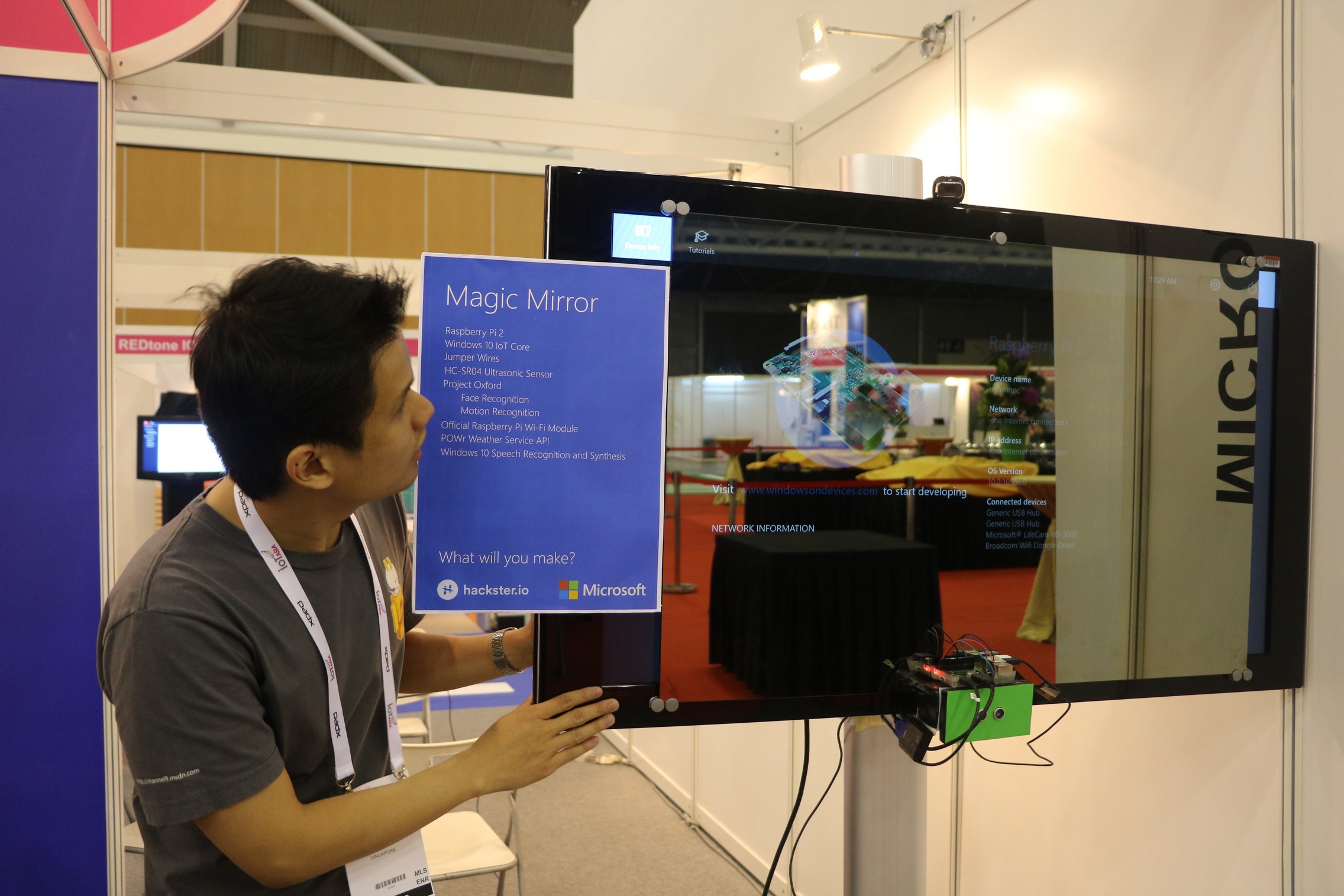
Introduction to IoT Asia 2016 IoT Asia is an annual event that is held across Asia and it is the region’s leading platform in the Internet of Things (IoT). As for IoT Asia 2016 held from 30-31 March 2016, Singapore was chosen to be the venue host for the event. The theme of the event which was “From Vision To Reality” which reveals new insights on emerging trends, new key technologies and directions for IoT’s proliferation in the region. The goal of the event was also to stimulate in-depth discussions to drive business collaborations in the region and undertake real nuts and bolts of IoT implementation. ...

The Hackathon @ SG 2015 – My Experience

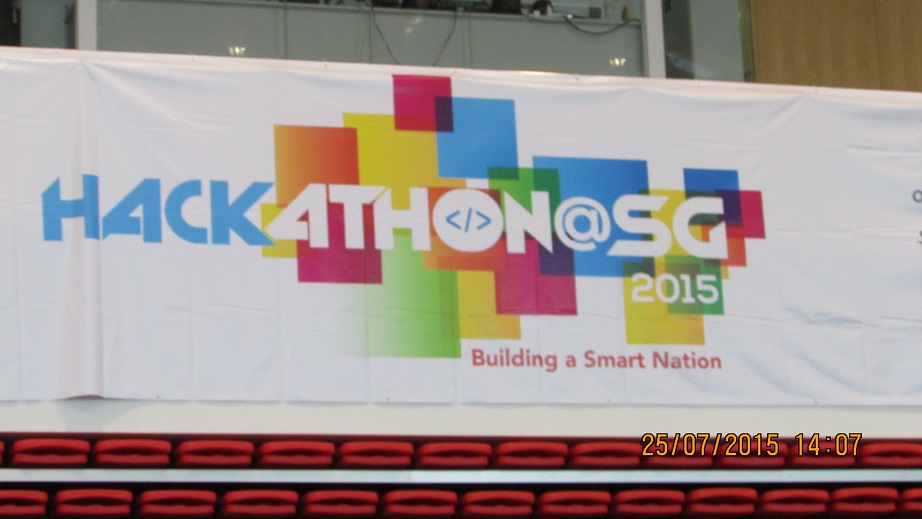
Introduction. Touted as “Singapore’s biggest hackathon ever”, the Hackathon @ SG 2015 was an intense 24-hour coding competition held at ITE College Central between 25 and 26 July. Luckily enough for me, I was able to live through it and tell the tale of what an amazing time I had! The theme for the competition was “Towards a smart nation” (i.e. to contribute towards the SG50 Smart Nation initiative) and we were given 6 challenges to be addressed on the day itself. These were: ...

Startup Feature: Grezzy Founder, Oliver Duric

In this instalment of our Startup Feature series, we speak with Oliver Duric from Grezzy, one of our BizSpark startups. Grezzy is a software platform in the health and fitness space that connects people, tracks activities, motivates to be active and compete with the goal of living healthy. Grezzy has also recently moved into Microsoft’s office premise at One Marina Boulevard, as part of the BizSpark Residency program. For those who are curious to find out more about BizSpark Residency following the recent news releases (like this and this), read on! [caption id=“attachment_20630” align=“alignnone” width=“769”] Oliver Duric from Grezzy, seated at his co-working space in Microsoft Innovation Centre[/caption] ...

July 23, 2015 · 5 min ·  May Lim

Azure Community Meetup (June)

Have you ever experiencing website something like this? Linux in Azure you can easily resolve this. We will be sharing on Virtual Private Network and Proxy Server in Azure Virtual Machine using Linux OS. You can also bring your own laptop for a hands-on-workshop to create a VPN and Proxy server in Linux. See you there. :) The Azure Community meetup is conducted every week. Come join us to learn from one another some of the interesting things you can do on Azure!

Join the Azure Ignite Workshop

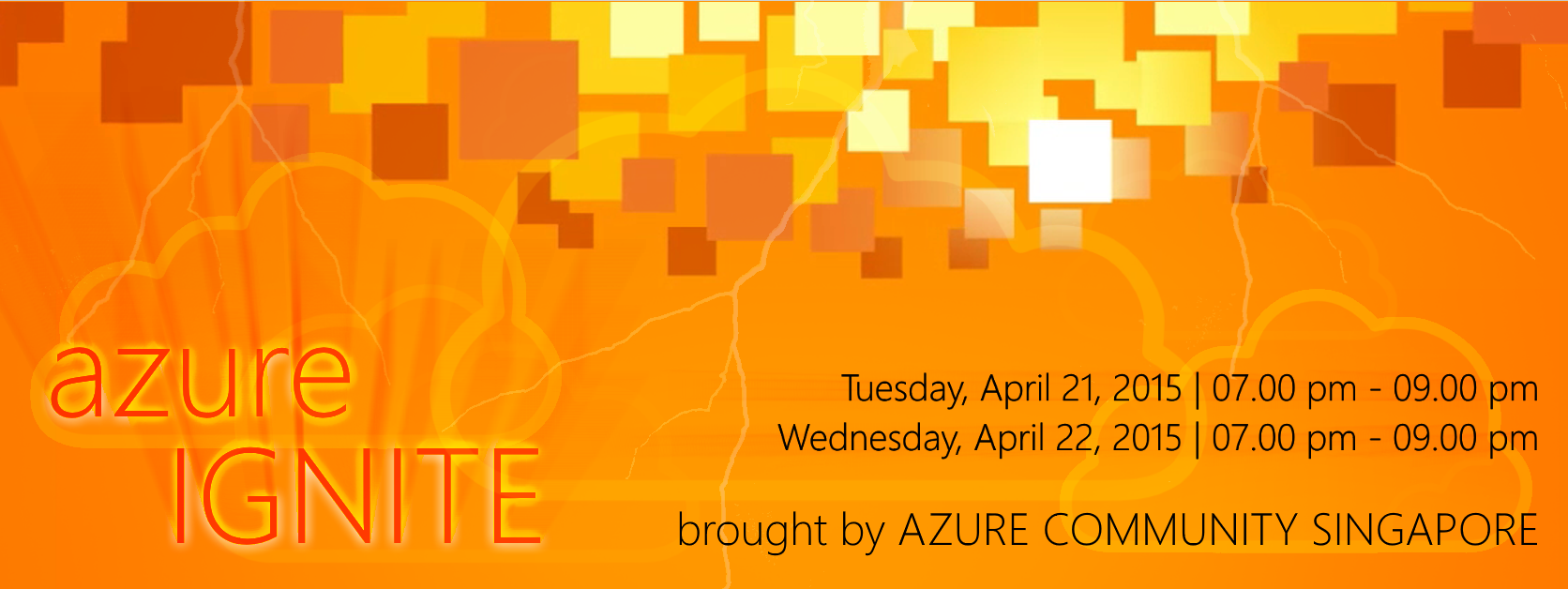
Azure Community Singapore is organizing a two-day, two-hour-each hands-on workshop about Microsoft Azure Virtual Machines! At the Azure Ignite Workshop, you’ll learn everything you need to know to set up flexible and scalable servers in the cloud for real-world use for a variety of applications on different OSes. Did they mention it was free? Do join in on 21st and 22nd April (Wed/Thu), 7PM to 9PM for the Azure Ignite Workshop at Microsoft Singapore, especially if you’re a beginner or intermediate developer/IT Pro on cloud technologies! If you think an Active Directory is a phonebook for keeping fit, then this meetup is for you! http://www.meetup.com/AzureSG/events/221785584/

Why is the world in love with Docker?

There is a feeding frenzy when it comes to buzzwords and “Docker” has now become THAT GUY. If you’ve been subscribing to technology blogs, there’s been an active trend with this new buzzword: docker. The cool kids on the block now seem to revolve around anything “Docker” related. There’s even a local Meet-up Group popping up with event #2 under their belt. The momentum is growing and in fact, even large tech giants like Azure and Amazon Web Services just announced their support behind it not too long ago. Not to be outdone by their industrious cousins, startups that are flocking to Docker are making the VC’s fall in love with them, bringing their founders million dollar valuations seemingly overnight!. So what the heck is Docker and why should I care? Background: Docker is actually an open-source project, written in GO (developed by the G-men of Google, born out of their hate of C++) to do one simple thing: ship applications faster. And the cool part is that this drastically changes all the ways we did things in the past. The problem: There is an inherent issue with how we work with the hardware and software. Applications are tied to an Operating System, and because of this, you can’t simply just move an app from one place to another without a whole lot of stuff that happens by the tech guys. Think back to moving your application icons from the desktop of a computer to a new computer…never worked for you did it? And for good reason! & solution: So what Docker did was they created a portable “container” to do just that! Move your applications without having to worry about where it’s running. What this means for the engineers & developers out there, is that they can use any language they prefer and push, pull, move back and forth to any server in be it cloud or virtual/physical machines. Translation: Engineers can focus on developing applications and can get it to your business or users faster because they no longer have to worry about the “back room” stuff. The future: The current eco-system that supports Docker as of today lists some of the big giants like Google and our friends at Microsoft. But not to be outdone, there are some recent startups focused on this as well, even here in Singapore. Specifically… us, Apvera! Stay tuned as we share our process on integrating new tech to solve old problems on our blog. In the mean time, check out a local startup event in the area on docker and try to run into us. For more info go to apvera.com Connect with Paul on 

December 22, 2014 · 3 min ·  Paul Kim

Remote Desktop into Ubuntu Server with GUI on Windows Azure

Someone was trying this out and could not get this to work so I mentioned I would write an article if I got it working and I did get it working so here is the article. Let’s not have much of the usual gibberish that I write at the start of the post and get straight to the point. What you would need: 1. 30-Day Trial Azure Subscription [link] (If you do not have one) 2. A little bit of knowledge of Linux shell commands 3. PuTTY [link] on Windows | Terminal on OS X 4. Remote Desktop Client (It’s on the Mac App Store for you OS X users. P.S. The OS X Version is also really pretty.) [link] Create your Virtual Machine through Windows Azure and let’s make one running the latest Ubuntu which is 14.04 LTS as seen below. Give it a little bit to create, eat a cookie, drink a cuppa joe or anything that can be done in 5 minutes. Once that’s done, go to the Endpoints section of the Virtual Machine and click Add to add an Endpoint. Once you see this click next and select Remote Desktop as the name of the Endpoint, all the relevant details will be filled out for you (yipee) and just hit the tick at the bottom right. Wait a little again and your Endpoint will be successfully added. Moving on to commandline stuff! Fire Up PuTTY and fill in your login details as such or if you are on OS X follow the image below PuTTY one. Now, let’s proceed onto this by just typing commands into the box above. Each line means a new command. ...

OpenVPN Community on Windows Azure

Looking for a guide to get the OpenVPN Community Version on Azure? Follow the guide below. So first up, What do we need? 1. 30-Day Trial Azure Subscription [link] 2. A little bit of knowledge of Linux shell commands 3. PuTTY [link] 4. OpenVPN GUI [link] Right. Now that we’ve gone through the pre-requisites, let’s move on to the fun part. First up, we gotta head into Azure and create a virtual machine. Let’s quick create a machine as seen below. A shared core and 768MB of RAM is more than enough for just an OpenVPN server as the overhead isn’t too large. If you want to change the region to another region, go ahead but leave the rest as defaults. Note down the password you use and the username. Once you press the create button, give it a little bit for Azure to set-up everything and then proceed to the next step once you see it’s Status in Azure has been updated to “Running” with a green tick at the left. Now we have to configure some endpoints on the virtual machine itself as to make sure that your internet traffic is able to reach the virtual machine. Go to the Endpoints Tab in your Virtual Machine once it’s been created and hit the add button at the bottom. Both buttons have been highlighted in the image below. Once you select add, you will be presented with a small pop-up wizard. Configure it according to the two images below If it is done correctly, you should have an Endpoints tab looking like the one below. If all is good, it’s time to move on to configuring the virtual machine you just set-up! Now’s the time to fire up PuTTY that you downloaded just a moment ago. Fill up the relevant details in this format: username@dnsname Example: azureuser@spiffyrocks.cloudapp.net Hit Open to start connecting to the virtual machine. You will most likely get a warning like the one below but just hit yes. Next up you’ll have to key your password into the black box, don’t worry if you do not see your password being typed and just continue typing it and hit the Enter key when you’re done. You should be logged into your Azure Virtual machine now and should see something similar to the image below. Now, let’s proceed onto this by just typing commands into the box above. Each line means a new command. ...