MIX11 Day 2 Keynote–Windows Phone 7 (Mango), Silverlight, Kinect!

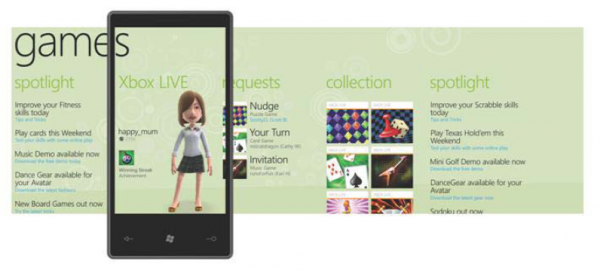
Wow tons of announcements and cool demos here at MIX11 this morning! Too many to list here, so I’ll just point you to the video and provide you the timeline and conveniently skip to the section you’re interested in http://live.visitmix.com/Keynotes You can also read the Press Release here. Windows Phone Announcements! WP7 will add 16 new languages, extend to +8 more countries where developers can submit their apps, and +18 more countries where users can purchase apps. Nokia’s value and commitment to the WP7 ecosystem was also re-emphasized 11:18 – 18:48 ...

Data Binding in Silverlight

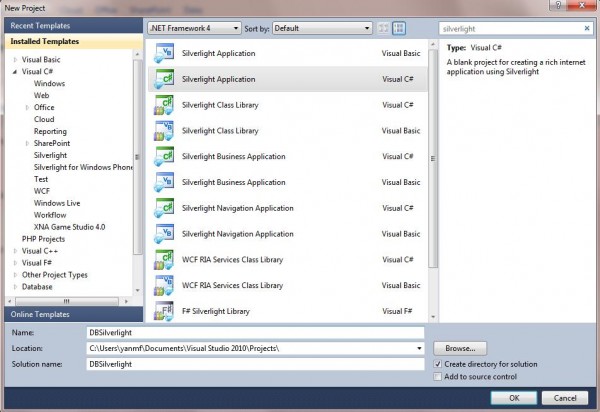
Data binding is a key technology in Silverlight that allows data to be presented to end users and then processed. Here is a simple example to show you how to bind data behind to Silverlight UI interface. We will draw a circle by clicking the button and the color and size of the circle will be controlled by back-end with data binding. Step 1: Open Visual Studio and select New Project… Search for Silverlight Application and we’ll be using C# for the back end. Step 2: Now, you will see the Mainpage.xaml file. XAML stands for eXtensible Application Markup Language. XAML file is pure XML and it is a declarative markup. Visual Studio provides two views at the same time: Design and XAML. Drag a button from the toolbox in the left side to the canvas. And you will see a line of code has been added to the XAML file. You can either right click the button and choose properties to change this button’s properties. Or you can change the button properties directly from the code. After changing, the code will be look like this: [cc lang=‘c’ ] [/cc] Step 3: right click your Silverlight application in the Solution Explorer and Choose Class, name it circle.cs. And add the following code to circle.cs. Here, we create two properties of circle object, which are color and size. Both of them are set to String type. [cc lang=‘c’] namespace DBSilverlight { public class circle { public string color { get; set; } public string size { get; set; } } } [/cc] Step 4: Come back to MainPage.XAML. And drag a Ellipse in the canvas. Modify the code in the XAML to this: [cc lang=‘c’] [/cc] Here, we change Height and Width to {Binding size} and add a new property called Fill with {Binding color}. Here, when this Ellipse is generated from the front end, it will look for the binding value once we set up the data context. Step 5: Double click the button in the canvas and it will populate a method in the back (MainPage.xaml.cs) ...

Cool Windows Phone 7 Application by Microsoft MVP - MemoGenius

This post is written by Michael Sync, a Microsoft MVP. More information could be found here. How are you doing? guys.. I’ve been so busy with both Windows Phone 7 development and Silverlight development lately and I couldn’t able to update anything on my blog.. Sorry, guys! As we are sharing our code base between Silverlight and Phone 7, there are a lot of interesting things that I wanna share with you guys. I will write about it in different post later but I gotta tell you that it’s not that simple to share the codebase between two platforms. :) As of now, I like to share some screenshots of our Windows Phone 7 application that we submitted around Oct 4th. I like to tell you guys about what we are doing and etc first. We are developing Silverlight and Phone 7 applications for Brain training games. We already developed around 20 games in Silverlight and all of our games support both English ( memolife.com ) and Norwegian (hjerneklubben.no). We started working on the version 2 of our application a few months back. When we heard about Windows Phone 7, we are very excited about it and decided to support the Windows mobile platform for our applications as well. Chris Ismael from Microsoft Singapore helped us to get the prototype version of Windows Phone 7 device (LG) so that we can use it for developing our application. (Thanks, Chris! ) Our application is called “MemoGenius Lite”.. It includes two brain training games and one course. You need to finish the “Flash Course” in order to unlock our brain training games. We added “Share” button in our application so that if you like to share about our application with your friends in facebook, you can simply click on that button to share… ...

Deploying Existing Silverlight Application (Deep Zoom) on Windows Azure

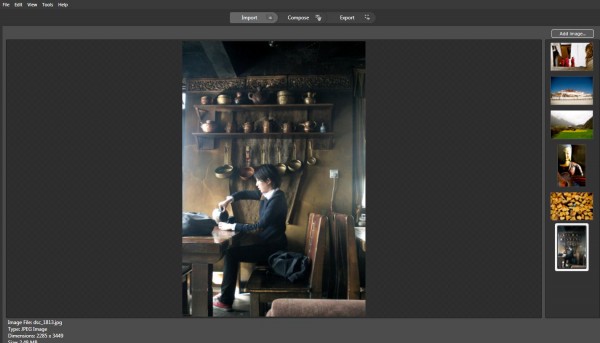
In this blog, I will introduce several Microsoft Technologies showed as below and you could view live demo on http://tibet.cloudapp.net/: Using Deep Zoom Composer to develop a Silverlight based photo gallery (You could use your existing Silverlight Application here) Migrate Existing Silverlight Application onto Windows Azure Deploy Windows Azure Application on Cloud Here, I will showcase how easily you could compose a Silverlight-based Deep Zoom applications onto cloud. You can skip part I if you plan to use your existing Silverlight application. Here, I will introduce a very powerful tool called Deep Zoom Composer in part I. If you have a lot of pictures to show, you can compose a Silverlight application easily for you to browser all the photos. You can check Hardrock café example here. Firstly, let’s walk-through how to use Deep Zoom Composer to develop Siverlight based photo gallery. 1. You need to download Deep Zoom Composer here. This is a tool to allow the preparation of images for use with the Deep Zoom feature in Silverlight. Hard Rock is using Deep Zoom technology to feature their site, and you could take a look here. 2. After installation and open the tool. Select File - New Project… 3. You will see a Add images button in the right up corner. By clicking it, you could upload photos from your local drives. 4. Next, click on Compose Icon on the Top Navigation Bar and you could compose your imagines on canvas by drag-and-drop. Noted, you could zoom in/out canvas to place photos with different sizes. Meanwhile, noted there are several functions lined up in the right side of the tool, such as Slide Show, Menu, Internal Links, External Links. You could drag photos from right sides into Slide show to compose the sequences of your slide show. Also, you could do the same for the rest. For internal/external links, you could specify link and when user clicks on the photo, he/she will be re-directed to the page that your link specified. 5. Now, click on Export Icon from the top navigation bar. Type in the name of your Deep Zoom application and choose location for your files as well. There are several templates you could choose from. And here, I will select Deep Zoom Navigation. And you could further customize your image settings. Click on Export. 6. After exporting successfully, you will be able to either viewing your silverlight application in web browser or browse files in local folders. Secondly, we will see how to Migrate Existing Silverlight Application onto Windows Azure. 7. Download Windows Azure SDK and Tools for Visual Studio here. 8. Open Visual Studio as administrator. Current I am using Visual Studio 2010 for this example. 9. Select File –> New –> Project… Select Windows Azure Cloud Service in Visual C# Category. 9. Right click on Role Folder under TibetDemo project and select New Web Role Project… 10. Select ASP.NET Web Role and to Cloud service solution and rename it as tibetWeb showed as below: 11. Now, copy over files from XXDocumentsExpressionDeep Zoom Composer ProjectsTibet-DemoExported Datatibet_demo (you may look for your own file directory) under this project. A quick way is to right click on tibetWeb and open folder in windows explorer. 12. Click on Icon [Show all Files] showed below and you will see folder GeneratedImages showed in a dash line. Right-Click and select Included in the project. ...

Project Nimbus: One Marina Boulevard Map Application

Project Nimbus is an effort to get more data sets online and accessible for innovators to build on. With the available data sets we have, the Project Nimbus team wanted to create an application which not only uses data just from one provider but mashing up different data sets together to make handy applications. We came out with this application to help you locate us better! Enter the location you are coming from and the application will route you straight to us showing you the traffic images along the route. What’s more? When you do visit us, it gives you an overview of the restaurants around Microsoft Innovative Centre Singapore to satisfy your hunger. How was the application implemented? 1. Get an application key – Email projectnimbus@live.com.sg to get your key. 2. Add in the AccountKey & UniqueUserID into the request header. ...

Add Bing Maps Streetside to your Web Application

The local Singapore street view map will be provided by Microsoft soon on Bing Maps. It will be a good time for you to think of plugging Streetside view to your webpage or application to enhance your customer experience. If you have read Chris Pendleton’s Bing Maps Blog, you may find out some problems with the initial installation part. This article provides more details on installations and future developments. Firstly, there are three things you need to install as references to run Bing Maps on Silverlight. ...

Silverlight 4 @ RIAction

[slideshare id=3784514&doc=silverlight4-riaction-100420005059-phpapp02] I’ve also included the code for demo that we built during the session. You’ll need VS 2010 and/or Expression Blend 4 RC. Download the code here.

Panoramic Navigation on Windows Phone 7 with No Code!

I was reading through the UI Design and Interaction Guide for Windows Phone 7 Series and found out that there is currently no panoramic application template or control provided as part of the standard application platform. Nothing stops us from creating our own though. To make things easier, I’ve made a behavior library for everyone to use that will handle flick gestures. I’ve also included a “GoToNextState” behavior which I based on http://gallery.expression.microsoft.com/en-us/MIXBehaviorPack. If you want to follow along, you’ll need to download my behavior library. Also, if you don’t know where to get the Blend bits, check out this post: http://electricbeach.org/?p=460 So, let’s start by creating a new Windows Phone Application project in Blend 4. ...

Windows Phone 7 Series at MIX10

Last night at MIX10 held at Las Vegas Microsoft announced its developer story for the Windows Phone 7 Series. If you didn’t catch the keynote last night you can watch it MIX10 Keynote A quick summary: Silverlight 4 is now on RC. Final build will be out next month Silverlight on 60% of all internet connected devices Expression Blend 4 preview out. Free upgrade to Expression 3 owners. Windows Phone 7 uses Silverlight and XNA. Uses the same Silverlight you know on the web. Uses Visual Studio 2010 with free tools. Visual Studio 2010 for Windows Phone Expression Blend 4 for Windows Phone XNA for Windows Phone Same XNA platform for PC, Phone and Xbox Tonight will be another big night full of releases. Hope to see you there! Chris was our man on the street reporting live from Vegas. ...