The happenings at Build Singapore!

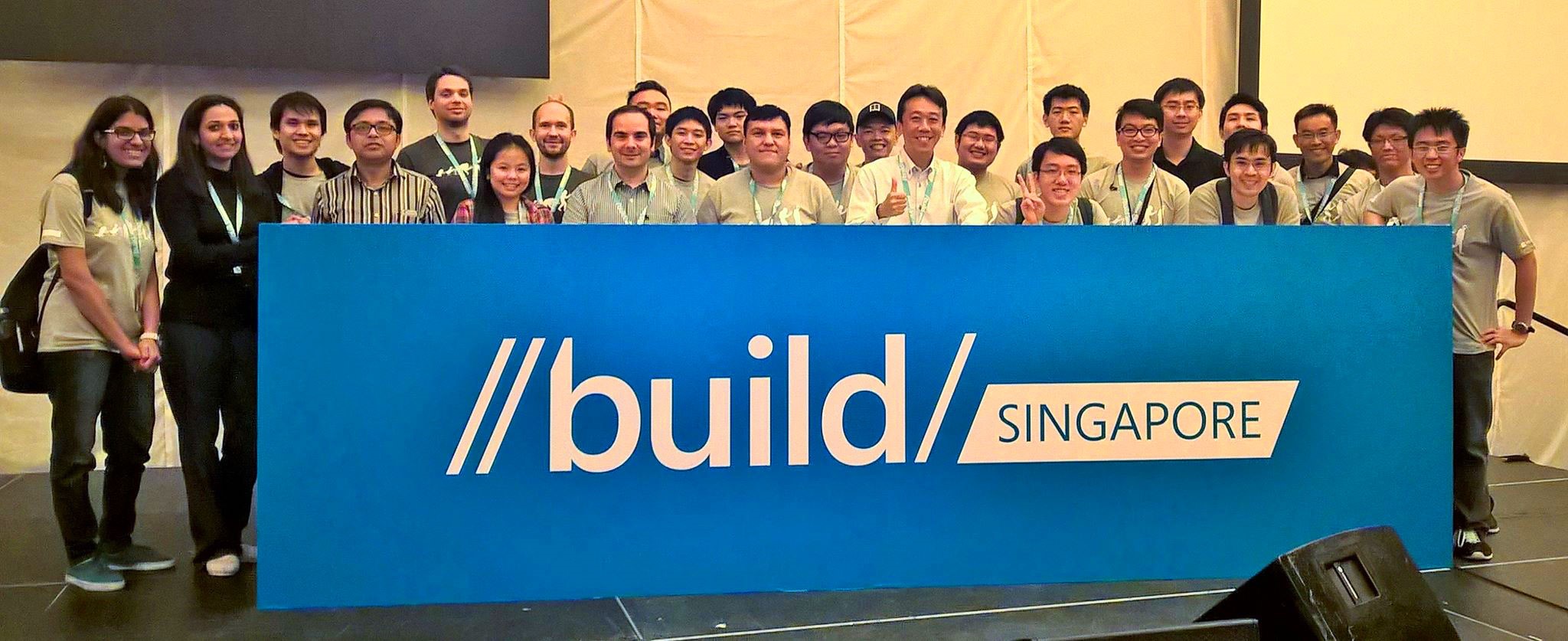
Microsoft’s Build Developer Conference is an annual event that introduces the latest cutting-edge products and services offered by Microsoft. This year, Build 2015 takes a twist to go on the road to promote Windows 10 app development to software creators all over the globe. And the Build Tour, which includes one-day stops at 26 cities worldwide, arrived in Singapore on May 28! [caption id=“msp_guides” align=“alignnone” width=“100%”] Our MSP guides getting ready for the day! [/caption] Jointly organized by the Developer Experience and Evangelism (DX) teams from Redmond and Singapore, Build Singapore attracted more than 400 technology enthusiasts, including myself, all ready to spend our day with the best Microsoft Technical Evangelists and lead engineers at Resorts World Convention Centre! The team prepared for the crowd from as early as 7am on this Thursday morning. We were joined by our Microsoft Student Partners (MSPs), and everyone was excited to bring this long-awaited event to our audience! As a starter to thank our attendees for their presence and support, we distributed exclusive Microsoft swags at registration! #goodies [caption id=“registration” align=“alignnone” width=“100%”] All excited to meet the crowd and distribute our Microsoft swags! [/caption] Build Singapore kicked off at 9am, with the Managing Director of Microsoft Singapore, Jessica Tan, delivering the opening address to warmly welcome the crowd and get everyone in anticipation for the day’s program. [caption id=“jessica-opening” align=“alignnone” width=“100%”] Jessica welcomes the crowd to Build Singapore [/caption] [caption id=“audience” align=“alignnone” width=“100%”] More than 400 participants attended Build Singapore [/caption] The first keynote was delivered by Giorgio Sardo, Senior Director of Client and Devices Evangelism at Microsoft. Giorgio introduced the key highlights of Build 2015, and how all these started off with Microsoft’s goal to bring Windows 10 to 1 billion devices - that’s a huge ambition, but I am confident we will get there (more details to Build 2015 available here). [caption id=“giorgio-keynote-1” align=“alignnone” width=“100%”] Giorgio demonstrates a flight simulation app with Windows 10 and Microsoft Band [/caption] [caption id=“giorgio-keynote-2” align=“alignnone” width=“100%”] Giorgio and Nobu show how IoT with Azure helps farmers track and manage their cows [/caption] Saranya Sriram, Technical Evangelist of Windows Azure APAC, also shared about Microsoft’s improved Azure app services. I got to learn more about the key characteristics that make Azure stand out as a preferred cloud computing platform, such as the durability, fault tolerance, scalability and flexibility it offers. Azure is surely the up and coming cloud OS that is constantly unveiling its potential by leaps and bounds. [caption id=“saranya-presentation” align=“alignnone” width=“100%”] Saranya gets the crowd excited with the improved Azure offerings [/caption] Next was Nikola Metulev, Program Manager at Microsoft, who showcased more demos on Windows 10 and the Universal Windows Platform (UWP). One of which was a Peek-a-Boo application that uses facial recognition technology to identify user presence. Imagine the potential this could have in other applications such as biometric authentication (and yes, that means we don’t have to memorize more passwords). [caption id=“nikola -presentation” align=“alignnone” width=“100%”] Nikola demonstrates IoT with Windows 10 [/caption] And then came lunch! It was a good break for everyone to freshen up, and also mingle with other participants in a comfortable setting. Wondering how comfortable was it? Check out the photo below! [caption id=“lunch” align=“alignnone” width=“100%”] Lunch was a hearty feast (drools) [/caption] We then had Lightning Talks, which was a refreshing switch to concise, relevant and interesting talks that each lasted for no more than 10 minutes. Our Microsoft partners from TV Thailand demonstrated their apps on Windows 10, Edge and Azure, and aptly highlighting the business value Microsoft brings to organizations. [caption id=“lightning-talks-1” align=“alignnone” width=“100%”] Our speakers gearing up for Lightning Talks [/caption] [caption id=“lightning-talks-2” align=“alignnone” width=“100%”] Gamurai demonstrates their hair styling simulation web app with Dave as our model. Looking good, Dave! [/caption] Dave Crawford, Microsoft’s Senior User Experience Program Manager, also engaged the audience with app design tips, and hearing this from a seasoned UX guy, it was definitely a rare experience! A little pity that it only lasted for 10 minutes though… Other impressive technologies such as Cortana, Windows Store and Bluetooth Beacons also wowed the crowd. [caption id=“dave-presentation” align=“alignnone” width=“100%”] Dave, the UX guy, sharing his valuable insights on design [/caption] The event proceeds with a Panel Question-and-Answer, where our distinguished speakers, Giorgio, Dave, Nikola and Saranya, were seated on stage to address any questions from the ground. Some clarified technical ones, while others questioned the viability of the strategies undertaken by Microsoft. I personally gathered much insight from the discussions, for example, someone was skeptical about the user reach of Windows mobile apps, but with the UWP, developers are in fact expanding their potential user base as they can easily deploy their apps across multiple platforms, including PCs, Xbox and Raspberry Pi 2. [caption id=“panel-qna” align=“alignnone” width=“100%”] Our panel having some face-to-face time with the audience during Q&A [/caption] I think the best were those who asked when would Windows 10, HoloLens and the like be introduced in Singapore. They totally displayed the kind of eagerness and anticipation that many of us have for these really cool technologies. I can’t wait! And the eventful day concluded with our very own Technical Evangelist from Microsoft Singapore, Terence Lim, who shared with the audience about how they can get involved with our local programmes - ME@MS, weshipcode.com, DreamSpark, Imagine Cup, BizSpark and Microsoft Visual Academy. [caption id=“terence-closing” align=“alignnone” width=“100%”] Terence concludes the event with a bang, what an eventful Thursday! [/caption]

June 2, 2015 · 5 min ·  May Lim

Deploy a Website in 10 minutes using Dropbox and Azure

It only takes 10 minutes to deploy your website with Azure. Free distinction for everyone! Just follow the guide below. What do you need? 1. A Microsoft Account with Azure! (Hey! Microsoft gives you a 30 day free trial) 2. A Dropbox Account (Free 2GB account is more than enough) 3. A folder with all the developed HTML/PHP/JavaScript/CSS files (Make sure they can run on local host to save your 30 days free trial) 4. 10 mins of your time Alright! Let’s start! ...

New Windows Azure Network Security Whitepaper Available

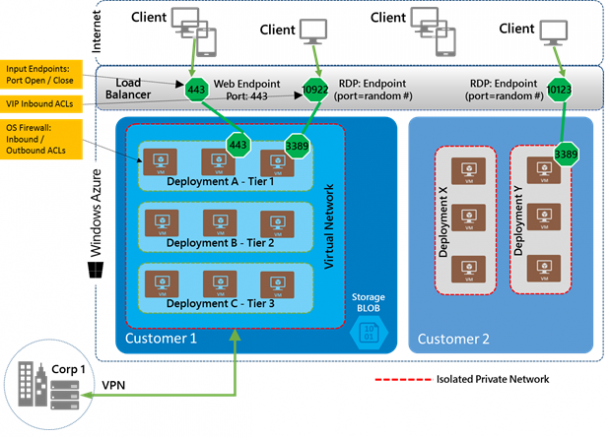
When comes to public cloud like Windows Azure, security is always a popular area for many customers. A new technical whitepaper on Windows Azure Network Security is released to help IT Administrator to understand the security mechanisms within Windows Azure. Windows Azure networking provides the infrastructure necessary to securely connect your virtual machines to one another, as well as bridge between the cloud and your on-premises datacenter Few of the questions I get asked a lot are around protection against DDOS and intrusion detection. The whitepaper explains those points in detail. ...

Windows Azure Backup Service is now available

Windows Azure Backup Service is now available! This means it is now live in production, backed by an enterprise SLA, supported by Microsoft Support, and is ready to use for production scenarios. What is Windows Azure Backup? Windows Azure Backup is a cloud based backup solution for Windows Server which allows files and folders to be backed up and recovered from the cloud, and provides off-site protection against data loss. The service provides IT administrators and developers with the option to back up and protect critical data in an easily recoverable way from any location with no upfront hardware cost. How does Windows Azure Backup Work? Windows Azure Backup is built on the Windows Azure platform and uses Windows Azure blob storage for storing customer data. Windows Server uses the downloadable Windows Azure Backup Agent to transfer file and folder data securely and efficiently to the Windows Azure Backup Service. Along with providing cloud backup for Windows Server, Windows Azure Backup Service also provides capability to backup data from System Center Data Protection Manager and Windows Server Essentials, to the cloud. All data is encrypted onsite before it is sent to the cloud, and customers retain and manage the encryption key. How to do it? Click New->Data Services->Recovery Services->Backup Vault to do this: Learn more on how to do it from: ...

Using SQL Data Sync to Synchronize On-Premises Database to Windows Azure

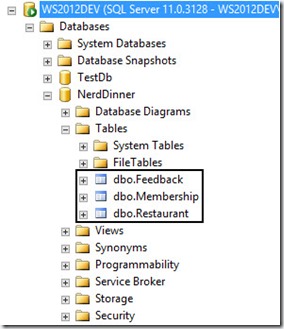
Have you ever thought of scaling your Web Application so that it can extend the usage to external parties or have you ever hit in any situation where you have some subset of your data in your on-premises SQL Server that you require it for other system that are external facing? Let’s take for example, if you have an intranet that is hosted within your own corporate network which store membership details that you all are keeping it for internal usage all along. Then on one fine day you all decide to explore the Cloud by putting your custom developed newsletter blasting system to the Cloud as you would prefer not to choked up the bandwidth in your corporate network. Therefore, how in this world could we have the best of the both world? How can we maintain a set of information but can be used in multiple systems in multiple locations but still maintain the integrity and consistency without any duplication within the dataset itself? SQL Data Sync Agent is here to save the woes of people who are facing such issue. Currently, the SQL Data Sync Agent is in the Preview stage and has not reached the General Availability stage therefore things may change but I anticipate that things wouldn’t be that far off as the current tool is really designed and developed to be simple and user friendly. More information on TechNet. Let’s take the following as an example. I have this 3 tables in one of my Web Application that is hosted in my corporate data centre which is hosted within the network and no external interface to the internet. Right now, I need to surface the membership table to one of the newly created database in Windows Azure so that the other application that is hosted on Windows Azure will be able to access these information. Creation of Windows Azure SQL Database Let’s navigate to Windows Azure Management Portal then select SQL Databases via the left hand corner navigation bar. If this Azure account is newly created, then you probably wouldn’t have any database created. Click on Create a SQL Database to continue. Key in the necessary information to continue the setup of the SQL Database on Windows Azure. If you do not have any SQL Database instance setup before, you will likely not have any SQL Server setup. Therefore, go ahead and select “New SQL Database Server”. Continue to define the SQL database server settings by entering your preferred username and password. Please note that this username and password is very important because it is the username you will be using to log on to the SQL Server Management Portal on Windows Azure Management Portal. Do note that you will need to ensure that you check that checkbox if you want other of your Windows Azure Services to access this database. An example will be, if you decided to host your Web Application to host onto one of the Virtual Machine while utilizing the Database hosted on Windows Azure SQL Database rather than loading and managing your own SQL Server instance on Virtual Machine. Go ahead and click on the “Tick” to proceed to create your SQL Database. The creation process should take less than one minute and you will know it is done when the database status is flag as “Online”. Installation of SQL Data Sync Agent (Preview) and Configuration of Sync Agent Go ahead and download the SQL Data Sync Agent if you have not done so and install on any of the computer within your corporate network which have access to the internal SQL Server. In my example, I will just install the SQL Data Sync Agent onto the SQL Server itself but it should be the same even if the two program seats on separate client. After installation, launch Microsoft SQL Data Sync Agent Preview found in the start menu as shown. You will be welcome by the simple and neat interface. You will notice that most of the controls are being gray out. What you are left with is to enter the Agent Key so that Windows Azure can communicate with your client that host the SQL Data Sync program. Upon clicking on the Submit Agent Key Configuration, a popup will appear as shown below. However, on first try, I have no idea what to key in. There after, I caught this message that I have highlighted. The key that is require can be retrieved from the SQL Data Sync web portal. Navigate back to the Windows Azure Management Portal, navigate to the SQL Databases and look at the bottom. You will notice there are other navigational items available. Click on Add Sync which will show two more options available. Select New Sync Agent. Give a name to the Sync Agent. Notice at the top, it actually prompt you that you will need your local client agent to be installed. Click on the “Tick” to proceed and this Sync Agent will be created. Notice the “Status” is currently flag as Offline because we have not configure the local agent to communicate with the one at Windows Azure. Our ultimate purpose is to get the key so that we can input into the configuration popup window at the local agent. So we click on the arrow at the Sync Agent to go into the detail page. Notice that at the bottom, there is this option “Manage Key” that is available. Click on it. Instructions is available at the top. Just click on the “Generate” button to generate the access key and click on the “Copy to Clipboard” button just beside the Generate button. When you are done, navigate back to the client that you install the local sync agent. Input the access key into the popup window. Once the key is validated to be valid, the other controls will be enabled. Click on “Register” to register the SQL Database in your organization. Enter the SQL Server details along with the targeted database that you want the Sync to take upon. Click on “Test Connection” to ensure that the connection can be established. Once verified, click “Save”. Now, you will notice that the SQL Database is being added to the list. In order to do a verification, click on “Ping Sync Service” to determine if the connection back to the Sync Agent at Windows Azure is reachable. Next navigate to the Windows Azure Management Portal. Right now, you should see the Sync Agent status will switch to “Online”. Click the arrow beside the Sync Agent to view the details inside. You should see the database and the SQL Server hostname. Creation of Sync Group and Objects Go back to the SQL Databases main menu and as usual click on “Add Sync” and select “New Sync Group” this time. Enter the details and select your desire region. Click the arrow to proceed and select the Hub Database and key in your desire credentials. Notice that there is this “Conflict Resolution”. What it actually does is in times of conflict, whose data should take the precedent. So it depends on which is your master database. If new information is mainly populate through the database server located within your organization, then select “Client Wins” else select “Hub Wins”. Click on the arrow to proceed. Now you will be prompt to select the referencing database. This time round, Windows Azure will need to know which database its needs to communicate with. In this case, it will be the database in the organization. Then select the Sync Direction on which how you want data to flow. Do you want the Windows Azure SQL Database to always read from the SQL Database in the Corporate Network or you may have changes that is always made on both end and you want synchronization between the two location? After you click on the “Tick”, it will go on to proceed the creation of the Sync Group. Then you will notice that the status will be shown as “Not Ready”. Fret not, it just means that you have not decide what to sync between the two SQL Database. Click on the Sync Group to view the details. You will notice the following. Select Sync Rules. You will be welcome with this page, by right you shouldn’t have any Sync Rules being added yet. Click on “Define Sync Rules”. Select one of the database. In this case, I select my SQL Server database that is located within the organization. You should see all the tables that you have that resemble the database back in the organization. Select the columns that you want to be Synchronized. For my case, I want the whole “Membership” table to be synchronize between the two data sources. Therefore, I check all the columns as shown in the table. After making the selection, click “Save” to commit your selection. Next, click on “Configure” on the top navigation and we will proceed with configuring the Automatic Synchronization of the data between the sources. Click on “ON” and define the Sync Frequency. Make sure to click on “Save” to commit the changes. Proceed to click on “Sync” to do a force synchronization between the two data sources so that we can see some results. Head back to the SQL Database on Windows Azure and click into the Database as shown. Click on “Set up Windows Azure firewall rules for this IP address” so that you will be able to connect into the management portal to manage the database. One of the magic charm bar will appear at the bottom with your IP address as the detail, just click Yes to proceed. Click on “Design your SQL database” to launch the SQL Database Management Portal. You will be prompted with the login screen to provide your credentials. Upon successful login, you should see the tables in your Windows Azure SQL Database. See the “Membership” table that was synchronized over. Let’s do some test by running query against this database. There, I have all the data synchronized over! This tool is really very useful and in any case, I could easily synchronized data from my on-premises database and treat the Windows Azure SQL Database as a passive node.

Try out Visual Studio 2013 Preview... On the cloud!

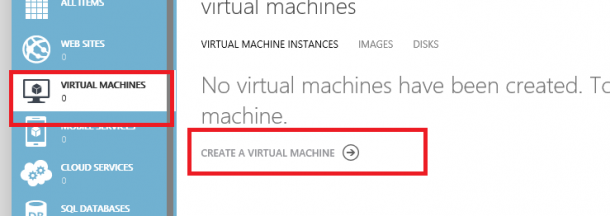
Developers! Planning to try out Visual Studio 2013 Preview? But too lazy to download and install? Don’t worry! There is a easy way out for you! You can simply use your Windows Azure Account* and create a VM that comes pre-installed with VS2013 preview! Totally save your hassle to download and setup VS on your environment. * it’s ok if you don’t have an existing Azure Account, you can simply create a free trial account . So here’s the steps: Create a new virtual machine in the Azure’s Virtual Machines tab. Select Compute > Virtual Machine > From Gallery. There you go! you can create a instance VM image preinstalled with VS2013 Preview!

Want free Windows Azure training? Here's a deal!

Hey fellow dev-teams! Planning to build apps on the Azure Cloud? Expanding your dev-team and need more copies of Visual Studio & MSDN subscription? Here’s an awesome deal for you! You can buy 2 Microsoft Visual Studio Professional 2012 with MSDN, the right choice for building multi-tier applications for the web, cloud, devices and receive a FREE 1 day Windows Azure “Developing and Deploying your Application to The Cloud” Hands-On-Lab Training from Microsoft CPLS. Wondering what will be lining up for the training? Training schedule (subject to change) ...

Learn More about Microsoft Codename "Trust Services"

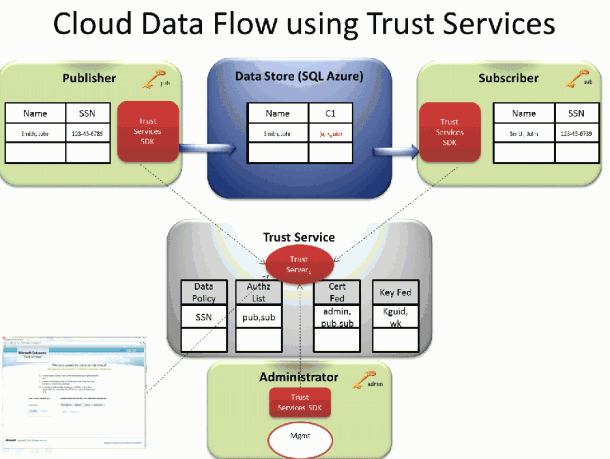
Protect your data in the Cloud Trust and Security have been hot topics for the public cloud since its inception. Corporate IT departments and CIOs have repeatedly expressed concerns over the loss of control associated with moving various levels of sensitive data to a public cloud. At the same time, the overall benefits of a public cloud are tremendous and continue to gain momentum. This means that many organizations have a pressing need tomigrate to public cloud infrastructure in spite of ongoing concerns about security. Encryption is one of the fundamental required tools for protecting data in the cloud. However, encrypting the data in the cloud, and then storing the encryption keys in the cloud in order to be able to access the data, provides only a very minor improvement over simply storing the data in the cloud in the first place. Trust Services provides a unique combination of end-to-end application level encryption and power of the cloud to roam encryption keys in a totally secure way. It enables data driven applications to work with sensitive data, securely stored in different cloud-based storages while continuing to maintain control over access to this data. ...

@Home with Windows Azure Competition - Singapore

We are proud to announce the @Home with Windows Azure competition here in Singapore! Join us in this effort to give back to a very deserving cause, and get a solid understanding of the Windows Azure platform in the process. You will deploy an application to Windows Azure that directly contributes to Stanford University’s Folding@home effort, a distributed computing project that carries out simulations of protein folding. By simply running a piece of software, you can help scientists learn more about diseases like Alzheimer’s, ALS, Huntington’s, Parkinson’s disease and many cancers through banding together to make one of the largest supercomputers in the world. This distributed computing project was created by Stanford University researchers to help scientists unravel the mysteries of protein folding in hopes of helping cure diseases. Started by the US East Region DPE team, The @Home with Windows Azure project allows you to contribute to it by using your MSDN subscription or by using a free 3-Month Trial subscription to harness the power of Microsoft’s cloud computing platform. Prizes & Dates Your first prize will be the good feeling for contributing to a good cause! Also, globally, for every deployment of the @home with Windows Azure application Microsoft will donate $10 to Stanford University’s effort (up to $5,000 maximum). You also have the chance to win one of the following great prizes that will be randomly drawn between Singapore participants that enter before 11:59pm on 15 June 2012 and leave their solution deployed until at least 11:59am on 25 June 2012: ...

Over 1000 attended Microsoft TechDays Singapore 2011!

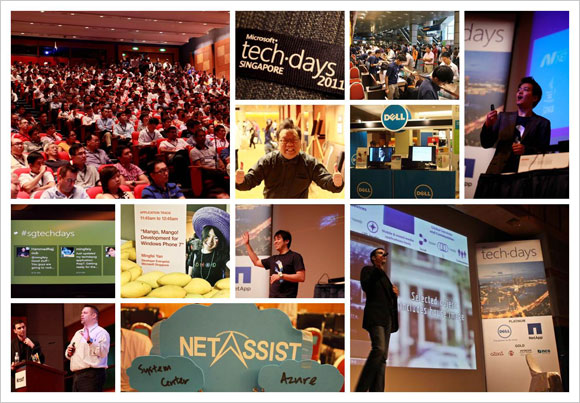
Our first Microsoft TechDays Singapore held on 13 October 2011 attracted more than 1000 delegates! If you missed the event, do check out the highlights.We hope to see you in TechDays Singapore 2012. (you may register your interest here) TechDays Singapore 2011 highlights Keynote video Watch Ziriad Saibi’s keynote on Microsoft’s cloud story. Breakout sessions videos and slides Track 1: Infrastructure Self-Service Private Cloud Management through Integrated Processes with Service Manager 2012 Maarten Goet and Raju Chellam (Dell Singapore) The Future of Infrastructure Monitoring: A Look at Application Monitoring and SCOM 2012 Raymond Chou, Simon Skinner and Wong Poey Yong (NetApp Singapore) Configuration Manager 2012 Technical Overview Teh Wei King SCVMM 2012 Building of Private Clouds and Federation to the Public Cloud Lai Yoong Seng Automating your Infrastructure: Microsoft System Center Orchestrator 2012 Technical Overview Kwan Thean Keong F5 Optimizations for Microsoft Platform Leslie Wong(F5 Networks) Track 2: Platform Cloud Computing with the Windows Azure Platform Ryan Crawcour Cloud Management with System Center Application Controller Lai Yoong Seng Microsoft Exchange Server and Office 365: Hybrid Deployment Sanjeev Thakur and Ram Muthkaruppan SCDPM 2012: The new feature of data protection Mike Resseler How to Run Middleware in the Cloud? Story of Windows Azure AppFabric Hammad Rajjoub Simplified Infrastructure Solutions Thomas Chua (Hitachi Data Systems) Track 3: Application HTML5: All the Awesome Bits Michael Kordahi Mango, Mango! Developing for Windows Phone 7 Mingfei Yan Revealing WebMatrix 2.0 Beta – the Swiss Army Knife of Web Development Thye Yeow Bok OData with WCF Web APIs: “There’s a URI for That” Alvin Lau NUI, Gooey and Louie Michael Kordahi Revenue Generator Suite Niger Tan (aZaaS) Making your first step to the cloud? Go Private or go Public? Check out the resources that will take you there. Private cloud resources: http://weshipcode.com/private Public cloud resources: http://weshipcode.com/public

October 27, 2011 · 2 min ·  Alex Goh