Why I Love Windows Server 2012 Part 2 - DHCP Failover

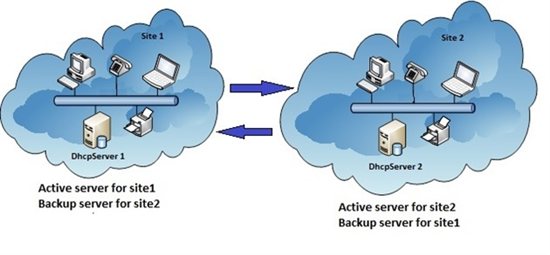
Well, we all know how important DHCP server is. It used to be difficult to create failover for DHCP server. In Windows Server 2012, this is super easy. You can pick any server (with DHCP role installed and Authorized) in your datacenter and create a DHCP failover partnership. You can configure this in two model Load Balance or Hot Standby. Do you need a cluster? No For a Single site deployment, it is pretty straight forward. ...

Why I Love Windows Server 2012 Part 1 - IIS 8.0

Welcome to a blog series about Windows Server 2012. Recently many people asked me about what are the exciting things about Windows Server 2012 apart from Virtualization. Well, there are many of them. One thing probably left in the shadow of the over 375 new features is IIS 8.0. Let’s look at what are the improvements. Why do i care abou these new features? Here is a table how IIS 8.0 in Windows Server 2012 can address some challenges today. Let’s dive into each one of them ...

WIM2VHD for Windows 8 and Windows Server 2012

The New version of WIM2VHD is now available for Windows 8 and Windows Server 2012. Download the tool from here What is WIM2VHD? It is a tool that allows you to create sysprepped VHD and VHDX images from any official build of Windows 7, Windows Server 2008 R2, Windows 8, and Windows Server 2012. This new release is completed rewritten in PowerShell. Support for creating VHD and VHDX images from .ISO files has been added! One more thing for those who prefer UI, A new (and completely optional) graphical user interface has been added, making the creation of VHD and VHDX images as simple as a few mouse clicks! Here is how it works 1. Run PowerShell as Administrator on your Windows Client or Windows Server. Run the following commands to allow PowerShell Scripts to run on your PC: set-executionpolicy unrestricted 2. Go to the directory where the WIM2VHD script is stored. Run the following PowerShell commands: .\convert-WindowsImage.ps1 -ShowUI 3. The UI tool will be loaded. Choose the .WIM file. For Windows 8 and Windows Server 2012, you can find the file at .\Sources\install.wim You can choose different parameters like VHD or VHDx Format, Fixed or Dynamic disk. 4. Just wait for the PowerShell Commands to be fully executed and you will have a VHD or VHDx file ready

Free ebook To Help You With Programming Windows 8 Apps

The Windows Team has decided to help celebrate the Windows 8 Release Preview and the Visual Studio 2012 Release Candidate, by releasing a preview edition of Programming Windows 8 Apps with HTML, CSS, and JavaScript, by Kraig Brockschmidt. Download a PDF of the ebook here (4.34 MB). Download the ebook’s sample code here (27.5 MB). (We’ll release EPUB and MOBI versions of the final ebook.) This book is about writing Metro style apps for Windows 8 using HTML5, CSS3, and JavaScript. The primary focus will be on applying these web technologies within the Windows 8 platform, where there are unique considerations, and not on exploring the details of those web technologies themselves. For the most part, then, the author assumes that you’re already at least somewhat conversant with these standards. We will cover some of the more salient areas like the CSS grid, which is central to app layout, but otherwise I trust that you’re capable of finding appropriate references for everything else. This version covers the first 4 chapters of the final e-book. Chapter 1 The Life Story of a Metro Style App: Platform Characteristics of Windows 8 Chapter 2 Quickstart Chapter 3 App Anatomy and Page Navigation Chapter 4 Controls, Control Styling, and Basic Data Binding Chapter 5 Collections and Collection Controls Chapter 6 Layout Chapter 7 Metro Style Commanding UI Chapter 8 State, Settings, Files, and Documents Chapter 9 Input and Sensors Chapter 10 Media Chapter 11 Purposeful Animations Chapter 12 Contracts Chapter 13 Tiles, Notifications, the Lock Screen, and Background Tasks Chapter 14 Networking Chapter 15 Devices and Printing Chapter 16 Extensions Chapter 17 Apps for Everyone: Localization, Accessibility, and the Windows Store Chapter 18 Services Have fun!

Running Windows Server 2012/Windows 8 on Win Server 2008 R2 Hyper-V

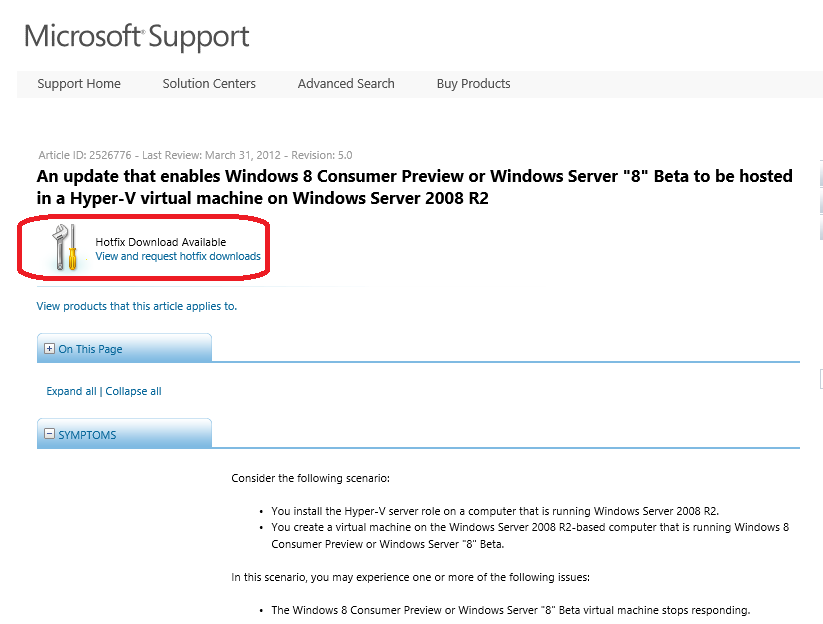
Let’s say you have Windows Server 2008 R2 and you are ready to run Windows Server 2012 or Windows 8 as VMs to try it out. I know some of you still prefer to run Windows Server 2008 R2 in your lab. Some of you may have to stay on Windows Server 2008 R2 because it is your testing or staging environment in your company. Previously you may experience one or more of the following issues while trying Windows Server 2012 or Windows 8 in Windows Server 2008 R2 Hyper-V ...

SR-IOV Support in Windows Server 2012

Past couple of weeks, I shared at our community meetup and also partner briefings about some new fantastic features about Windows Server 2012 (formerly known as Windows Server “8”). SR-IOV is one of them. SR-IOV stands for Single-Root Input/Output (I/O) Virtualization. It’s is a standard defined by the PCI Special Interest Group. If you work for one of the member companies who have access, and are after some light bedtime reading, the specs are available on their website. To learn more, I want to point you to this outstanding 8 part blog series written by John Howard, a senior program manager on the Hyper-V team at Microsoft Here are the posts for you reading pleasure: Part 1: http://blogs.technet.com/b/jhoward/archive/2012/03/12/everything-you-wanted-to-know-about-sr-iov-in-hyper-v-part-1.aspx Part 1 discusses emulated versus software devices, the pros and cons and constraints of each and why Microsoft is investing in SR-IOV. —————————————————————————————————– Part 2: http://blogs.technet.com/b/jhoward/archive/2012/03/13/everything-you-wanted-to-know-about-sr-iov-in-hyper-v-part-2.aspx Part 2 discusses the SR-IOV standard, physical functions (PFs) virtual functions (VFs) and the hardware requirements to make SR-IOV even possible. —————————————————————————————————– Part 3: http://blogs.technet.com/b/jhoward/archive/2012/03/14/everything-you-wanted-to-know-about-sr-iov-in-hyper-v-part-3.aspx Part 3 discusses device drivers and how they function in an SR-IOV environment as well as screenshots of an SR-IOV NIC within a Hyper-V VM. —————————————————————————————————– Part 4: http://blogs.technet.com/b/jhoward/archive/2012/03/15/everything-you-wanted-to-know-about-sr-iov-in-hyper-v-part-4.aspx Part 4 discusses some of the low level necessary firmware and motherboard changes to make SR-IOV function and provides a pointer to an interesting presentation given 4 years ago at WinHEC 2008 by Jake Oshins that provides further insight into SR-IOV. —————————————————————————————————– Part 5: http://blogs.technet.com/b/jhoward/archive/2012/03/16/everything-you-wanted-to-know-about-sr-iov-in-hyper-v-part-5.aspx Part 5 explains the IO path with SR-IOV enabled, covers SR-IOV configuration via the UI and a deeper dive into PowerShell. —————————————————————————————————– Part 6: http://blogs.technet.com/b/jhoward/archive/2012/03/19/everything-you-wanted-to-know-about-sr-iov-in-hyper-v-part-6.aspx Part 6 discusses SR-IOV and Live Migration in detail. It covers the engineering challenge of making SR-IOV work with Live Migration (not trivial folks) and even includes a video that demonstrates a virtual machine with an SR-IOV NIC under load being Live Migrated. There’s even a link to a WinHEC 2006 presentation —————————————————————————————————– Part 7: http://blogs.technet.com/b/jhoward/archive/2012/03/20/everything-you-wanted-to-know-about-sr-iov-in-hyper-v-part-7.aspx Part 7 discusses SR-IOV and how it works with the new inbox Windows Server 2012 NIC Teaming. Yes folks, you can team SR-IOV NICs in the guest. —————————————————————————————————– Part 8: http://blogs.technet.com/b/jhoward/archive/2012/03/21/everything-you-wanted-to-know-about-sr-iov-in-hyper-v-part-8.aspx Part 8 discusses debugging SR-IOV and includes examples in PowerShell and covers troubleshooting through the Event Viewer.