Expression Blend 4 for Windows Phone provides the same streamlined development workflow for Windows Phone 7 that was previously only available for Silverlight and .NET applications. The ability to take your ideas all the way from concept to completion helps accelerate the delivery of innovative applications on Windows Phone. You can download Expression Blend 4 for Windows Phone Beta here. Now I will introduce some simple but useful tips for utilizing Expression Blend 4 for your Windows Phone Application.- Style your page element by using Expression Blend
- Add Visual States to a Control
- Make an image button and create pressed effect Firstly, using Expression Blend 4 to style your page element. For example, style your page title. [cc lang=‘c’ ][/cc] This is default style of application title in MainPage.xaml when you initiate a new project. Here PhoneTextNormalStyle is applied to application title. Now we will create a new style by using Expression Blend. 1. Right click on MainPage.xaml and select open in Expression Blend…
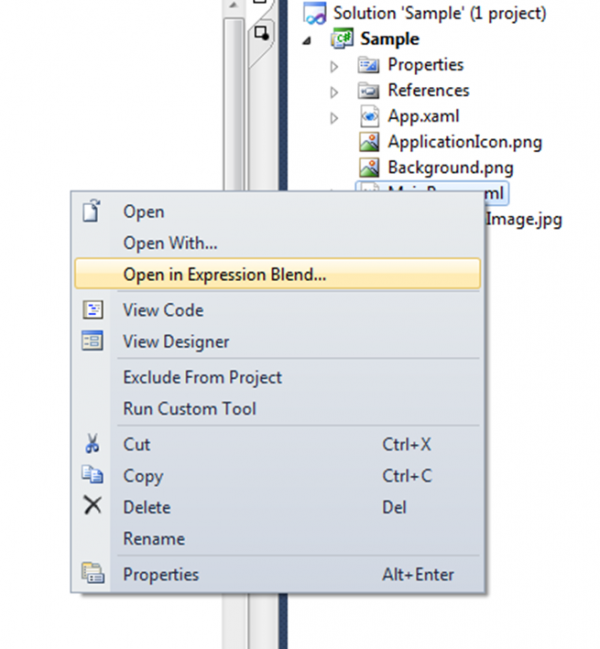
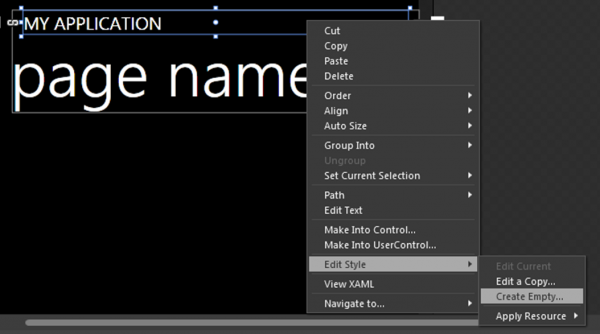
2. In Expression Blend, choose MY APPLICATION first and you will see a blue color box surrounded this title and it indicates that this object has been selected. Right Click on MY APPLICATION and choose Edit Style -> Create Empty…
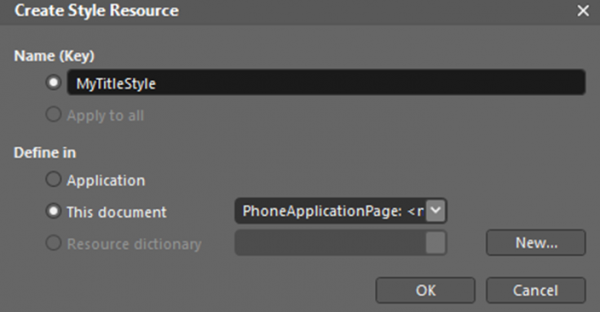
3. You will see a dialog appear and key in a name you would like to use for your style. And I named it “MyTitleStyle”. The dialog is showed as below:
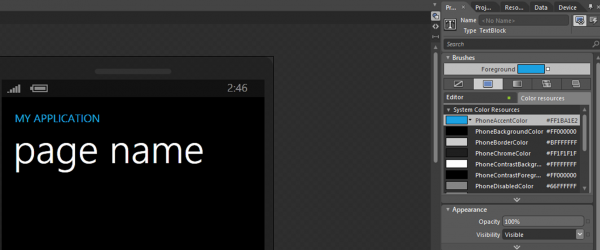
4. Choose different color scheme or font size from Properties windows. Besides the normal color palette, there is also a Color resources introduced here which provides colors from phone theme, as showed in the screenshot below.
5. After editing the style, close your Expression Blend and open Visual Studio. It will ask you “This file has been modified outside of the source editor. Do you want to reload it?”. Click on “Yes to All”.
6. Open MainPage.xaml. And you will see your ApplicationTitle line has been modified as:
[cc lang=‘c’ ][/cc]
At the top of the page,you will see the style has been added.
[cc lang=‘c’ ]