Developer Feature: Imagine Cup 2013 Winners Team vSoft Studio

In this Developer Feature series, Spiffy talks to up-and-coming developers to learn what makes them tick. We kick off with Huy Quôc Cao Minh and Nguyen Quy Hy, recent champions of the 2013 Imagine Cup (Tran Nguyen Tu Quyen not pictured), and Thao Phuong Lý. What is your background and how did you get here? We are two computer science students from Nanyang Technological University in Singapore. We are very passionate about technology, especially the new Microsoft platforms like Windows 8, Windows Phone 8, Windows Azure… Therefore we take our chances to participate in various Microsoft Singapore competitions to improve our skills. This time, we also came with another friend as our artist and tester for the app. What motivated you to start building apps? We are computer science students, therefore writing code has become a hobby, coding for fun. Also, building apps and publishing apps to the Store give us a huge opportunity to strengthen our skill sets though real-life usage and user reviews. What is your app about? Project Timeline is a project planning app running on Windows 8 platform. Instead of providing a task list to users, Project Timeline takes a different approach using a timeline, where all the tasks can be viewed with start and end date details efficiently. We believe that start date and due date are essential parts of any tasks, so our users should be able to keep track of those dates easily all the time. Besides, Project Timeline also supports working with multiple collaborators, so planning tasks with and assigning tasks to your teammates have never been easier. How did you come up with the idea? We took the idea from our own needs. As students, we have multiple projects running concurrently, for example assignments, school projects, and also our own personal coding projects. So with this amount of projects running, it becomes quite difficult to manage all the tasks, especially planning and managing the time period and deadline for each task. We need a tool that provides some kind of timeline view to efficiently plan our tasks, like a Gantt chart. However a quick search on the Windows Store did not return any suitable result. Therefore we decided to build one to fill in that gap, and that’s how Project Timeline was born. Where did you get the inspiration from? We get the inspiration from the Gantt chart: all the tasks can be planned on a timeline, with task dependencies, relations… which assists a lot in the planning big projects. What’s your process for designing the user journey? As we have said, Project Timeline was born first to suit our own needs for a task management tools. When we designed Project Timeline, we took ourselves at the view of the users and used the app intensively on our own projects, so we can identify what functions we need or don’t need, and how we want the app to response. We also tried Project Timeline on both laptops and tablets, to make it efficient with mouse and keyboard and even more enjoyable with touch. In the view of a user, we can identify small but very necessary functions, such as dragging the tasks in the timeline to reschedule it. We always try to provide our users with as much flexibility as possible without compromising on the simplicity and fluidity of a tablet app, so we also take the approach of releasing features in many sets of releases and listen to reviews from our users to better fine-tune the app. What’s next for you? We are graduating students. So this is our last summer with a lot of free time. Building apps has become our hobby and fun. We will definitely continue what we have set up. There are more apps, new ideas to be implemented and there are also currently published apps to update and maintain. So we guess it will be a busy summer for us after all. J Specifically for Project Timeline, we were not able to implement everything we have envision in our first release, so we are working on making planning projects even more convenient through our future updates. We will also work on implementing Project Timeline on Windows Phone and the web to make sure that our users can always plan and track their tasks easily.

Using SQL Data Sync to Synchronize On-Premises Database to Windows Azure

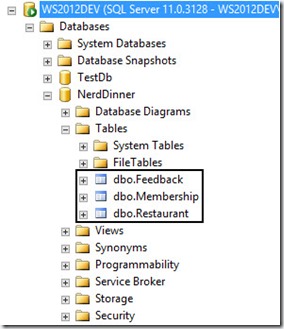
Have you ever thought of scaling your Web Application so that it can extend the usage to external parties or have you ever hit in any situation where you have some subset of your data in your on-premises SQL Server that you require it for other system that are external facing? Let’s take for example, if you have an intranet that is hosted within your own corporate network which store membership details that you all are keeping it for internal usage all along. Then on one fine day you all decide to explore the Cloud by putting your custom developed newsletter blasting system to the Cloud as you would prefer not to choked up the bandwidth in your corporate network. Therefore, how in this world could we have the best of the both world? How can we maintain a set of information but can be used in multiple systems in multiple locations but still maintain the integrity and consistency without any duplication within the dataset itself? SQL Data Sync Agent is here to save the woes of people who are facing such issue. Currently, the SQL Data Sync Agent is in the Preview stage and has not reached the General Availability stage therefore things may change but I anticipate that things wouldn’t be that far off as the current tool is really designed and developed to be simple and user friendly. More information on TechNet. Let’s take the following as an example. I have this 3 tables in one of my Web Application that is hosted in my corporate data centre which is hosted within the network and no external interface to the internet. Right now, I need to surface the membership table to one of the newly created database in Windows Azure so that the other application that is hosted on Windows Azure will be able to access these information. Creation of Windows Azure SQL Database Let’s navigate to Windows Azure Management Portal then select SQL Databases via the left hand corner navigation bar. If this Azure account is newly created, then you probably wouldn’t have any database created. Click on Create a SQL Database to continue. Key in the necessary information to continue the setup of the SQL Database on Windows Azure. If you do not have any SQL Database instance setup before, you will likely not have any SQL Server setup. Therefore, go ahead and select “New SQL Database Server”. Continue to define the SQL database server settings by entering your preferred username and password. Please note that this username and password is very important because it is the username you will be using to log on to the SQL Server Management Portal on Windows Azure Management Portal. Do note that you will need to ensure that you check that checkbox if you want other of your Windows Azure Services to access this database. An example will be, if you decided to host your Web Application to host onto one of the Virtual Machine while utilizing the Database hosted on Windows Azure SQL Database rather than loading and managing your own SQL Server instance on Virtual Machine. Go ahead and click on the “Tick” to proceed to create your SQL Database. The creation process should take less than one minute and you will know it is done when the database status is flag as “Online”. Installation of SQL Data Sync Agent (Preview) and Configuration of Sync Agent Go ahead and download the SQL Data Sync Agent if you have not done so and install on any of the computer within your corporate network which have access to the internal SQL Server. In my example, I will just install the SQL Data Sync Agent onto the SQL Server itself but it should be the same even if the two program seats on separate client. After installation, launch Microsoft SQL Data Sync Agent Preview found in the start menu as shown. You will be welcome by the simple and neat interface. You will notice that most of the controls are being gray out. What you are left with is to enter the Agent Key so that Windows Azure can communicate with your client that host the SQL Data Sync program. Upon clicking on the Submit Agent Key Configuration, a popup will appear as shown below. However, on first try, I have no idea what to key in. There after, I caught this message that I have highlighted. The key that is require can be retrieved from the SQL Data Sync web portal. Navigate back to the Windows Azure Management Portal, navigate to the SQL Databases and look at the bottom. You will notice there are other navigational items available. Click on Add Sync which will show two more options available. Select New Sync Agent. Give a name to the Sync Agent. Notice at the top, it actually prompt you that you will need your local client agent to be installed. Click on the “Tick” to proceed and this Sync Agent will be created. Notice the “Status” is currently flag as Offline because we have not configure the local agent to communicate with the one at Windows Azure. Our ultimate purpose is to get the key so that we can input into the configuration popup window at the local agent. So we click on the arrow at the Sync Agent to go into the detail page. Notice that at the bottom, there is this option “Manage Key” that is available. Click on it. Instructions is available at the top. Just click on the “Generate” button to generate the access key and click on the “Copy to Clipboard” button just beside the Generate button. When you are done, navigate back to the client that you install the local sync agent. Input the access key into the popup window. Once the key is validated to be valid, the other controls will be enabled. Click on “Register” to register the SQL Database in your organization. Enter the SQL Server details along with the targeted database that you want the Sync to take upon. Click on “Test Connection” to ensure that the connection can be established. Once verified, click “Save”. Now, you will notice that the SQL Database is being added to the list. In order to do a verification, click on “Ping Sync Service” to determine if the connection back to the Sync Agent at Windows Azure is reachable. Next navigate to the Windows Azure Management Portal. Right now, you should see the Sync Agent status will switch to “Online”. Click the arrow beside the Sync Agent to view the details inside. You should see the database and the SQL Server hostname. Creation of Sync Group and Objects Go back to the SQL Databases main menu and as usual click on “Add Sync” and select “New Sync Group” this time. Enter the details and select your desire region. Click the arrow to proceed and select the Hub Database and key in your desire credentials. Notice that there is this “Conflict Resolution”. What it actually does is in times of conflict, whose data should take the precedent. So it depends on which is your master database. If new information is mainly populate through the database server located within your organization, then select “Client Wins” else select “Hub Wins”. Click on the arrow to proceed. Now you will be prompt to select the referencing database. This time round, Windows Azure will need to know which database its needs to communicate with. In this case, it will be the database in the organization. Then select the Sync Direction on which how you want data to flow. Do you want the Windows Azure SQL Database to always read from the SQL Database in the Corporate Network or you may have changes that is always made on both end and you want synchronization between the two location? After you click on the “Tick”, it will go on to proceed the creation of the Sync Group. Then you will notice that the status will be shown as “Not Ready”. Fret not, it just means that you have not decide what to sync between the two SQL Database. Click on the Sync Group to view the details. You will notice the following. Select Sync Rules. You will be welcome with this page, by right you shouldn’t have any Sync Rules being added yet. Click on “Define Sync Rules”. Select one of the database. In this case, I select my SQL Server database that is located within the organization. You should see all the tables that you have that resemble the database back in the organization. Select the columns that you want to be Synchronized. For my case, I want the whole “Membership” table to be synchronize between the two data sources. Therefore, I check all the columns as shown in the table. After making the selection, click “Save” to commit your selection. Next, click on “Configure” on the top navigation and we will proceed with configuring the Automatic Synchronization of the data between the sources. Click on “ON” and define the Sync Frequency. Make sure to click on “Save” to commit the changes. Proceed to click on “Sync” to do a force synchronization between the two data sources so that we can see some results. Head back to the SQL Database on Windows Azure and click into the Database as shown. Click on “Set up Windows Azure firewall rules for this IP address” so that you will be able to connect into the management portal to manage the database. One of the magic charm bar will appear at the bottom with your IP address as the detail, just click Yes to proceed. Click on “Design your SQL database” to launch the SQL Database Management Portal. You will be prompted with the login screen to provide your credentials. Upon successful login, you should see the tables in your Windows Azure SQL Database. See the “Membership” table that was synchronized over. Let’s do some test by running query against this database. There, I have all the data synchronized over! This tool is really very useful and in any case, I could easily synchronized data from my on-premises database and treat the Windows Azure SQL Database as a passive node.

Windows 8 X Leap Motion Challenge

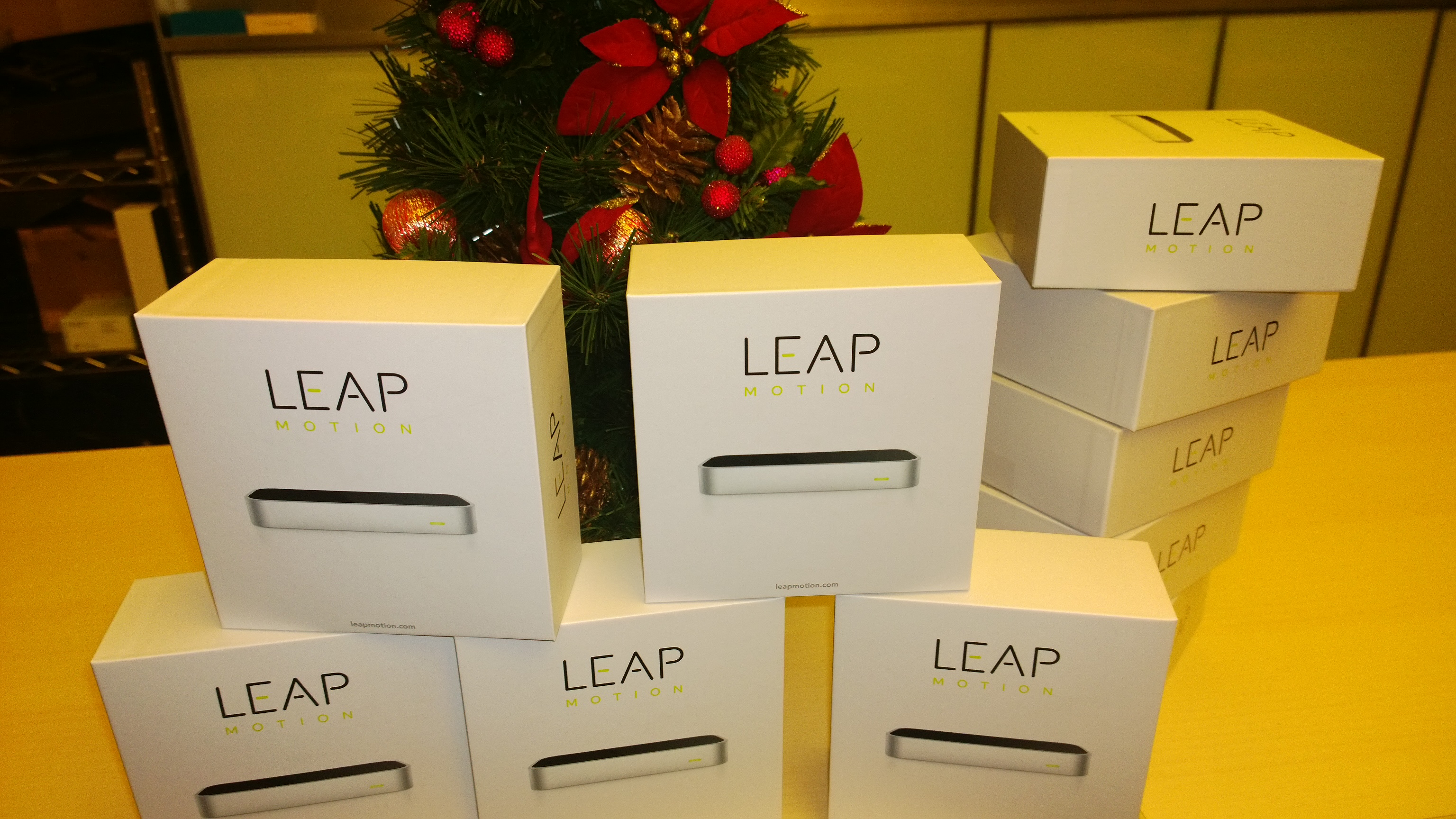
[youtube]http://www.youtube.com/watch?v=KsO8x_UXTbE[/youtube] Good things are worth sharing! Following our challenge campaigns on Windows Phone - AR Drone and Windows Phone - Lumia, we are proud to bring you Leap Motion Challenge on Windows 8! This time round, we will be giving out 10 Leap Motion Controllers to Singapore developers. We are looking for great applications on the Windows 8 store which already works great with Keyboard & Mouse, even better with Touch and freaking awesome with a Leap Motion 3D sensor! Think in term of interactive stories, eye-hand coordination games, psychomotor skill challenges, 3D object modeling and manipulation, art and painting, instruments playing, music mixing and creation, and even more… Drop us an email at win8sg@Microsoft.com with your app idea. We will validate your idea and ship you one of these awesome devices once your application is published onto the Windows 8 Store. Join our community group on Facebook for more updates on Windows 8 related stories. FAQ (Updated as of 7th August 2013) Q. Can the application work only with Leap Motion device, and not with keyboard/mouse and touch? A. The store requires application to work smoothly with keyboard/mouse and touch experience. We ask that you think of ideas which would make this experience even better. Q. Can I use the leap motion device on a Surface RT? A. As of today, the device drivers for leap motion are written for x86 architecture and Mac operating system. We hope in near future there would be the leap motion controller would be compatible with default USB HID drivers. Q. If I wish to write a native x86 desktop application for leap motion, would I qualify for this challenge? A. Nope, we are specifically looking for Store applications for the challenge right now. But…… if you really have a world changing application (x86 desktop) that would be beneficial to a lot of users, sure! Do drop us an email, we would love to evaluate it. Q. Do I need the leap motion SDK or the physical sensor to develop for Windows 8 Store app? A. Nope. You do not need the sensor or the SDK to develop for a Windows 8 Store app. We recommend that you stick to the Windows 8 SDK. Dependencies on 3rd party SDK such as leap motion’s JavaScript or C# library might not pass Windows Store certification. Q. Can I loan the devices for testing? A. We have limited sets of giveaways, and wish to award them to developers in a new, unopened, unused condition. However we do have a 2 extra sets, which would require you to be physically present in our office for testing. Besides, we love to talk to developers like yourself :)

Rise of UI Frameworks

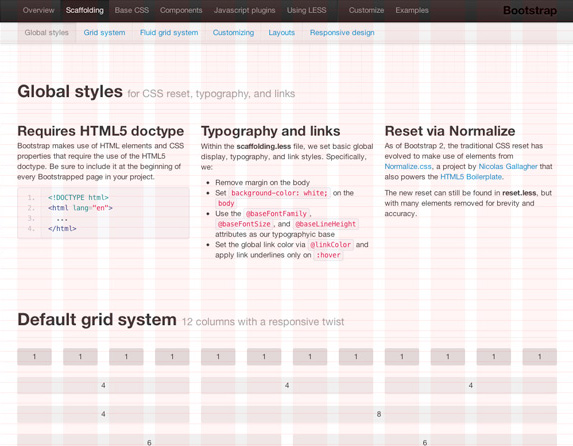
It’s no secret that there’s lots and lots going on in back-end web development these days. For instance, debates surrounding node and asynchronicity, have reached a fever pitch and have occasionally felt more like philosophical arguments than technical arguments. Similarly, there are a lot of things going on in the world of front-end development. There are tons of frameworks available to help you to build your websites or web apps, in terms of functionality and look and feel. In this particular post, UI frameworks will be our topic of interest. It was all pretty much started by Twitter Bootstrap. It has helped enable developers to whip up some quick templates for website or app without having to worry about getting involved in interface or app design. This will no doubt appeal to any seasoned web/app developer, as they could focus more on the functionality. Since then, more and more frameworks are emerging. As much as back-end developers can choose their preferred languages, e.g. PHP, Java, Ruby, Python, front-end developers have a variety of frameworks that they can utilise too. Before we go into the pros and cons of using a UI framework, let’s take a look of the features that UI frameworks offer in general. ...

Giveaway: Windows Store Starter Pack

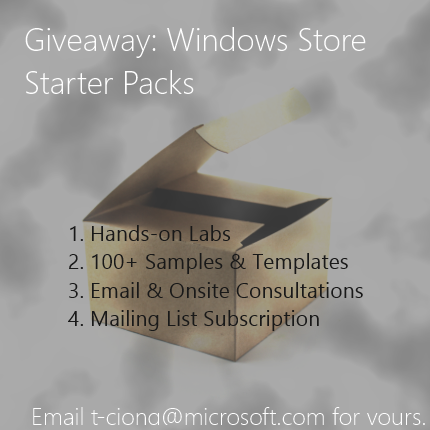
Always wanted to build your own application and realize big ideas but never knew where to start? Well, here’s your chance! The friendly Windows 8 team at Microsoft has built a starter pack for the aspiring developer in you. In this pack, you will find: 1. Hands-on Labs (JavaScript & HTML / C# & XAML) 2. Windows 8 and 8.1 samples 3. 60+ Ready-to-use templates 4. Email consultations when writing your app 5. 1 on 1 consultation at Microsoft with our technical experts for feedback and revenue-growing tips on completion of your app 6. README file Email t-ciong@microsoft.com with your full name and receive your pack within 24hours. Students are also entitled to a free individual store account via the Microsoft DreamSpark programme. *For the purpose of app development, you will need to have Visual Studio installed. Get it free at http://bit.ly/13JIxLv. Visual Studio allows you to create Windows Store apps choosing between the languages of JavaScript, C#, Visual Basic and C++. You can even write components in one language and use them in an application written in another language

July 31, 2013 · 1 min ·  agnes

How You Unknowingly Helped Transcribe Over 40,000 E-Books

If you’ve ever signed up for a Facebook account or tried to change your password on Twitter, you would have encountered the odd distorted section of the online form which asks you to type in the words or numbers generated in an image. This little tool to distinguish a human from a bot is called CAPTCHA, or a Completely Automated Public Turing test to tell Computers and Humans Apart. [caption id=“attachment_10404” align=“aligncenter” width=“358”] Taken from http://www.businessinsider.com/dont-type-and-9-other-awkward-and-hilarious-captchas-2011-3?op=1[/caption] ...

Halo: Spartan Assault now in Windows Stores

The Halo family just got bigger and better. Thursday at Comic-Con International: San Diego, Microsoft’s largest entertainment franchise, Halo, went mobile. The long-awaited “Halo: Spartan Assault” has finally been launched exclusively in the Windows and Widows Phone stores. “Halo: Spartan Assault” is a fully touch-enabled top-down shooter experience that you can bring with you anywhere and on any Windows 8 device. It was built entirely from scratch by 343 Industries in conjunction with Vanguard Games and made possible with the connectivity of the Windows platform. What this means – you can start on your game on your Windows 8 PC and continue with your Microsoft Surface while on-the-go. Waiting for a friend? Train got delayed? Queuing for Minion Kitties? Game on! [youtube width=“610” height=“343”]http://www.youtube.com/watch?v=kx-MZVSajRs[/youtube] Storyline and Gameplay Events of “Halo: Spartan Assault” take place between “Halo 3” and “Halo 4”, and is based on the early missions of the Spartan-Ops program with plenty of backstory on the Human-Covenant war. Players choose between the roles of Commander Sarah Palme and Spartan Davis and battle their way through 25 action packed levels split across 5 different missions. Upping the level of excitement, “Halo: Spartan Assault” will further feature leaderboards, weekly challenges, difficulty modifiers and collectible in-game achievements. Fans of “Halo 4” – You’re in luck! You will be delighted to learn that XP gained playing “Halo: Spartan Assault” are transferrable and can help progress your “Halo 4” Spartan career. [caption id=“attachment_15081” align=“alignnone” width=“610”] Stunning visuals and gameplay.[/caption] ...

July 20, 2013 · 2 min ·  agnes

Imagine Cup 2013 - Dream it. Build it. Live it.

For the 11th year running, some of the world’s most talented young minds have gathered to compete in the Imagine Cup with the one unchanging goal of using Microsoft’s technologies to address real #firstworldproblems and create a positive impact in the world. Students from Singapore were no different. Having found victory at the national stage after pulling countless all-nighters performing rounds of intense product testing and development, two student teams made it to the worldwide finals in St. Petersburg, Russia, representing Singapore in the Innovation and Windows Phone Categories. Four days of project showcase, pitching and a great deal of fun (judging from their photos) interacting with likeminded inventive and gifted individuals from all around the world later, our teams prepared themselves for the grand finale – the Awards Ceremony where they would find out if their projects had won a spot in the coveted top three positions. And guess what? Our Windows Phone Challenge team vSoft Studio consisting of three students from Nanyang Technological University emerged as WORLDWIDE CHAMPIONS! Read about their amazing team and app which captured the hearts of the judging panel here! Alas…our Innovation Challenge team EyeCanSee from NYP fell just short of the top glory but reserve every right to feel very honoured of the valiant effort they’ve put up and of what they have managed to achieve. Last month, in fact, they had a project showcase here in our Microsoft Auditorium which won over a crowd of over 200 techies many of whom left encouraged and inspired by their invention. Find out more about Team EyeCanSee and their Kinect Infantry Training System here! My Personal Thoughts I am extremely privileged to be amidst the tech scene where I witness first-hand the empowerment that has been achieved through technology. The advancement and understanding of digital technology has brought about many conveniences and helped countless underprivileged people move forward. And though it is true that there still exists many communities who have yet to benefit from the revolution; the good news is that technology is becoming increasingly accessible. Through initiatives such as Microsoft Citizenship, many more lives can and have been ameliorated. To me, the greatest success of the Microsoft Imagine Cup is not just in providing budding developers with an important and supportive platform for exploring their interests, or in providing them with the most professional mentorship and recommendations. Rather, what I find most noble about this competition is that it encourages them to do good, to think like a social entrepreneur, to pay-it-forward. With their strong inquisitiveness and aptitude coupled with the best technologies, one can only imagine what these youths will achieve with a few more years of experience and refining. [youtube]http://www.youtube.com/watch?v=EvhYZKnEk5Y[/youtube] The Microsoft Imagine Cup is the world’s premier student technology competition. Over the past ten years, more than 1.65 million students from more than 190 countries have participated in the Imagine Cup where they are connected with other whip-smart creative from all over the world to share ideas, have fun, and be there when the next big thing is unveiled.

July 15, 2013 · 3 min ·  agnes

Migrating to Windows Server 2012 Training

One of the key challenges for IT Pros is always upgrade systems. With release of Windows Server 2012, many IT Pros are thinking about upgrading or prepared to upgrade. To help you better prepared for upgrade, My Australia fellow Evangelist Andrew McMurray and I produced a Migrating to Windows Server 2012 Training on Microsoft Virtual Academy. To access this FREE online course go to link below. It covers migration of varies functions and roles. We hope this helps you in your path to Windows Server 2012. Do rate our course, we will be doing more of these useful courses for you! http://www.microsoftvirtualacademy.com/training-courses/migrating-to-windows-server-2012-training

6 Ways To Market Your App

Perhaps you’ve recently developed an app you are incredibly proud of; the best you reckon. You sit back, heave a huge sigh of relief, and sip at your coffee feeling fully contented with your creation. “Any second now…the downloads are going to come in like WOAH” you think to yourself, thrilled and filled with anticipation. But reality is a cruel story. Several days pass before a few downloads start coming in. Then, as suddenly as they began, they quickly dwindled and died away. Unfortunately, it is quite often the case that an app needs to be marketed strategically in order to be successful. With over 100,000 apps in the marketplace, it is hard to stand out without a good marketing plan even if you have developed something truly revolutionary. So to help you get started, here are some tricks I think every developer should know: ...

July 10, 2013 · 5 min ·  agnes